 Download Online Help
 Print
|
|
|
|
|


The Task Card control function allows you to attach known (existing) Task Cards to this E/C.
These Task Cards have their own set-up and requirements.
When an E/C is added to a Work Order to be complied with, the Task Cards attached to the E/C will be copied into the Work Order.
Any number of Task Cards can be added via this option.
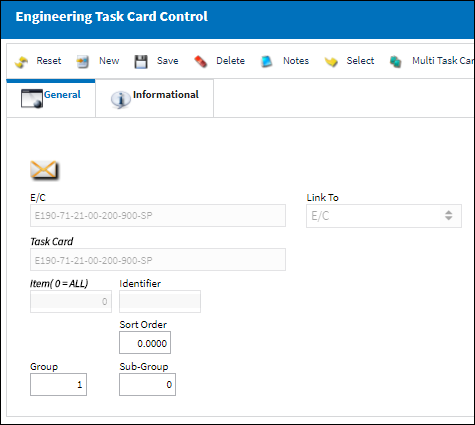
The following options/information is available in this window:
_________________________________________________________________________
E/C
The Engineering Control that specifies aircraft or component scheduled maintenance intervals. Shop Engineering Control that the Task Card(s) will be linked to.
Link To
Control that is going to be linked to original E/C.
Task Card
The Task Card / Job Card that details the scheduled maintenance work. In the Task Card field, specify the Task Card that will be attached to the E/C.
Sort Order
Allows the user to specify which order the Task Card will print in a work package. These sequence numbers are sorted according to their numeric values. If there is more than one Task Card containing a Sort Order, all Sort Order numbers will be compared with one another, so that they print in the sequence.
Item (0 = ALL)
The user can specify the item on the Task Card to be added to the E/C, if necessary. This allows for the creation of a dynamic Task Card applied to a fleet or type/series with various job card instruction items applied to selected type/series or A/C tail numbers. If no item number is specified, the default value of “0” will appear and all items on the Task Card will be added.
Applicable A/C
Enter the A/C that this Task Card will be effective to. If left blank, the Task Card will be effective to all aircraft that the E/C is effective to.
Identifier
This is a unique identification number applied to item effectivity. When item effectivity is revised, deleted, re-sequenced, this identifier value acts as an audit.
Group
Groups allows the user to create a template that will be used to automatically create complex Work Orders based on parameters set up using the Group and Sub-Group fields.
Subgroup
Sub-Groups allow the user the option to further expand the relationships between Groups by creating Groups within Groups. Essentially, Work Orders within Work Orders.
Note: For information regarding Groups and Subgroups, refer to the topic About Group and Sub-Group, via Engineering Task Card Control.
_________________________________________________________________________
In the case of an AD, there may be many cards that require entry and have different Effectivity for different aircraft. To add as many cards as desired, continue by clicking on the New  button.
In the case of a large maintenance event such as a C-Check Inspection, there may be a large number of cards that require entry. The user also has the option to utilize the Multi Task Card Select  button when adding multiple cards at once to an E/C. This speeds up the process and allows the user to select multiple cards at once and add them to the E/C and Task Card link window in one step.
Additional information can be included through the Notes  button, along with past information records able to be viewed through the Engineering Task Card Control, Informational tab and Audit
 button.
Download Online Help
Print
|
©1997-2018 Trax USA Corp. All rights reserved. This manual may not be copied, photocopied, reproduced, translated, or converted to any electronic or machine-readable form, in whole or in part, without prior written approval from Trax USA Corp. |
 |