 Download Online Help
 Print
|
|
|
|
|


Import Button, via G/L Accounts
The G/L Accounts, Import Option is used to quickly import customer G/L Accounts which may not exist in the G/L Interface DB. This option allows you the vendor to receive or create a digital file listing these G/L Accounts and related information for the import and quick creation of the G/L Account.
First the user must prepare the file. For information regarding how to prepare the import file, refer to Preparing File For Import, via the Import Button of the System Standards Training Manual.
Note: Import files saved as .txt (tab delimited), .csv (coma delimited) or .xlsx cannot have spaces in the title of the file. Spaces in the file path will cause errors when importing.
Criteria for G/L Accounts Import file:
Column Name |
Data Type |
Limitation |
Path |
|---|---|---|---|
Company |
Alphanumeric |
8 |
G/L Interface/ Update/ G/L Accounts, General tab. |
G/L Code |
Alphanumeric |
8 |
G/L Interface/ Update/ G/L Accounts, General tab. |
Cost Center |
Alphanumeric |
8 |
G/L Interface/ Update/ G/L Accounts, General tab. |
Expenditure |
Alphanumeric |
8 |
G/L Interface/ Update/ G/L Accounts, General tab. |
Description |
Alphanumeric |
45 |
G/L Interface/ Update/ G/L Accounts, General tab. |
G/L Category |
Select from All, Inventory or Expense. |
N/A |
G/L Interface/ Update/ G/L Accounts, General tab. |
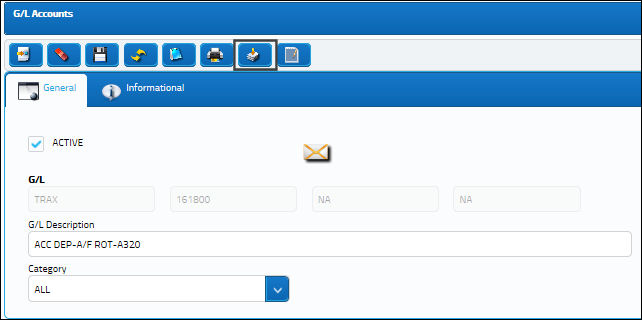
Go to G/L Interface/ Update/ G/L Accounts. Select the Import  button.
Complete all of the Import steps.
For information regarding how to Import a file, refer to Importing File via Import Button of the System Standards Training Manual.
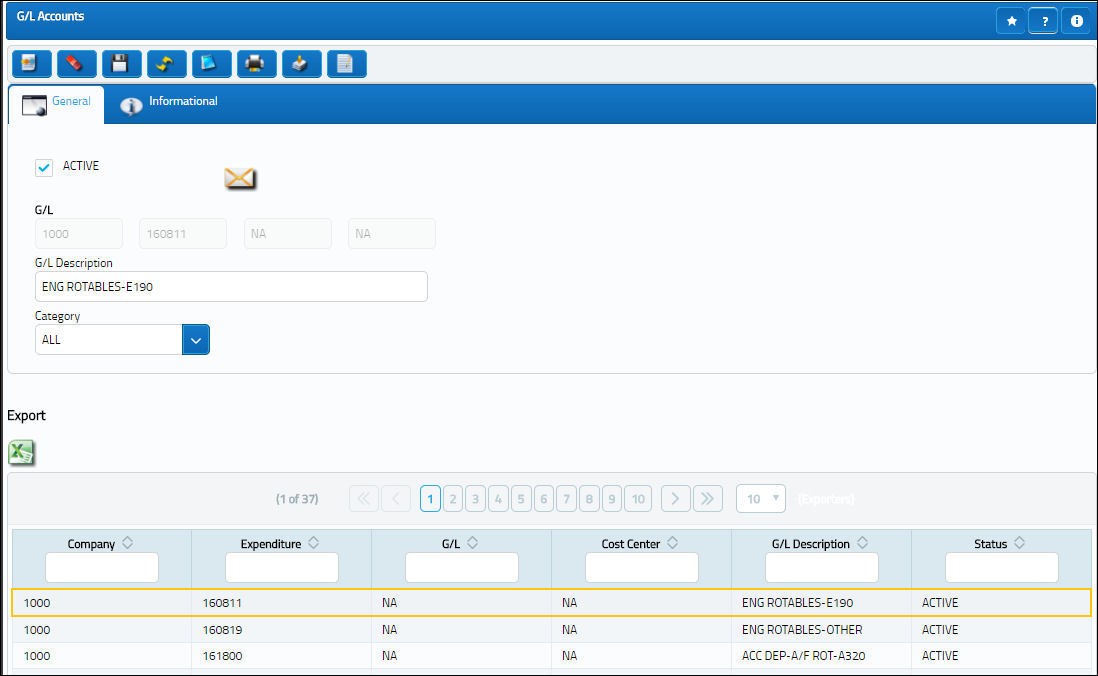
The imported G/L Account appears as shown below:
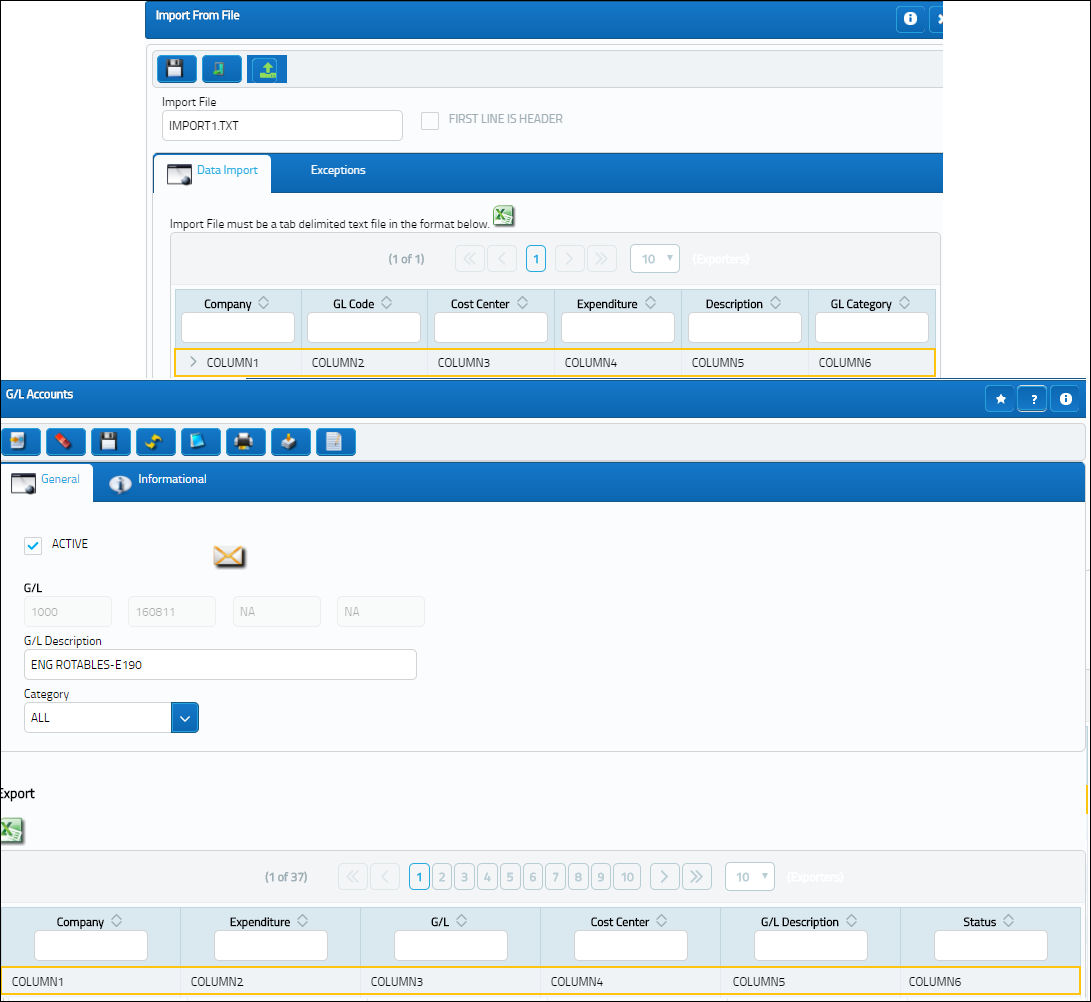
Note: When the import file is brought into the system, it is important to note that several of the columns are rearranged in the A/C Accounts window from how they were entered in the import file. This functionality is intentional as it was a customized modification to the database. Refer to the following example to view the rearrangement that takes place between the Import File and the G/L Account.
Download Online Help
Print
|
©1997-2018 Trax USA Corp. All rights reserved. This manual may not be copied, photocopied, reproduced, translated, or converted to any electronic or machine-readable form, in whole or in part, without prior written approval from Trax USA Corp. |
 |