 Download Online Help
 Print
|
|
|
|
|


Select the Control  button to view the P/N Control properties for the selected part:
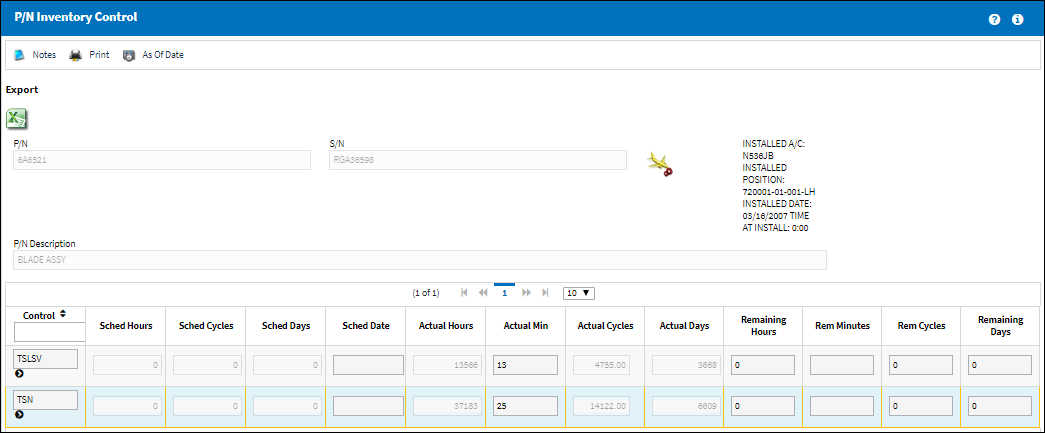
The following options/information is available in this window:
_________________________________________________________________________
P/N
The Part Number reference for the aircraft part.
S/N
The Serial Number for the specific serialized part.
Control
Time Control(s) related to part (i.e. TSN, TSO, etc.), used to define its limit(s).
Schedule Hours / Cycles / Days
The number of hours/cycles/days allotted for a specific time control schedule, as applicable.
Actual Hours / Cycles / Days
The number of accumulated hours, cycles, and days against the time control schedule.
Remaining Hours / Cycles / Days
The amount of hours/cycles/days remaining against the scheduled amount.
Override checkbox
This checkbox is selected in the case of an override schedule.
Reset Date
Date and time at which control information was reset for having been performed/complied.
Show on Report checkboxes
The Show On Report checkboxes can be checked to have the hours, cycles, and/or days appear on certain technical records and inventory reporting. It is recommended to keep the checkboxes checked (as defaulted) in order to maintain as much information about the part received as possible.
Calendar Control
This checkbox is selected if calendar control is to be shown on report.
Hour Calendar Control checkbox
This checkbox is selected if the P/N Control Schedule is by calendar hours instead of flight hours and is to show up on the related report. For example, a P/N Control is to be performed every 36 calendar hours from last compliance (if repetitive).
Shelf Limited Control checkbox
This checkbox is selected when the shelf life of a part is being tracked while in inventory. When a part is installed on an aircraft, the Shelf Limited Control will not appear in the P/N Inventory Control window. The reset date will be deleted and the actuals will reset to zero. Once the part is removed from the aircraft, the Reset Date of the Shelf Limited Controls is set to the Removal Date. Tracking will begin upon the Removal Date. For additional information refer to the P/N Control Button via P/N Master of the Settings Training Manual.
Prorated  button
This button will only appear if the part is identified as having prorating limits as such this part may changed between different A/C Type/Series. For additional information, refer to the Prorated Button. For complete details regarding Proration, please refer to the P/N Master, Setting up a Prorated Part section of the Settings Training Manual.
Created By
The user who created the record.
Created Date
The date the record was created.
Modified By
The user who last modified the record.
Modified Date
The date the record was last modified.
Removal
Scheduled/Actual/Remaining removal hours.
Authorized By
The user who authorized the record.
Authorized Date
The date the record was authorized.
RIN SCH/ACT
The Retirement Index Number. The RIN control to apply to this Time Control (if applicable).
_________________________________________________________________________
The screen shows information about existing time controls, as well as their actuals, remaining, and to-go time.
This screen is a query mode only. Changes can only be made in Settings/Update/P/N Master.
Additional information can be included through the Notes  button, along with a report being able to be generated through the Print
 button.
Download Online Help
Print
|
©1997-2018 Trax USA Corp. All rights reserved. This manual may not be copied, photocopied, reproduced, translated, or converted to any electronic or machine-readable form, in whole or in part, without prior written approval from Trax USA Corp. |
 |