 Download Online Help
 Print
|
|
|
|
|


The Import  Button, via R/O Capability button is used to quickly import vendor and/or location capability information which may not exist in your database.
First, the user must prepare the file. For information regarding how to prepare the import file, refer to Preparing File For Import, via the Import Button of the System Standards Training Manual.
Note: Import files saved as .txt (tab delimited), .csv (coma delimited) or .xlsx cannot have spaces in the title of the file. Spaces in the file path will cause errors when importing.
Criteria for R/O Capability Import file:
Column Name |
Data Type |
Limitation |
Path |
Part Number |
Alphanumeric |
25 |
Settings/ Update/ P/N Master/ RO Capability Button/ Vendor P/N Repair Capability, General tab |
Type (V/L) |
Alphanumeric |
N/A |
Settings/ Update/ P/N Master/ RO Capability Button/ Vendor P/N Repair Capability, General tab |
Vendor/Location |
Alphanumeric |
10 |
Settings/ Update/ P/N Master/ RO Capability Button/ Vendor P/N Repair Capability, General tab |
Site |
Alphanumeric |
10 |
Settings/ Update/ P/N Master/ RO Capability Button/ Vendor P/N Repair Capability, General tab |
Repair Type |
Alphanumeric |
8 |
Settings/ Update/ P/N Master/ RO Capability Button/ Vendor P/N Repair Capability, General tab |
Prefer |
Y/N |
1 |
Settings/ Update/ P/N Master/ RO Capability Button/ Vendor P/N Repair Capability, General tab |
Price |
Numeric |
9 |
Settings/ Update/ P/N Master/ RO Capability Button/ Vendor P/N Repair Capability, General tab |
Currency |
Alphanumeric |
13 |
Settings/ Update/ P/N Master/ RO Capability Button/ Vendor P/N Repair Capability, General tab |
Lead Days |
Numeric |
5 |
Settings/ Update/ P/N Master/ RO Capability Button/ Vendor P/N Repair Capability, General tab |
Warranty Hours |
Numeric |
5 |
Settings/ Update/ P/N Master/ RO Capability Button/ Vendor P/N Repair Capability, Warranty tab |
Warranty Cycles |
Numeric |
5 |
Settings/ Update/ P/N Master/ RO Capability Button/ Vendor P/N Repair Capability, Warranty tab |
Warranty Days |
Numeric |
5 |
Settings/ Update/ P/N Master/ RO Capability Button/ Vendor P/N Repair Capability, Warranty tab |
Schedule A/C Days |
Numeric |
5 |
Settings/ Update/ P/N Master/ RO Capability Button/ Vendor P/N Repair Capability, General tab |
Minimum Order QTY |
Numeric |
5 |
Settings/ Update/ P/N Master/ RO Capability Button/ Vendor P/N Repair Capability, General tab |
Valid Until Date |
Numeric |
8 |
Settings/ Update/ P/N Master/ RO Capability Button/ Vendor P/N Repair Capability, General tab |
Minimum Order QTY 2 |
Numeric |
5 |
Settings/ Update/ P/N Master/ RO Capability Button/ Vendor P/N Repair Capability, General tab |
Price 2 |
Numeric |
9 |
Settings/ Update/ P/N Master/ RO Capability Button/ Vendor P/N Repair Capability, General tab |
Minimum Order QTY 3 |
Numeric |
5 |
Settings/ Update/ P/N Master/ RO Capability Button/ Vendor P/N Repair Capability, General tab |
Price 3 |
Numeric |
9 |
Settings/ Update/ P/N Master/ RO Capability Button/ Vendor P/N Repair Capability, General tab |
Minimum Order QTY 4 |
Numeric |
5 |
Settings/ Update/ P/N Master/ RO Capability Button/ Vendor P/N Repair Capability, General tab |
Price 4 |
Numeric |
9 |
Settings/ Update/ P/N Master/ RO Capability Button/ Vendor P/N Repair Capability, General tab |
Location |
Alphanumeric |
3 |
Settings/ Update/ P/N Master/ RO Capability Button/ Vendor P/N Repair Capability, General tab/ Auto R/O By Location button |
Earliest checkbox |
Y/N |
1 |
Settings/ Update/ P/N Master/ RO Capability Button/ Vendor P/N Repair Capability, Warranty tab |
Under Contract |
Y/N |
1 |
Settings/ Update/ P/N Master/ RO Capability Button/ Vendor P/N Repair Capability, General tab |
Auto RO Locations |
Alphanumeric |
8 |
Settings/ Update/ P/N Master/ RO Capability Button/ Vendor P/N Repair Capability, General tab |
Global checkbox |
Y/N |
1 |
Settings/ Update/ P/N Master/ RO Capability Button/ Vendor P/N Repair Capability, General tab/ Auto R/O By Location button |
Select the Import button for the quick import of many records (instead of manually entering) into the R/O Capability window.
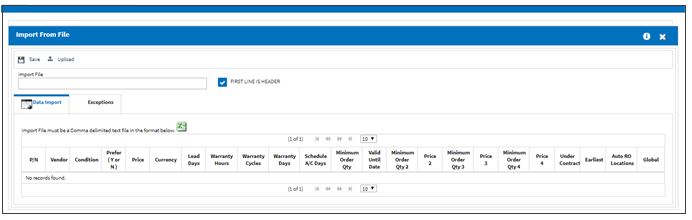
Note: The screenshot only shows part of the window. More columns are available in this window.
The following options/information is available in this window:
_________________________________________________________________________
Import File
The file to be imported must be Tab delimited. Individual records that will be imported must contain a Location/Site that matches the location that is currently selected.
First Line Is Header checkbox
Check to indicate that the first line in the Tab delimited text file represents a Header line and should not be imported.
_________________________________________________________________________
Select the Browse  button to browse your computer for the file to be imported.
Once the file is specified, and appears in the Import File field click on the Import button.
The records appearing in the text file will appear in the Data Import Tab of the window.
Note: Data that could not be processed will appear on the Exceptions Tab.
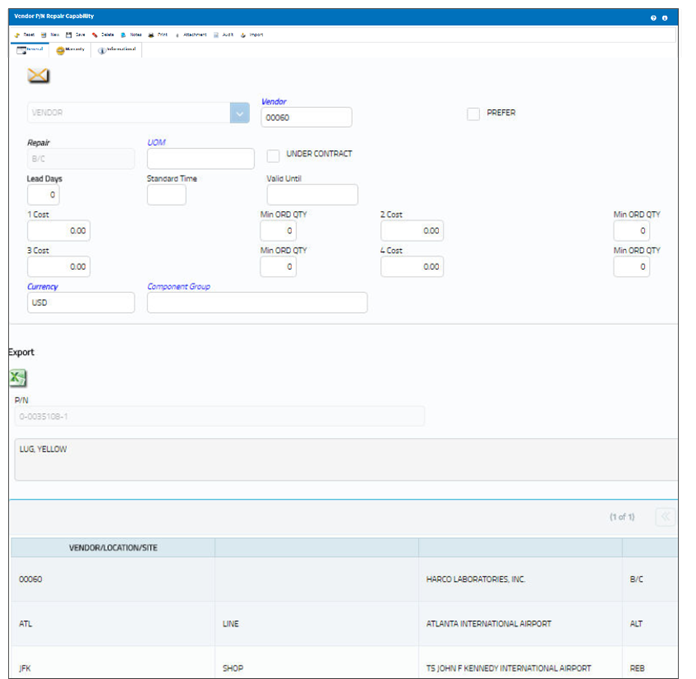
Exit to complete the import and close the window. Imported records will appear as shown below:
Download Online Help
Print
|
©1997-2018 Trax USA Corp. All rights reserved. This manual may not be copied, photocopied, reproduced, translated, or converted to any electronic or machine-readable form, in whole or in part, without prior written approval from Trax USA Corp. |
 |