 Download Online Help
 Print
|
|
|
|
|


Order Authorization Explorer
The Authorization process may now be completed by performing the Order Authorization. For security purposes, the creator of the Order should not be able to perform the Order Authorization steps. To authorize the steps, go to Orders/ Explorer/ Order Authorization Explorer. Here, you will view all Orders that await authorization.
Remember that your employee record in the Employee Master must be associated with the appropriate department, section and/ or division required for this authorization process. If your employee record in the Employee Master does not have the appropriate department required for this authorization process, the authorization steps will not appear on your Order Authorization Explorer. Select the  next to the Order which you would like to authorize. This will expand the record to show all the steps required in the authorization process of the order.
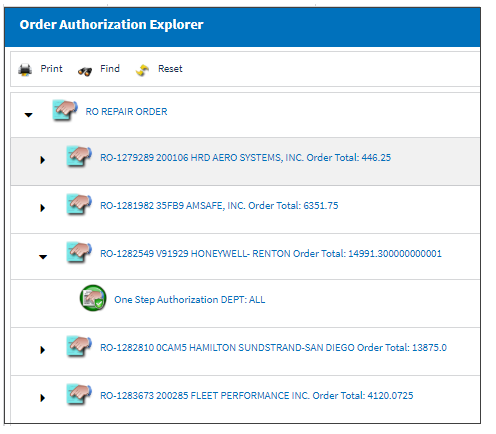
Note: The above example is for a Repair Order, but all order types from the Orders module are authorized through this explorer.
Select into the step to be authorized. Select the Authorization pop-up window.
The system displays the following window:
Choose from the Open, Accept and Rejected radio buttons.
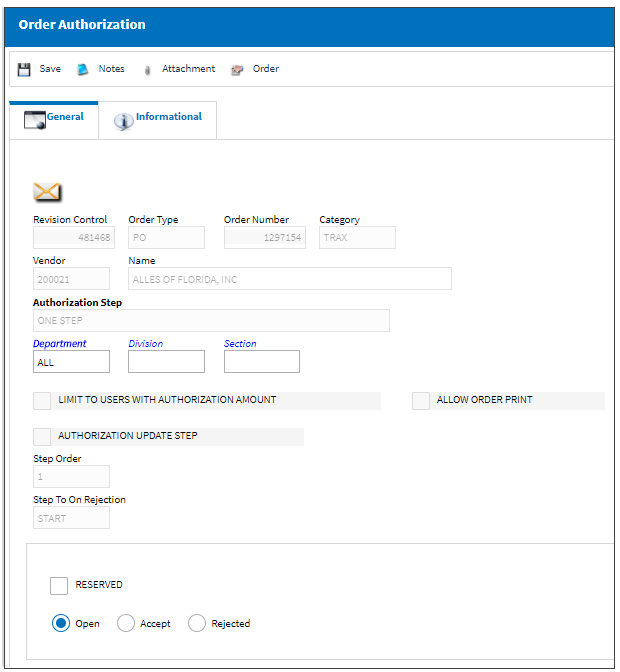
If the user chooses to Reject, the entire procedure will be canceled. The authorization process must then be restarted.
Check the Reserved checkbox if you want to temporarily prevent other users in the associated department from modifying the record.
Order Authorization by Email:
With the Config Other field of Switch  ORDERAUTHBYEMAIL defined, and the Enable Authorization by Email checkbox selected for a user in the Authorization window of the Settings module, authorization can be completed by a user through Email.
Note: Refer to ORDERAUTHBYEMAIL for details on how to configure the database connection.
Upon the Order being created and released for authorization, the user receives the following Email.
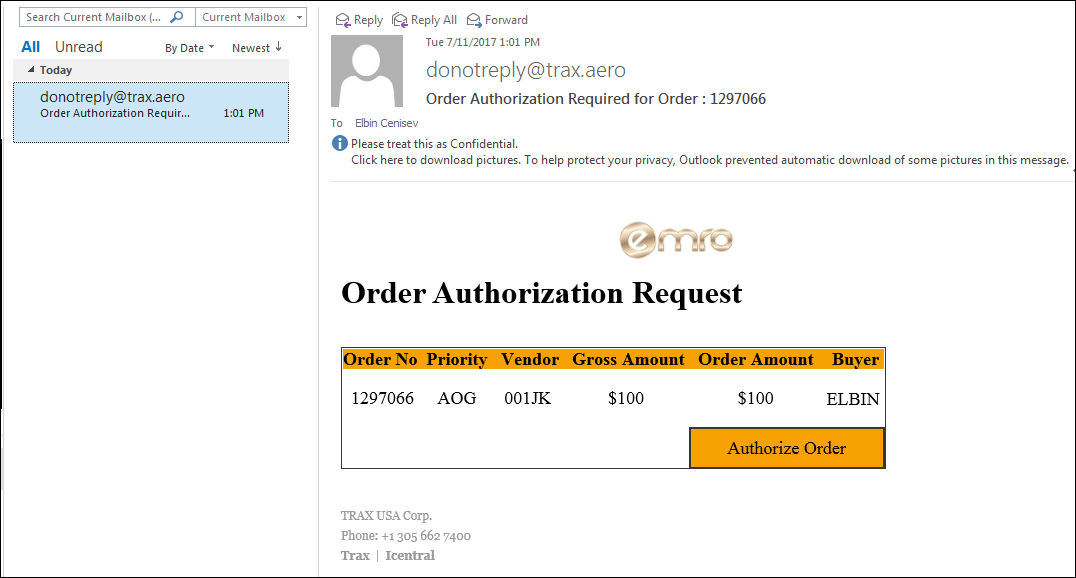
After selecting the Authorize Order  button, the Order is authorized through the address defined from the Config Other where the Rest Service is hosted.
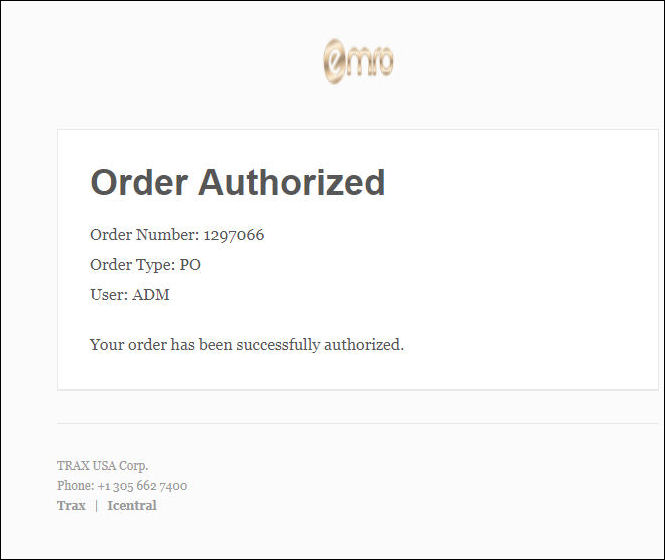
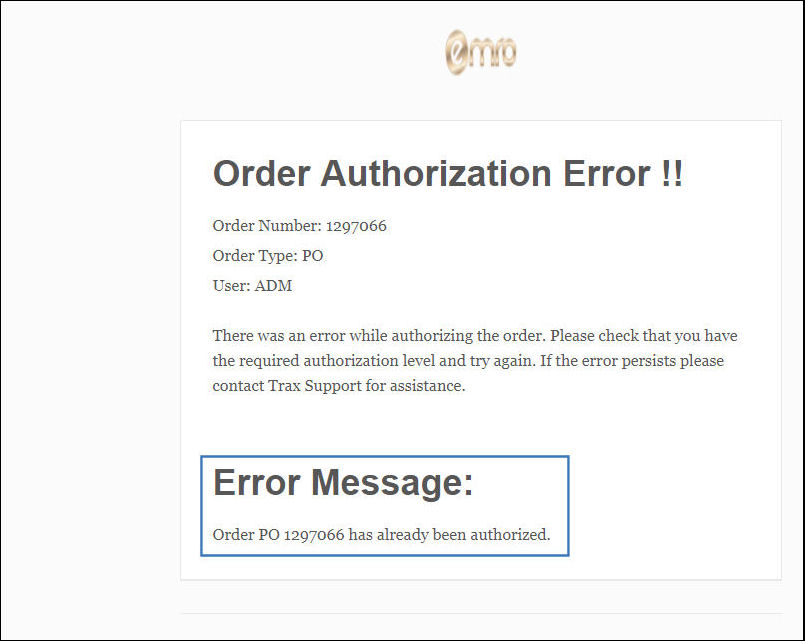
If the Email has been sent to multiple users, after the Order has been authorized, an additional user that attempts to conduct the same action receives the following error.
The Email and Authorization can also be utilized on a mobile device.
For detailed information regarding the utilization of this window, refer to the following:
- Defining the Order Authorization Steps
- Release Order For Authorization
- Verifying Authorized Orders
- Order Re-Authorization
- Order Authorization via the Authorization Option
Download Online Help
Print
|
©1997-2018 Trax USA Corp. All rights reserved. This manual may not be copied, photocopied, reproduced, translated, or converted to any electronic or machine-readable form, in whole or in part, without prior written approval from Trax USA Corp. |
 |