 Download Online Help
 Print
|
|
|
|
|


If an NLA component is required to complete the repair of an assembly, the Repair Following  button can be used to specify which sub component is required.
There are two options for this scenario:
- Either the R/O customer (user) can provide the required NLA component to the R/O vendor (the NLA component must be sent to the vendor).
- or the vendor can provide their part for the repair (the vendor will charge the customer the cost of the part).
Create a Repair Order and select the Repair Following button.
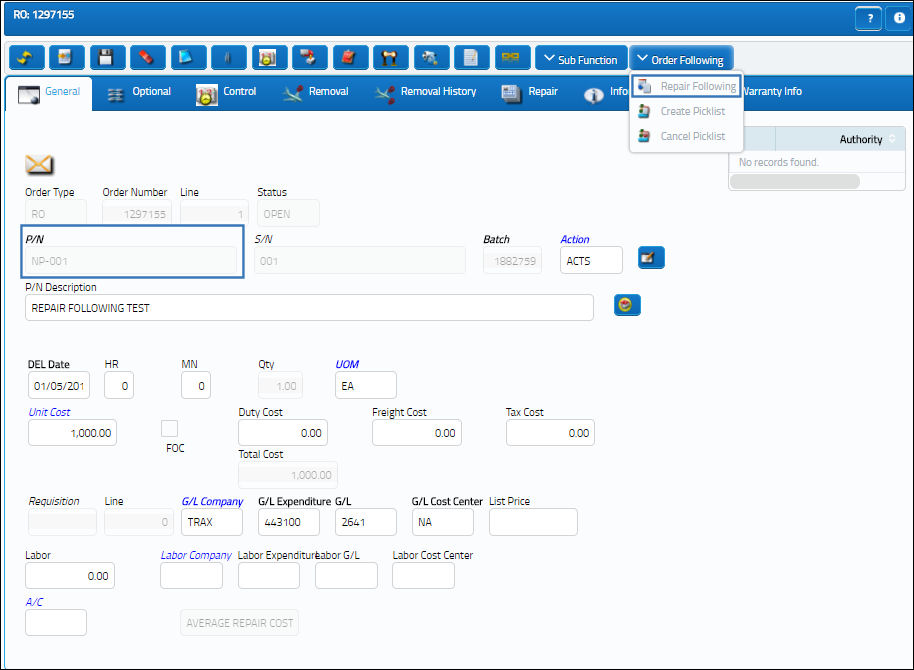
The system displays the Repair Order Following window. Add a sub component to the Repair Order:
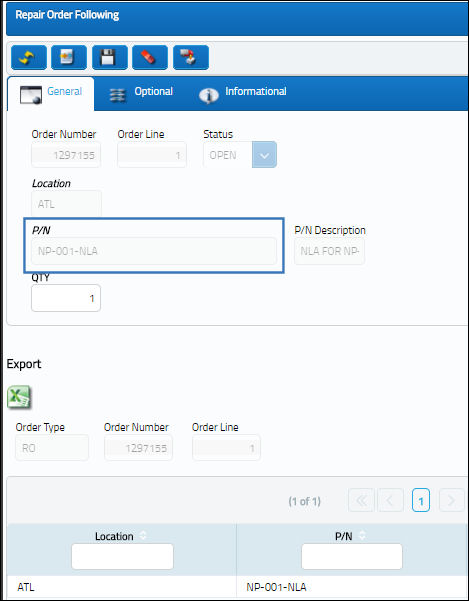
The following options/information is available in this window:
_________________________________________________________________________
Order Number
An auto-generated unique sequential number is assigned to each order. All Order Types which exist under the Order Module will receive their number for the following configuration:
 POSEQ - (Orders Next Sequence Number) - Next number for an Order. The start number is set at implementation. The Config Number field is used.
Order Line
The specific Line item of the Order. Each Line item could represent a different part included in the same order.
Status
The status of the repair order.
Location
The Location for maintenance events, inventory stores, orders, transactions, or training events.
P/N
The Part Number reference for the aircraft part.
QTY
The quantity of parts for the transaction.
_________________________________________________________________________
Additional functionality can be utilized through the following:
- Repair Order Following, Optional Tab
- Repair Order Following, Informational Tab
- AWB Button, via Repair Order Following
Return to the Repair Order Detail. Select the Create Picklist button to create a Picklist.
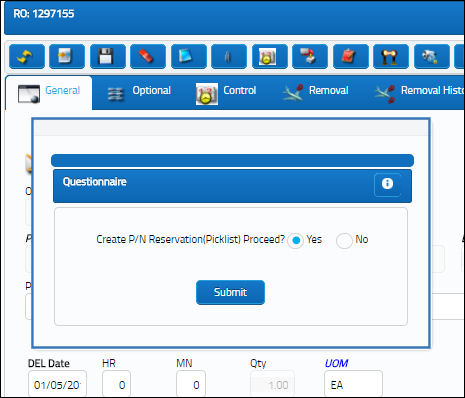
Go to Inventory Transaction and issue the Picklist:
The Picklist is issued:
The NLA is now linked to the NHA and goes to 'Repair' status:
Go to Receiving/Update/Order Receiving.
Locate the NHA and click on the Select  button.
The system displays the R/O Receiving window.
Select the NLA  button.
The system takes the user to the P/N N/L/A Creation window.
Populate the S/N and Condition fields and select the Save  button.
Delete the NLA. Once the changes are saved, new buttons appear in the window. Select the Replace Batch  button.
Note: The Replace Batch button is only available at Order Receiving if an NLA is issued as a Repair Following part.
The Replace Batch prompt appears. Select 'Yes'.
The following Drop Down Selection appears. Select the NLA.
Note how the S/N changed from 12-1 to RV-001:
Select the Save button.
Exit the P/N N/L/A Creation window.
From the R/O Receiving window, select the Save button. The Save prompt will appear. Select 'OK'.
Go to Orders/Update/Receiving Inspection
Locate the NHA part and go to the Receiving Inspection Detail window:
Select the 'Accepted' RI Control radio button and select the Save button. The Save prompt will appear. Select 'OK'.
Go to Inventory Transaction.
The NLA is linked to the NHA. The quantity In Repair is '0'. This is correct for the behavior of the NLA.
The Repair Order Following is now in 'Closed' status:
Download Online Help
Print
|
©1997-2018 Trax USA Corp. All rights reserved. This manual may not be copied, photocopied, reproduced, translated, or converted to any electronic or machine-readable form, in whole or in part, without prior written approval from Trax USA Corp. |
 |