 Download Online Help
 Print
|
|
|
|
|


The system displays the Service Order Detail Screen as follows:
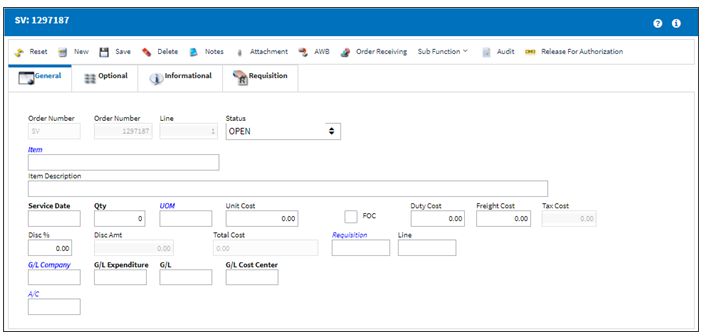
The following options/information is available in this window:
_________________________________________________________________________
Status
At the Order Detail level, the Status is in reference to the particular line item.
Item / Item Description
The item related to this Service Order. The Item field cannot be selected into. Therefore it does not pull form any of the P/N Masters. This is because the Service Order is typically used for intangible goods such as washing the aircraft or Contract Maintenance via the Defect. The Description field is for detailed item attributes.
Service Date
The date that the Service Order is carried out.
Duty Cost
The customs duty cost (if applicable).
Freight Cost
The associated freight cost/fees, if applicable.
Tax Cost
The tax cost (if applicable).
Note: Taxes can be applied to Orders automatically by entering Goods and Services Tax (GST) information for the specific Customer/Vendor entered into the header window. The tax percentage and applicable G/L Account can be entered via the Settings Master, Optional tab. The Tax Cost is added when a Unit Quantity and Cost are entered. For more information refer to the Goods and Services (GST) Functionality via the Settings Manual.
Disc %
The percentage of discount. This discount amount may be pre-defined in the Vendor Master, Cost Tab.
Discount Amount
The calculated discount amount.
Total Cost
The total cost of the order, which includes all line items' quantity multiplied by any additional fees or cocts, such as Freight, Duty, Tax, etc.
FOC checkbox
Select this checkbox if the item is Free of Charge. When selected, the Unit Cost field will be grayed out. Selecting the FOC checkbox will create Journal Entries and Fixed Assets (when applicable) for the order, while simply leaving the Unit Cost null (0.00) and not selecting the FOC checkbox will not create Journal Entries or Fixed Assets.
Note: At the bottom of this window, the FOC checkbox is displayed next to each line item and is either selected or not selected. If selected, the text is displayed in red.
Requisition
List of required parts for either a maintenance item or for restocking. The Requisition linked to the order. When the Requisition and Line are populated, most of the order line's fields are auto-populated based on the information listed in the Requisition (including the P/N).
Note: If the Requisition and Line item linked to the order in the General tab contains a Capital Expenditure, the Capital Expenditure is auto-populated in the order's optional tab. For more information, refer to the Service Order Detail, Optional Tab.
Requisitions may be configured to mandatory.
 ROREQRQ - (Repair Order Requisition Required For Each Line) - If set to 'Yes,' the system will require a Requisition for each line when creating a Repair Order.
Line - The attached requisition line number.
Quote  button - If the Order has a requisition attached to the line item, the Quote button will be available. Select this button to retrieve any requisition quotes, if applicable.
Note: If there is a quote for the requisition and the order is for the same vendor who provided the quote the unit cost will be automatically populated with the quoted price when the requisition is entered.
G/L
The General Ledger accounting code for the order. The order G/L will default to the Part Number G/L as defined in the P/N Master, Costing tab. However, this field may be overwritten for any given order.
Note: As part of the multi company functionality, this field will be populated with the G/L Account that matches the Company entered into the Company field of the S/V header window.
Note: When Orders Switch CAPEXGL is set to Yes, the Capital Expenditure transaction code will contain the Default G/L field (instead of the Cost Center field). When this Capital Expenditure is entered into an order's Optional tab, the transaction code's G/L (if populated) will override the order's G/L field in the General tab. For more information refer to Switch CAPEXGL via the Orders Switches Manual and transaction code Capital Expenditure via the Orders Transaction Code Manual.
A/C
The individual Aircraft tail number.
Note: This field is mandatory depending on the Priority entered in the S/V header window and on the Priority Tran Code setup. For more information refer to System Tran Code Priority via the Orders Transaction Code Manual.
_________________________________________________________________________
Download Online Help
Print
|
©1997-2018 Trax USA Corp. All rights reserved. This manual may not be copied, photocopied, reproduced, translated, or converted to any electronic or machine-readable form, in whole or in part, without prior written approval from Trax USA Corp. |
 |