 Download Online Help
 Print
|
|
|
|
|


Order Receiving by Barcode, General Tab
The Order Receiving by Barcode window allows users to view and edit all goods loaded into the system and delivered by the vendor.
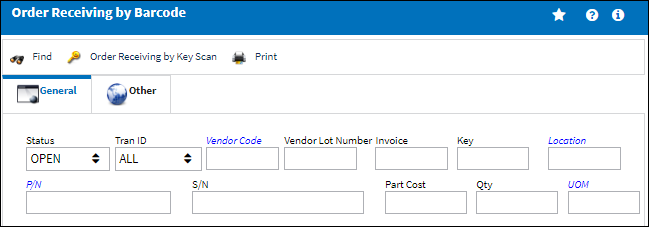
The following options/information is available in this window:
_________________________________________________________________________
Status drop down
The current status of the order.
Tran ID drop down
The type of order transaction. The available options are as follows:
All - All available transaction types.
INV - Invoice transactions only.
POU - Point of Use transactions only.
Vendor Code
The system code for the service/part provider.
Vendor Lot Number
Vendor batch number of the part entered upon receiving or intial load, as applicable.
Invoice
The reference number (identification) on the received invoice and previously entered. This number is usually printed on the received invoice.
Key
The key number/code used to uniquely identify the records in the file which should be a vendor unique key. This bar-coded key should appear on the received shipment labels.
Location
The Location for maintenance events, inventory stores, orders, transactions, or training events.
P/N
The Part Number reference for the aircraft part.
S/N
The Serial Number for the specific serialized part.
Part Cost
The cost of the part.
Qty
The quantity of parts that were received.
UOM
The unit of measure. This will default if associated with a Part Number as defined in the P/N Master. Transactions for parts can be conducted in a different UOM than defined in the P/N Master. However, upon receiving the UOM, conversion will automatically adjust the quantities, providing that the conversion rate is defined in the UOM System Transaction Code (via Setting/Explorer/System Transaction Code).
_________________________________________________________________________
Download Online Help
Print
|
©1997-2018 Trax USA Corp. All rights reserved. This manual may not be copied, photocopied, reproduced, translated, or converted to any electronic or machine-readable form, in whole or in part, without prior written approval from Trax USA Corp. |
 |