 Download Online Help
 Print
|
|
|
|
|


The Tear Down Report Detail, General tab is used to enter information regarding the Tear Down Report.
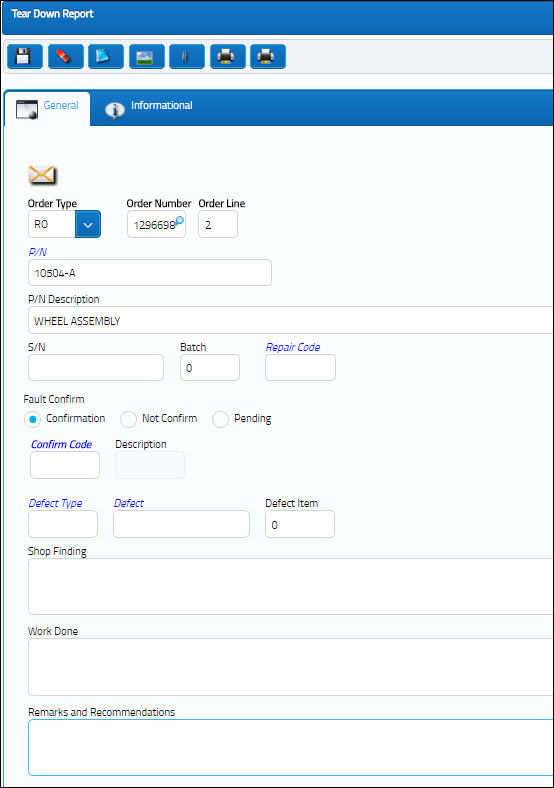
The following options/information is available in this window:
_________________________________________________________________________
Order Number
The type and number of the order associated with the Tear Down report.
Order Line
The item/line number of the order associated with the Tear Down report.
P/N
The Part Number reference for the aircraft part. The part number associated to the Tear Down report.
P/N Description
The description of the part.
S/N
The Serial Number for the specific serialized part. The serial number associated to the Tear Down report of the part.
Batch
The batch number that is associated with a part when introduced/received into the system.
Repair Code
The repair code associated to the Tear Down report.
Fault Confirm checkbox
The Fault Confirm checkbox is an important element for reliability purposes. Based upon whether it is selected, left blank, or pending (grayed out), it will impact reporting in reliability.
Confirm
The confirm code field is set up in the System Trans Code. This is used to further define the settings of the Fault Confirm checkbox.
Defect Type
The type of defect found on the aircraft (for example, Pilot Report, MX Report). For additional information, refer to the Defect Type Transaction Code, via the Technical Records Transaction Code Manual.
Defect Number
The defect number associated to the Tear Down report.
Defect Item
The defect log item number.
Tool Calibration Number
This is a unique number used to define a tool.
Shop Finding
The result.
Work Done
The work done.
Remarks and Recommendation
Reference for any remarks or recommendations.
_________________________________________________________________________
If you would like the appropriate window to automatically appear, the related switch must be turned on in the system. Otherwise, the Tear Down  button must be selected manually to access the Tear Down window. To set the switch, go to System Administration/Explorer/System Transaction Configuration/Receiving/ TEARDWNP, TEARWNR, TEARWNX.
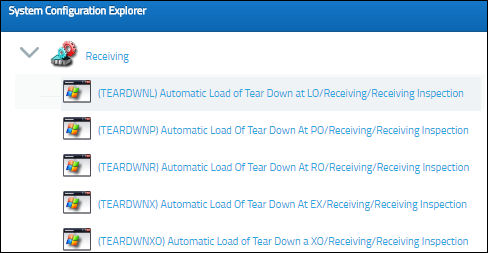
Note: Please refer to the System Transaction Configuration manual for more information on Switches  TEARDWNP, TEARWNR, TEARWNX.
Once the order has been received, and accepted or rejected (Receiving/ Update/ Receiving Inspection), the Tear Down report window will appear once you click on the Save  button. The user may enter all findings from the Tear Down report.
Download Online Help
Print
|
©1997-2018 Trax USA Corp. All rights reserved. This manual may not be copied, photocopied, reproduced, translated, or converted to any electronic or machine-readable form, in whole or in part, without prior written approval from Trax USA Corp. |
 |