 Download Online Help
 Print
|
|
|
|
|


In order to create a transfer order from a location which has the available parts required by the requisition, simply click on both, the location with the parts and the requisition, and then press the Transfer Order  button.
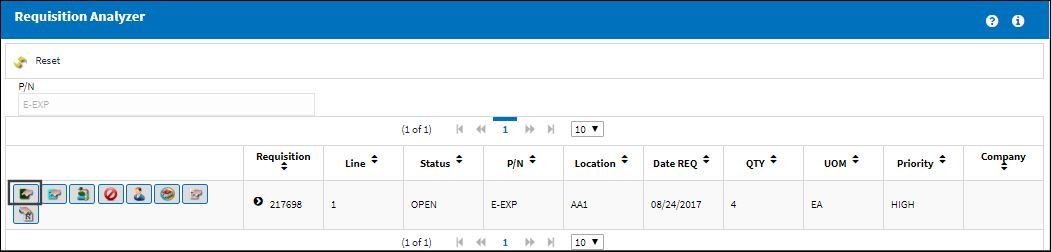
The standard Save Prompt is displayed, as seen below:
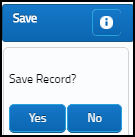
Select Cancel to abort the transaction, or
Select OK to proceed. The following pop-up window is displayed:
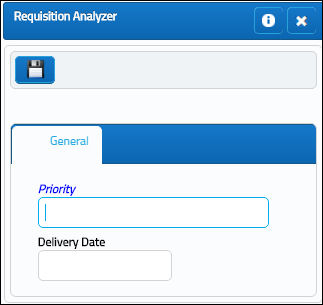
Enter the Priority Level and the Delivery Date in this window. Select the Save  button to complete the transaction.
The requisition disappears from the queue because a transfer order has been issued for the requisition placing its status as ‘Ordered.'
Download Online Help
Print
|
©1997-2018 Trax USA Corp. All rights reserved. This manual may not be copied, photocopied, reproduced, translated, or converted to any electronic or machine-readable form, in whole or in part, without prior written approval from Trax USA Corp. |
 |