 Download Online Help
 Print
|
|
|
|
|


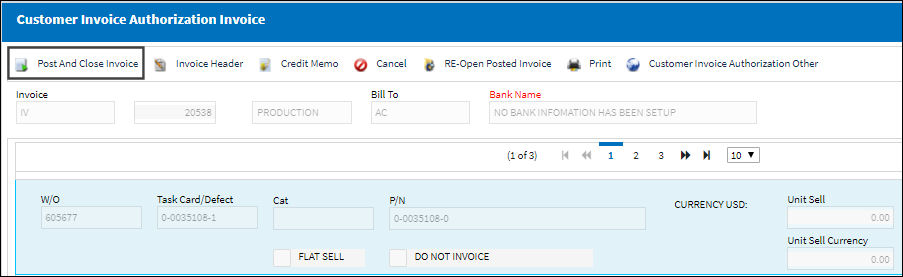
The Post And Close Invoice  button allows the user to post and close an invoice.
From the Customer Invoice Authorization Invoice window, select the Post And Close Invoice button.
The Save prompt appears. Select 'OK.'
The Manual Invoice Entry window appears and requires the user to enter a Manual Invoice Reference when Switch  WOMNLINVREF is set to Yes.
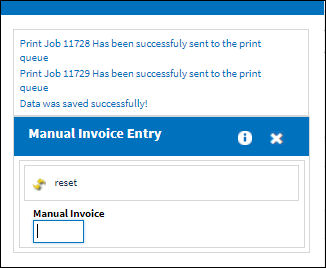
Note: There is a twenty character limit for the Manual Invoice field of the Manual Invoice Entry.
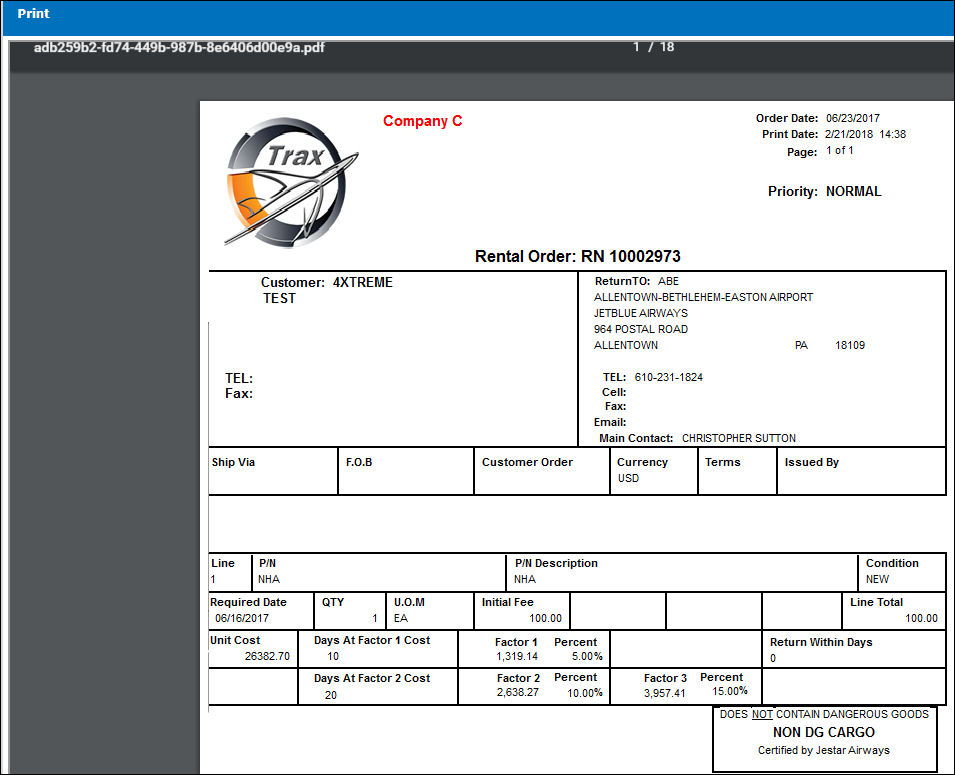
A copy of the invoice is printed with the detail and summary as shown below. The use may print or email the invoice from this window.
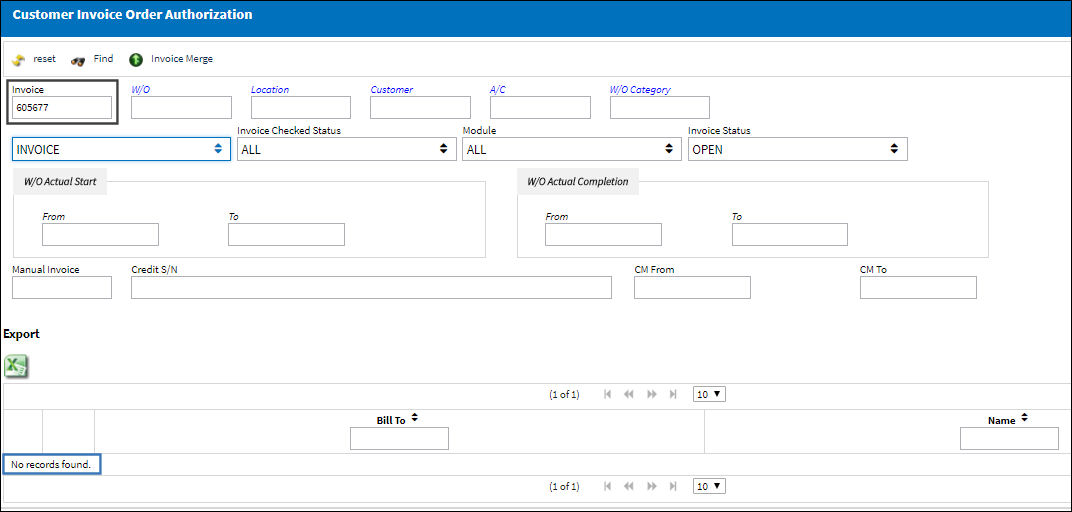
Once the invoice has been posted and closed, it is no longer available in the Customer Invoice Order Authorization window.
The invoice can also be re-printed via the W/O Invoice Reprint window.
Go to Production/ Print/ W/O Invoice Reprint.
From the W/O Invoice Reprint window, locate the closed invoice and select the Print  button.
The invoice print appears along with a summary and detail of the print. The use may print or email the invoice from this window.
Download Online Help
Print
|
©1997-2018 Trax USA Corp. All rights reserved. This manual may not be copied, photocopied, reproduced, translated, or converted to any electronic or machine-readable form, in whole or in part, without prior written approval from Trax USA Corp. |
 |