 Download Online Help
 Print
|
|
|
|
|


The Task Card (job card) displays the work instructions that must be carried out on an aircraft or components. These instructions can include additional information such as material pre-loads and documentation required to carry out the job. The Task Card  button allows for adding and updating Task Card information related to the Work Order. When the Task Card is placed on the Work Order, the information is copied from the original Task Card, then placed on a Task Card (that the system creates upon save) for this Work Order. The Task Card editor that is specified via Engineering/Update/Task Card/Optional 1 tab of the original Task Card will be the default editor for the copied one.
The Task Cards are then used as part of an E/C. The E/C can then be added to the Work Order and all effective, authorized Task Cards will follow.
An E/C is not required to add the Task Cards to the W/O. Any E/C's that may have been previously added to the Work Order will already have any relevant Task Cards associated to that Work Order on this window. The user may customize previously attached Task Cards to this Work Order using this button. Any Task Cards with the Cancel status will not be printed on a Work Order.
Users can also add just the Task Card to the Work Order by selecting the New  button. When selected, the previously created Task Card must be specified in the Task Card field.
Note: Users can make the Task Card “un-editable” once it has been added to the Work Order by setting the appropriate security via System Administration/Explorer/Security Explorer.
W/O Task Card Layout:
When the Task Card button is selected from the Work Order detail window, the W/O Task Card window contains general W/O information at the top and lists each of the W/O's Task Cards at the bottom of the window.
When a Task Card is selected from the header window using the Select  button next to each record, the W/O Task Card's Detail window is be displayed with more information about each Task Card.
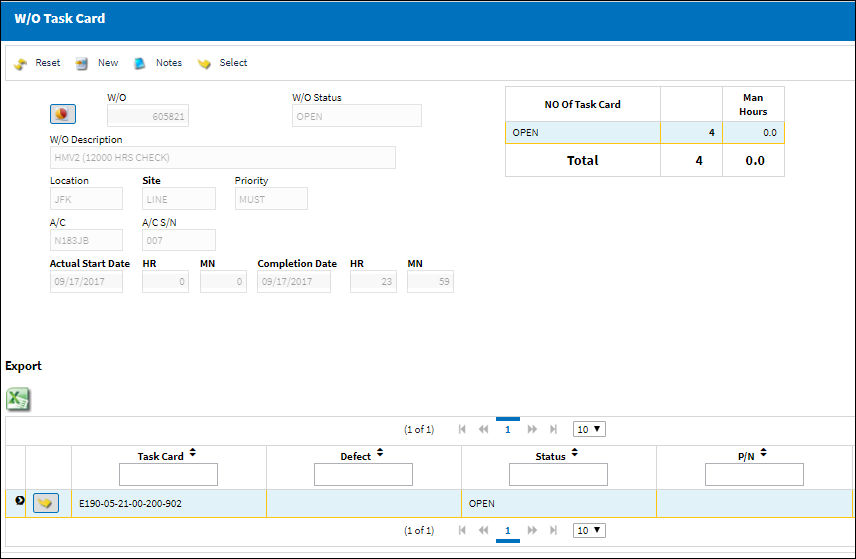
The bottom half of the window displays the list of attached W/O Task Cards alongside their current status. Each record can also be expanded to show more detailed information about the Task Card in question.
The following tabs and buttons are available for each Task Card.
W/O Task Card Tabs |
W/O Task Card Buttons |
Sub Functions
PK/REQ Sub Functions |
 Reset button
 Save button
 Delete button


 Find button


 Survey button


Note: In the event that a W/O's Engineering Controls and Task Cards that were associated to the Work Order are missing from the W/O due to database issues or disconnections, the W/O E/C T/C Reconciliation Print is available to capture these associations. This print is available via Production/ Print/ W/O Print.
Download Online Help
Print
|
©1997-2018 Trax USA Corp. All rights reserved. This manual may not be copied, photocopied, reproduced, translated, or converted to any electronic or machine-readable form, in whole or in part, without prior written approval from Trax USA Corp. |
 |