 Download Online Help
 Print
|
|
|
|
|


Multi W/O - Multi Task Card, via W/O Task Card Work in Progress
The Multi W/O - Multi Task Card option allows users to sign into multiple Task Cards which belong to multiple Work Orders. This is especially useful for those working on many tasks simultaneously.
From the W/O Task Card Work window, select the Multi W/O - Multi Task Card option:
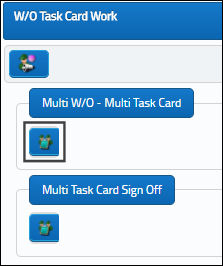
The system displays the Multi W/O - Multi Task Card window.
Select the Continue  button.
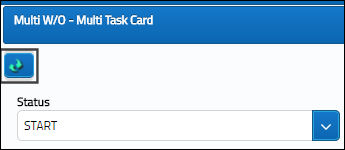
Select into the W/O and Task Card fields to select the Work Order(s) and Task Card(s) to be signed into.
Select the Continue button when all Work Order(s) and Task Card(s) are populated.
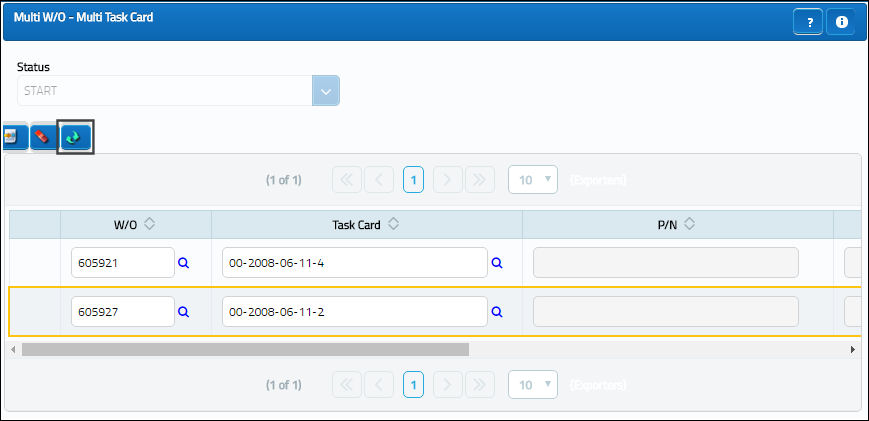
Select the New  button to sign into multiple Work Orders and Task Cards.
Select the Delete  button to delete a Work Order/Task Card.
In the lower half of the window, enter user's password and Skill.
Select the Save  button. The Save prompt appears. Select 'OK.'
The following options/information is available in this window:
_________________________________________________________________________
Password
The Employee Wall Password as set up in the Security Explorer. An error message will appear if:
- The Wall Password is not valid
- The Employee is not part of the 'Users With Wall Security' section of the Wall By Program
Skill
The appropriate skill used to perform the task.
Employee
The employee performing the task.
Date
The date of the task.
Start Date
The date the labor started on the Task Card.
Start Time
The time the labor started on the Task Card.
Regular radio button
Select this button to indicate that regular work hours are being applied to this Task Card.
O/T radio button
Select this button to indicate that overtime hours are being applied to this Task Card.
D/T radio button
Select this button to indicate that doubletime hours are being applied to this Task Card.
_________________________________________________________________________
Go to Production/Update/Work Order/Labor Stop  button to view the W/O Active Work window. This window displays the time the Technician was signed into the Work Orders/Task Cards.
Download Online Help
Print
|
©1997-2018 Trax USA Corp. All rights reserved. This manual may not be copied, photocopied, reproduced, translated, or converted to any electronic or machine-readable form, in whole or in part, without prior written approval from Trax USA Corp. |
 |