 Download Online Help
 Print
|
|
|
|
|


Shop W/O Closing Post Completion
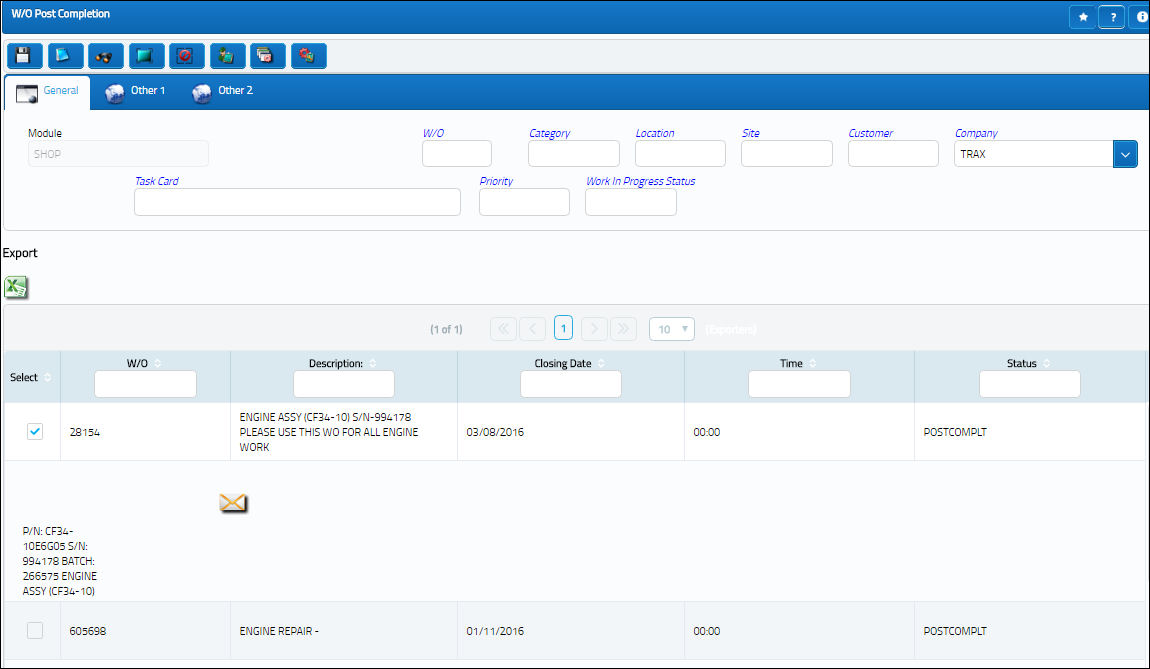
The 'Post Completion' Shop Work Order Status functionality provides users with the opportunity to return a Shop Work Order's unused parts to stock (RTS) before officially closing the Shop Work Order. Once the Shop W/O's unused parts are returned to stock, the Post Completed Shop W/O can be changed to Closed through the Shop Work Order Closing Post Completion window.
Search criteria for querying the record can be specified through the following tabs:
Note: Shop Work Orders can also be automatically closed after a certain amount of days when the Shop W/O Post Completion window is opened; this amount of days can be specified via the Config Number field of Switch  WOPOSTCM. If the Config Number is set to zero, automatic Shop W/O Closing will not take place.
Note: Parts that were issued to the Shop Work Order can be returned to stock even after the Shop W/O is in Closed status. For more information refer to the Batch in Inventory Audit (via the Return to Stock button) in the Inventory Training Manual.
The Post Completion process is set up through Production Switch WOPOSTCM. This window is only applicable when this switch is set to Yes. The following example has Switch WOPOSTCM set to Yes.
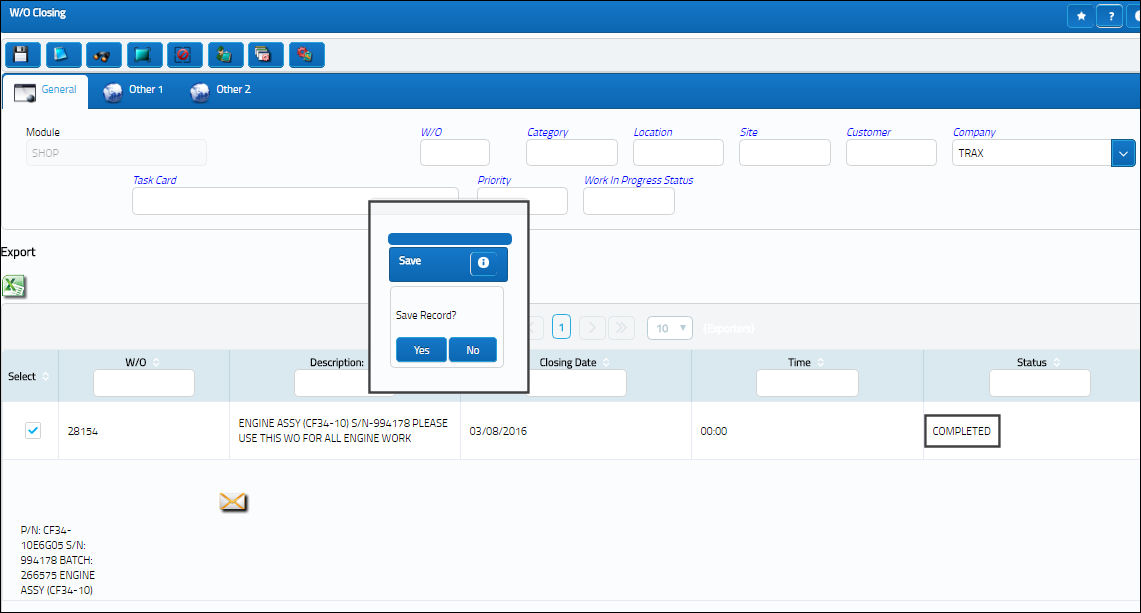
Before the Shop W/O can be set to Post Completed, it must first be Closed. From the Shop /Update/Shop W/O Closing window, find the Shop Work Order that needs to be closed. When Production Switch WOPOSTCM is set to Yes, the Close Material checkbox is not be available. Select the Shop Work Order then the Save  button. This will update the Shop W/O status from 'COMPLETED' to 'POSTCOMPLT.'
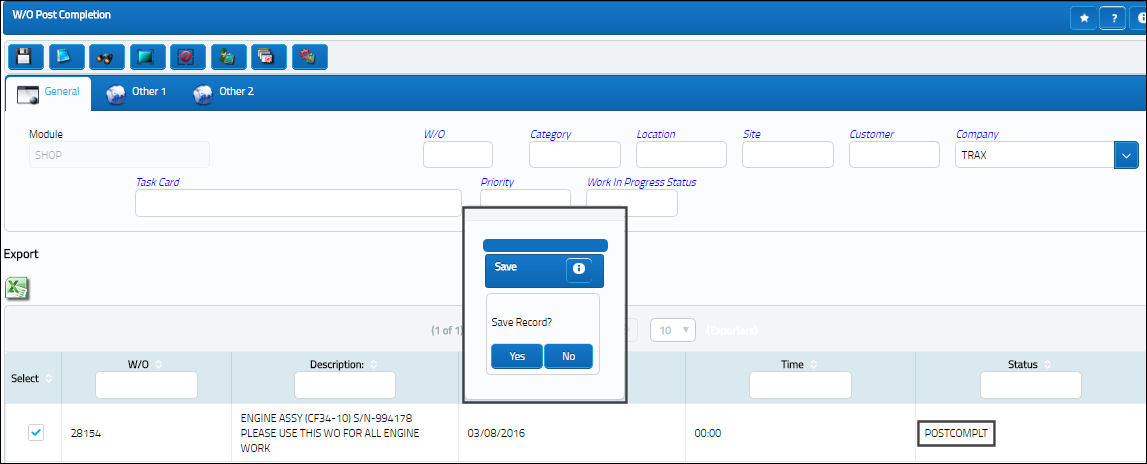
All technical and financial information will be updated at this point. However, unused materials that were issued to the W/O will be allowed to be returned to stock. After all unused materials have been returned to stock, go to the Shop/Update/Shop W/O Closing Post Completion window. Select the Shop W/O then the Save button.
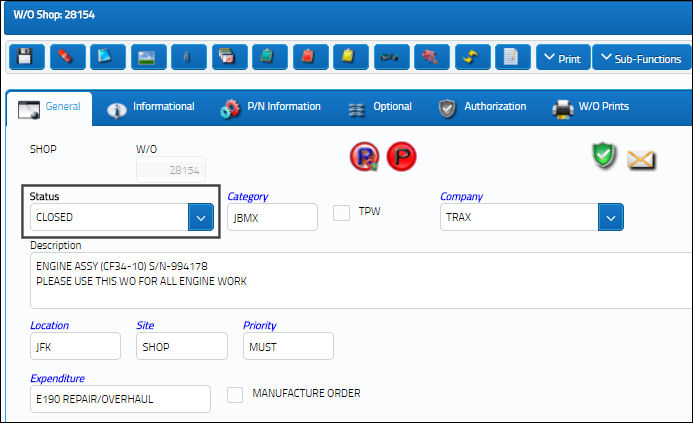
This will change the Shop Work Order status from 'POSTCOMPLT' to 'CLOSED.'
For more information, including the Yes and No settings, refer to Switch WOPOSTCM via the Production Switches Manual.
The following buttons offer additional functionality:
Download Online Help
Print
|
©1997-2018 Trax USA Corp. All rights reserved. This manual may not be copied, photocopied, reproduced, translated, or converted to any electronic or machine-readable form, in whole or in part, without prior written approval from Trax USA Corp. |
 |