
 Share
Share
 Print
Print
|
|
|
|
|


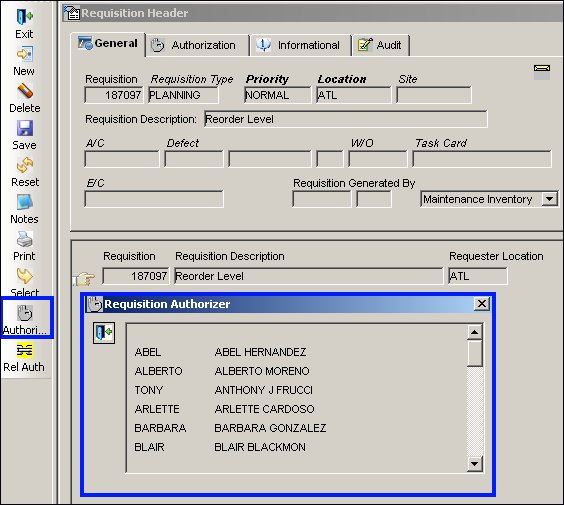
If you must edit the Requisition Header information, click on the Authorizer  button to open the fields for edit as required.
When selecting the Authorizer button, if so configured, TRAX will ask the user to enter his/her wall password:
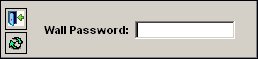
If the user is set up to be able to authorize requisitions in the TRAX Security Explorer, TRAX allows the user to access the requisition.
The Save Prompt will be displayed, as follows:
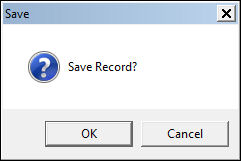
Select Cancel to abort the transaction. Select OK to proceed.
The Authorizer button, if selected, displays a list of individuals in a pop-up window who are able to authorize the requisition:
The Requisition Header will then allow for edits, as illustrated below:
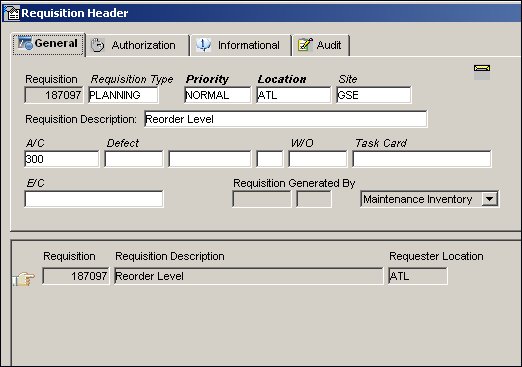
Once the Requisition Header record is saved with the edited information it goes to the Requisition Detail window.
The requisition must undergo the standard authorization process.
Refer to the Requisition Detail, General Tab page in this manual for Requisition Header field information. Any information that is modified will be saved in the audit trail (Audit Tab).
After the requisition is updated and released for authorization, it is then displayed in the Requisition Authorization Explorer (Control Panel/ Requisition/ Explorer/ Requisition Authorization Explorer), as follows:
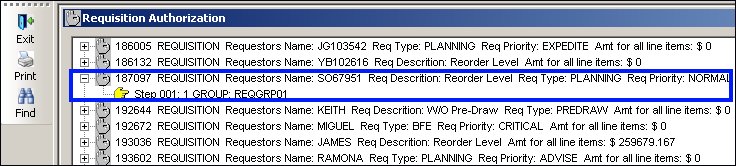
Users are able to authorize requisitions based upon their access to requisitions in the Security Explorer. The TRAX Administrator may establish user groups in the Requisition Authorization Group Explorer based upon unique tasks the user must perform with respect to requisitions, however, even though a user may be part of a user group, if they are not setup with access to Requisitions in the Security Explorer, the user will not be able to perform his or her requisition related tasks.
Example:
The following screen displays the user 'Abel Hernandez' as a member of the Authorization Group 'REQGRP':
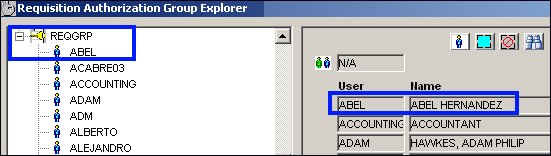
However, it is important that this user be established with access to Requisitions in the Security Explorer to be able to access Requisitions and perform necessary tasks:
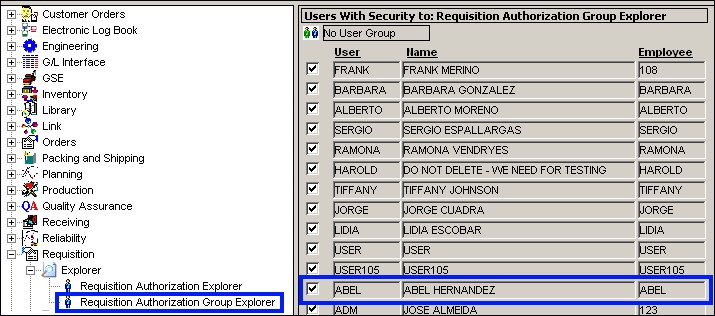
The above screen illustrates the user 'Abel Hernandez' as being authorized (via the check next to the user name) to access the Requisition Authorization Group Explorer. So, this user is not only a part of the above listed group 'REQGRP,' but can also authorize requisitions.
Share
Print
|
©1997-2026 Trax USA Corp. All rights reserved. This manual may not be copied, photocopied, reproduced, translated, or converted to any electronic or machine-readable form, in whole or in part, without prior written approval from Trax USA Corp. |
 |