 Download Online Help
 Print
|
|
|
|
|


After selecting the Select  button, the Picklist information is displayed. From this, the quantity being issued is populated along with the option to generate a print through the Tag Print checkbox.
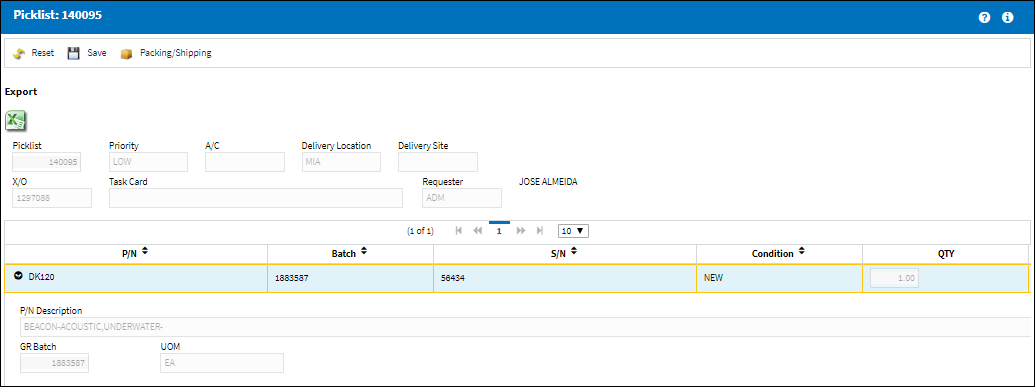
Note: The Transfer Picklist  button is available from the Picklist window, via Picklist Issue. Upon selecting this button, the Transfer Order window is opened to create the transaction. For more information, refer to the Transfer Picklist Button, via Picklist Creation Detail.
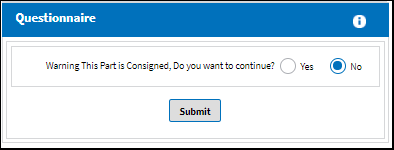
Issuing a Consigned Part Message:
If issuing a Consigned Part, the following soft warning will appear. For detailed information, refer to Issuing Consigned Inventory via the Inventory Training Manual.
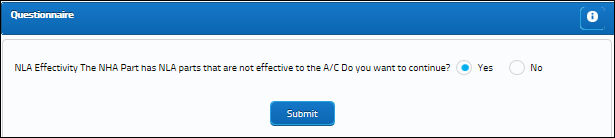
APU NLA Effectivity Warning:
If the user attempts to issue an APU part where the APU is effective to an aircraft, but it's NLA does not have effectivity, the system will display the following questionnaire:
Picklist in Use:
If the user attempts to issue a picklist that is in use, the following information box will appear indicating that the Picklist is locked.

The following buttons offer additional functionality:
- Change button
- Packing/Shipping button
- Transfer Picklist button
Download Online Help
Print
|
©1997-2018 Trax USA Corp. All rights reserved. This manual may not be copied, photocopied, reproduced, translated, or converted to any electronic or machine-readable form, in whole or in part, without prior written approval from Trax USA Corp. |
 |