 Download Online Help
 Print
|
|
|
|
|


The W/O Non-Routine Task Card Item, General tab is used to enter the text instructions (steps) to carry out the work required for the task, as well as Skill information. The user also has the option to add new labor requirements to already existing requirements to complete a W/O Task Card Item. Keep in mind that any new labor requirements added in the W/O Task Card item window (once completed) will no longer be associated to the Task Card record from the Engineering module.
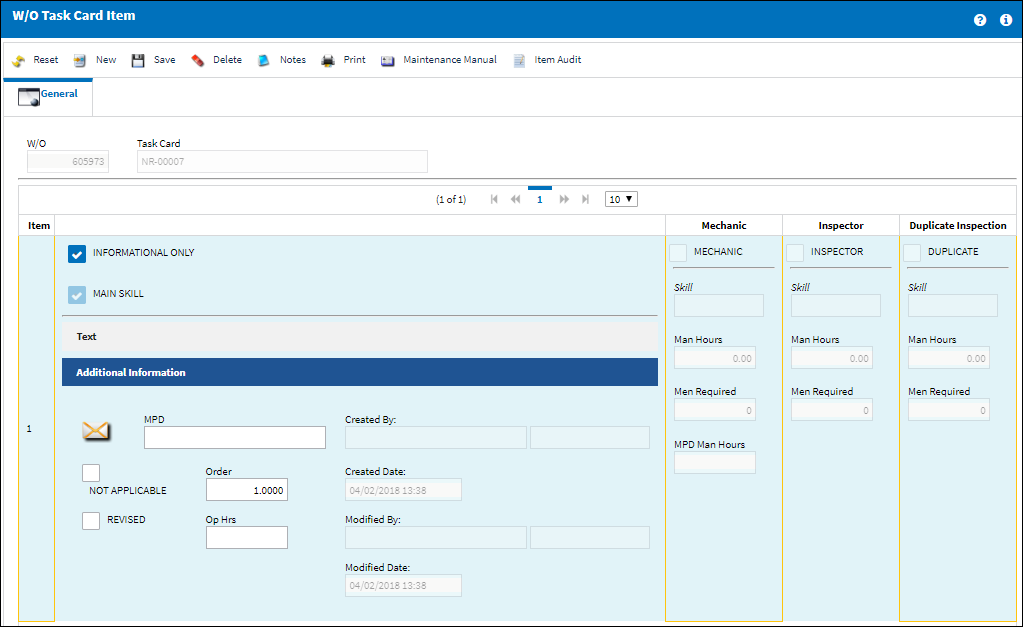
The following options/information is available in this window:
_________________________________________________________________________
W/O
The Work Order used to categorize, manage, and schedule work requirements for aircraft maintenance.
Task Card
The Task Card / Job Card that details the scheduled maintenance work.
Item
The Task Card's specific Item number.
Informational Only checkbox
Select if this item is for an informational step only (no labor required). When selected, the Main Skill checkbox will be removed from this window.
Main Skill checkbox
Select this checkbox if this is the primary skill of the Task Card. The user can then organize the Task Cards by primary skill (using filter and sort functionality via the related modules such as Production Work Orders.)
Mechanic checkbox
Select this checkbox to enter any code number related to the mechanic (i.e. skill level). The code field only appears when the checkbox is checked.
Inspector checkbox
Select this checkbox to enter any code number related to the inspector (i.e. skill level). The code field only appears when the checkbox is checked.
Duplicate checkbox
Select this checkbox if the Task Card requires a duplicate inspection.
Skill
The Skill of the employee required for this item. Skills are set up via the Skill Master. The Skills listed for Mechanic or Inspector are validated against the Mechanic/Technician checkboxes associated to the specific Skill via the Skill Master, General tab. For more information, refer to the Skill Master, General Tab via the Settings Manual.
Man Hours
The labor hours (per person) required for this item.
Men Required
The number of personnel required for this item.
MPD Man Hours
The MPD Man Hours X Task Mh Factor = Man Hours.
Text
The instructional text for this item. This text can be copied to the Defect Report if this Task Card is deferred. See the following switch description for additional related information. The switch can be set via System Administration/ Explorer/ System Transaction Configuration/ Production.
 DERTCTSH (Deferred TC Items to Defect Trouble-shooting) - If set to YES, if a Task Card is deferred (transferred to Defect Report) and the Task Card contains individual Task Card Items, those items will become individual troubleshooting items on the Defect Report/ Troubleshooting Tab.
Note: When the Text field is activated, the Additional Information section is hidden.
Additional Information
Select this option to view additional information for this item. When the additional information is available, the TraxDoc References section becomes unavailable.
MPD - The Maintenance Planning Document reference for this Task Card.
Not Applicable checkbox - When selected, the Informational Only checkbox also becomes selected and the skills in the Skills tab no longer become available. Also the Items in the Task Card print become grayed out when the Not Applicable checkbox is selected.
Revised checkbox - If the item has been revised selecting this checkbox would flag the Task Card item with a revision bar on the left of the item on the Task Card print when printed out. For additional information refer to Switch RMVRVBAR via the Engineering Switches Manual.
Order - When the sequential order is changed for the Item number, via the Re-Sequence button, the Items are re-ordered on the list at the bottom of the window. While the Item number will reflect the change, the Order number will reflect the original sequential order. For additional information, refer to the Re-sequence button.
Op Hrs - Operation Hours. When the sequential order is changed for the Item number, the Items are re-ordered on the list at the bottom of the window. But notice that the Item number has not changed.
Note: When the Additional Information section is activated, the Text field is hidden.
Created By - The user who created the record.
Created Date - The date the record was created.
Modified By - The user who last modified the record.
Modified Date - The date the record was last modified.
_________________________________________________________________________
Download Online Help
Print
|
©1997-2018 Trax USA Corp. All rights reserved. This manual may not be copied, photocopied, reproduced, translated, or converted to any electronic or machine-readable form, in whole or in part, without prior written approval from Trax USA Corp. |
 |