
 Share
Share
 Print
Print
|
|
|
|
|


The P/N  button on the Planning Query window allows the user to view the Planning P/N Window, which will show the quantities of all the items required for the Planning search results (pre-loads).
Select the P/N button. TRAX displays the Planning P/N Window:
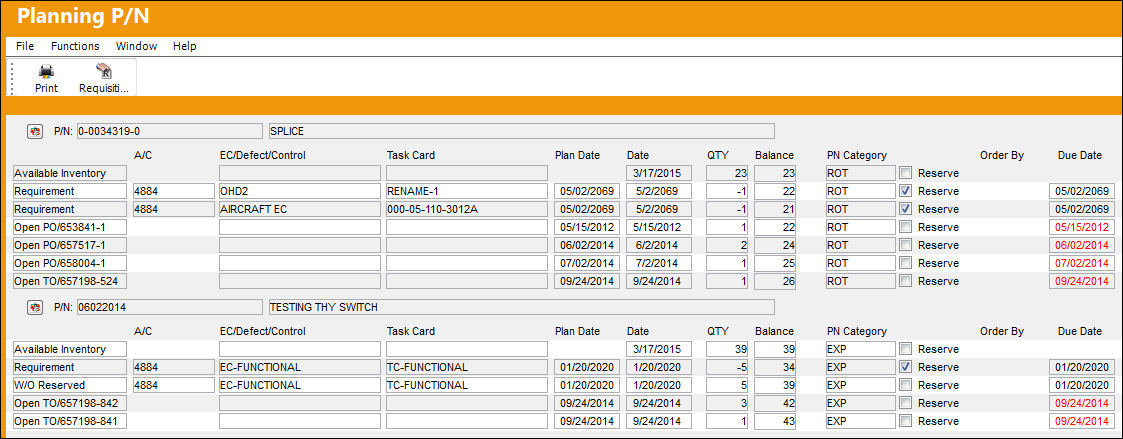
The following information/options are available in this window:
_____________________________________________________________________________________
P/N
The Part Number reference for the aircraft part. The Part Number required as part of the pre-load.
Description
The description of the part.
Available Inventory
The quantity of inventory that is currently available (including items awaiting receiving inspection).
Open Order/REQ etc.
If there are open Orders or Requisitions for the part (and the applicable quantity). The system will show any open Requisitions and Orders for the P/N and the date expected delivery date. If the requirement is overdue, the date will be in RED. The quantity will be shown along with a sub-total of the quantity of parts that are/would be available if the Reqs/Orders arrived.
Requirement
The Detail of the pre-load requirement.
A/C
The individual aircraft tail number. The Aircraft requiring the pre-load item.
E/C / Defect / Control
The Engineering Control/Defect/Part Control relating to the pre-load item.
Plan Date
If an Open Order or Requisition is linked to the line item, then the Plan Date is the Order's Delivery Date or the Requisition's Required Date. If there is no open Order or Requisition, then the Plan Date is the current date.
Date
The Due date of the E/C, Defect, Control, Order or Requisition.
QTY
The Quantity of the Requirement, Order, or Requisition. The quantity shows negative when more are required than are available, requisitioned or on order.
Balance
The remaining Stock Balance after taking everything into consideration. RED arrow will show items that require attention.
PN Category
The category of the part as defined in Settings/ Explorer/ System Transaction Code Explorer/ Settings/ P/N Category (e.g. Rotable, Consumable, Repairable) and entered for the particular part in the P/N Master.
Reserve checkbox
Indicates whether or not a part is reserved. The Reserve status is set in the Task Card P/N window.
Order By
Order By is the Due Date + Average Lead Days.
Due Date
The Due Date of the planning element. However, if the Due Date is less than the current date (overdue), then this field defaults to the current date.
This field will appear red if the maintenance event is overdue.
_____________________________________________________________________________________
The  icon indicates a confirmed delivery date for a part. This icon only appears if the Expedite Date is populated via the Order AWB window via Purchase Order.
The  icon indicates that the part has a negative balance.
Within these results, additional information of each part can be viewed through the P/N  button, which allows users access to the following:
- P/N Inventory Summary, General Tab
- P/N Inventory Summary, P/N Usage Tab
- P/N Inventory Summary, Cost Tab
Additionally, the following buttons are available:
Share
Print
|
©1997-2026 Trax USA Corp. All rights reserved. This manual may not be copied, photocopied, reproduced, translated, or converted to any electronic or machine-readable form, in whole or in part, without prior written approval from Trax USA Corp. |
 |