
 Share
Share
 Print
Print
|
|
|
|
|


Decide whether the site is restricted or inactive by selecting the radio button accordingly:
- Restriction: Work can be planned for the site unless the restriction code specified here is on one of the task cards, ECs or the work order itself.
- Inactive: No work can be planned for this site (for the specified time/date).
Inactive:
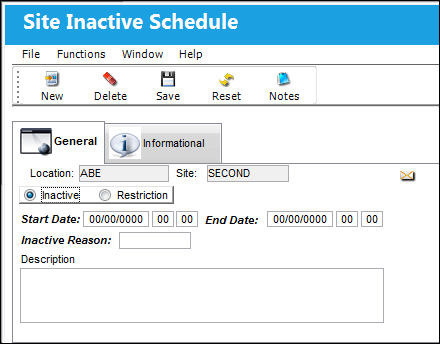
The following information/options are available in this window:
_____________________________________________________________________________________
Location
The Location for maintenance events, inventory stores, orders, transactions, or training events.
Site
The Site where the work is to be carried out (if applicable).
Inactive or Restriction radio button
In this case, select "inactive" for the radio button selection.
Start Date
Start date of inactive period.
End Date
End date of inactive period.
Inactive Reason
Reason for the inactive period.
Description
Description of the inactive period.
_____________________________________________________________________________________
If a work order is planned for the site during a time when it is inactive, a message will open and the work order cannot be saved against this site.
Restriction:
TRAX displays the Site Inactive Schedule (General Tab) as follows:
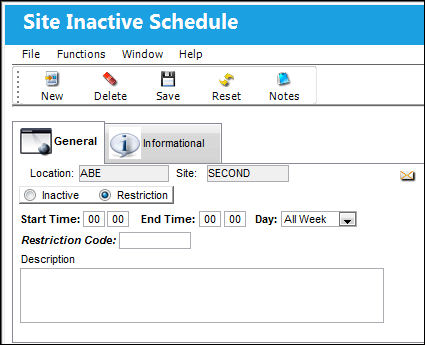
The following information/options are available in this window:
_____________________________________________________________________________________
Location
The Location for maintenance events, inventory stores, orders, transactions, or training events.
Site
The Site where the work is to be carried out (if applicable).
Inactive or Restriction radio button
In this case, select "restriction" for the radio button selection.
Start Time
Start time of restricted period.
End Time
End time of restricted period.
Day
Select the appropriate "Day" from the available drop down menu.
Restriction code
Reason for restriction (code). The available codes are set up in the Location Restrictions Transaction Code.
Description
Description of the restricted period.
_____________________________________________________________________________________
If a work order is planned for a site during a time that a restriction is entered and the work order holds the respective restriction code, a message will appear and the work order cannot be planned for this site.
Share
Print
|
©1997-2026 Trax USA Corp. All rights reserved. This manual may not be copied, photocopied, reproduced, translated, or converted to any electronic or machine-readable form, in whole or in part, without prior written approval from Trax USA Corp. |
 |