
 Share
Share
 Print
Print
|
|
|
|
|


GSE Planning
The GSE Planning window is used to generate a query of all GSE types, associated schedules, and other relevant information.
Populate the filter fields and select the Find  button to generate a query.
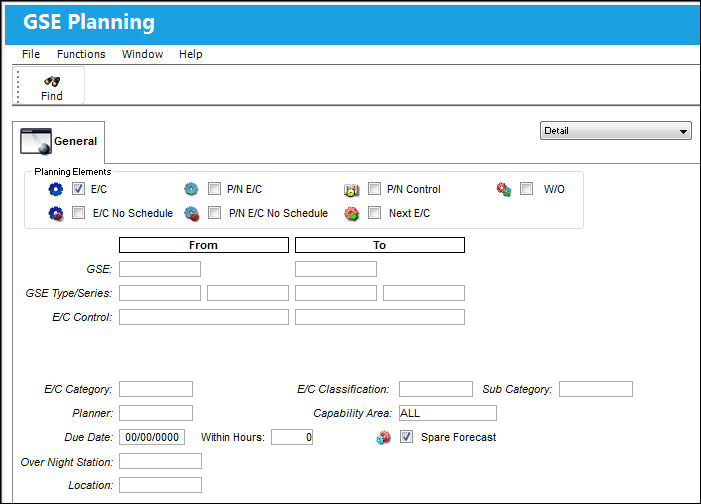
Planning Elements:
The following information/options are available in this window:
_____________________________________________________________________________________
Query Selection
Formats included in the drop list are 1 - 5 Years and Detail. Choosing any of the formats will narrow the search results accordingly. Depending on which format is selected, the appropriate Planning Elements will become available for your selection. Check any of the following Planning Elements are selected by checking the appropriate checkboxes:
E/C checkbox - Select this checkbox to filter for E/Cs that have effectivity to aircraft (Mods, SB's, ADs etc).
If this checkbox is selected, TRAX displays the following two additional fields:

E/C No Schedule checkbox - Select this checkbox to filter for E/Cs that do not have a Schedule.
If this checkbox is selected, TRAX displays the following two additional fields:
P/N E/C checkbox - Select this checkbox to filter for E/Cs that have effectivity to Part Numbers (SB's etc).
If this checkbox is selected, TRAX displays the following five additional fields:

P/N E/C No Schedule checkbox - Select this checkbox to filter for E/Cs (that do not have a schedule) that have effectivity to Part Numbers (SB's etc).
If this checkbox is selected, TRAX displays the following five additional fields:
W/O checkbox - Select this checkbox to filter by Work Order.
Next E/C checkbox - Select this checkbox to filter for E/Cs that appear in the Next E/C field via Engineering/ Update/ E/C/ Schedule Tab and all associated E/Cs.
P/N Control checkbox - Select this checkbox to filter by P/N Control.
If this checkbox is selected, TRAX displays the following field:

GSE (From-To)
The GSE to show Planning information (From/To).
GSE Type/Series
The GSE Type/Series to show Planning information (From/To).
E/C Control
The E/C range to show Planning information (From/To).
P/N
The Part Number reference for the Ground Support Equipment part.
P/N S/N
Will be enabled when the P/N E/C and/or P/N Control checkboxes are checked. Enter the specific S/N to search for.
E/C Category
The category of the E/C (e.g., AD, SB, CHECK).
E/C Classification
Will be enabled when checking the E/C and/or P/N E/C checkboxes. Choose the E/C Classification (which is defined in the E/C's General tab).
Sub Category
The E/C Classification sub category.
Planner
The user assigned as Planner for the GSE. User is defined in Settings/ Update/ GSE/ Optional 2 Tab.
Capability Area
Narrows records to appropriate Capability Area. The choices are Line, Heavy Maintenance, or All. Capability Areas are defined uniquely for Defects, E/Cs, and P/N Controls.
For E/Cs and P/N E/Cs
This is defined in Engineering/ Update/ Engineering Control/ Other Tab.
For Defects
This is defined in Technical Records/ Update/ Defect Reports/ Defer Tab.
For P/N Controls
This is defined in Settings/ Update/ P/N/ P/N Control Button.
Due Date
Select to show all items due prior to the date chosen.
Within Hours
Select the number of aircraft hours to search within, for items due. You can select additional parameters, such as 'within hours', which will show you items that are due within the flight hours specified. One point to note is that if you wish to cancel some parameters (i.e. delete them) then it is better to exit from the option and re-run it. This will ensure that there are not any 'false' selections in the query.
Spare Forecast
If checked, a P/N Light will appear next to all items in the GSE Planning Query results if they require parts from inventory in order to be accomplished. The P/N Light will appear in any of three colors to indicate the current availability of the part. If unchecked, the P/N Lights will not appear.
_____________________________________________________________________________________
P/N Lights - Displays the status of available parts for the due item.
Green Light  - Green will display if all parts required are available in inventory.
Yellow Light  -Yellow will display if some but not all parts are available in inventory.
Red Light  - Red will display if no parts are available in inventory.
The GSE Planning Query Results will appear as shown below.
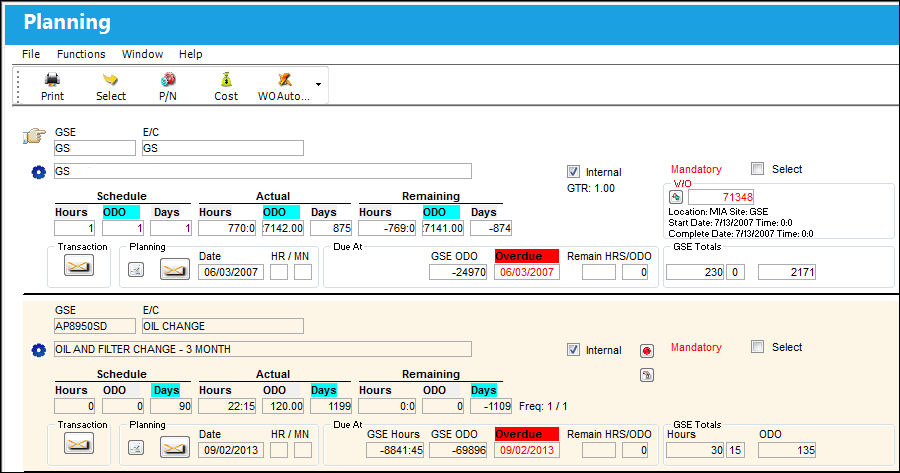
The following buttons are available for additional functionality for the GSE Planning Results:
Share
Print
|
©1997-2026 Trax USA Corp. All rights reserved. This manual may not be copied, photocopied, reproduced, translated, or converted to any electronic or machine-readable form, in whole or in part, without prior written approval from Trax USA Corp. |
 |