
 Share
Share
 Print
Print
|
|
|
|
|


Adding a Windows Application
To add a new Windows Application, users will have to go to the System Administration/Update/Control Panel window.
Then select into the Windows Application option.
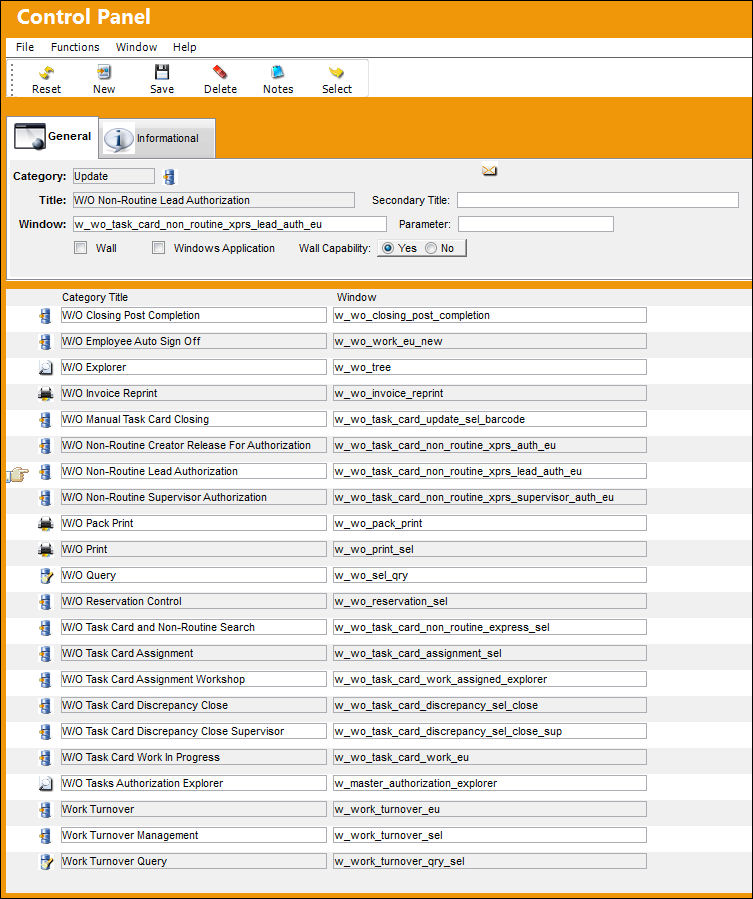
Select the New  button.
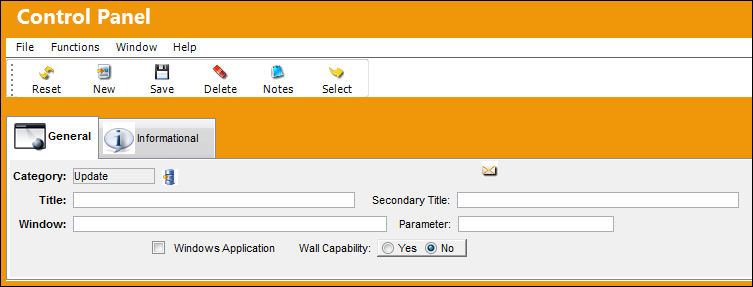
The following information/options are available in this window:
_____________________________________________________________________________________
Category
Select the category for the new entry:
Explorer  - A window that lists categorical information where users can assign functionality (i.e.: security, authorization, etc.) to employees, codes, transactions, etc.
Print  - A window used to generate print documents. This information cannot be created, edited, or updated.
Query  - A window where users can enter information to view details, but cannot create, edit, or update the information.
Update  - Used to enter, create, or update all types of information, transactions, orders, etc. Most windows are categorized as Update windows.
Title
The title of the application that will be displayed throughout TRAX.
Secondary Title
The optional title for the application.
Window
The path that will open the application.
Parameter
The limitation of the application. (for example: 'printers' for the Printers and Faxes application)
Windows Application checkbox
Select the checkbox if what is being added is a Windows Application.
_____________________________________________________________________________________
Select the Save  button to save the information.
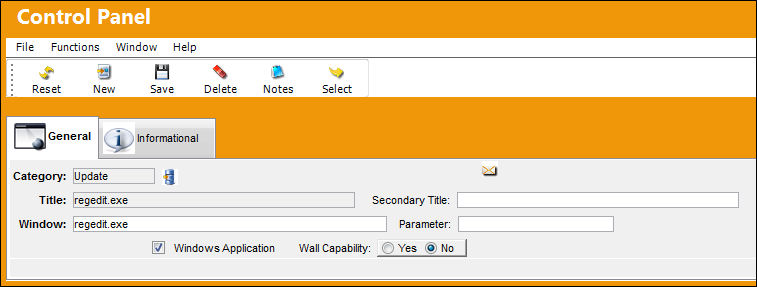
In the below example, the program Regedit.exe is added. The path of the program is entered into the Window field. The Windows Application checkbox is flagged then the information is saved.
After creating the Windows Application, users will need security access to view and use the link.
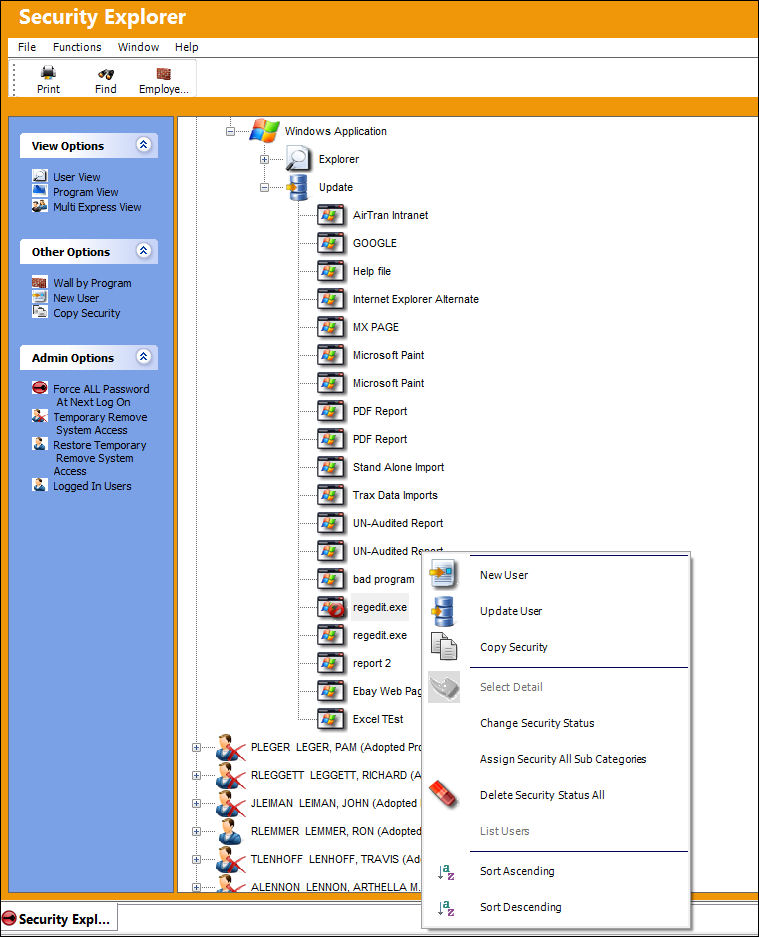
After selecting Change Security Status, the Windows Application will become available.
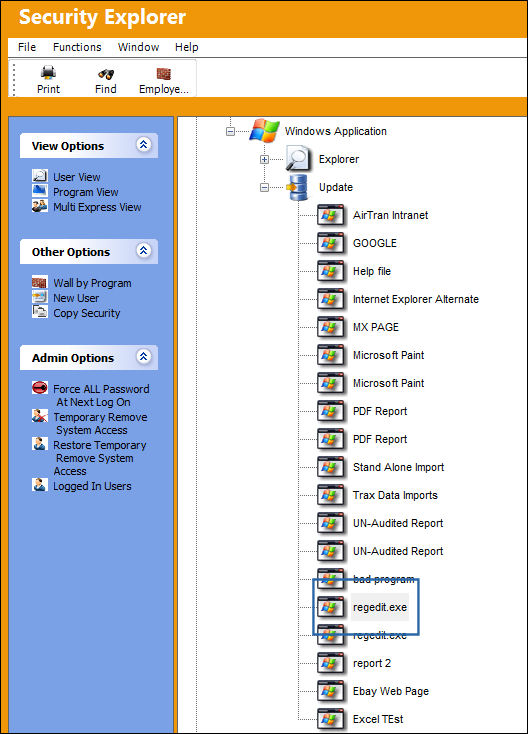
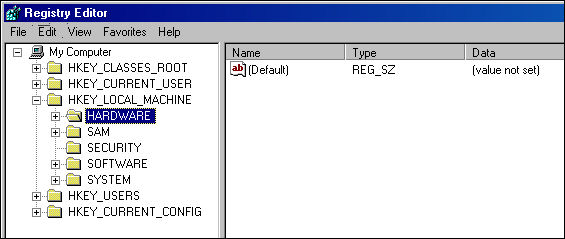
Below is the window that opens when the regedit.exe link is selected:
Share
Print
|
©1997-2026 Trax USA Corp. All rights reserved. This manual may not be copied, photocopied, reproduced, translated, or converted to any electronic or machine-readable form, in whole or in part, without prior written approval from Trax USA Corp. |
 |