
 Share
 Print
|
|
|
|
|


Physical Reconciliation Recount
Once you have performed the Physical Inventory Generation and the Physical Inventory Count, you can continue on to the Physical Reconciliation Recount option (if applicable).
Note: This feature is only available if you checked the Recount Checkbox in the Physical Inventory Count. It allows for a reconciliation count and you can re-enter counts for specific items (if required) via the Physical Reconciliation Recount option.
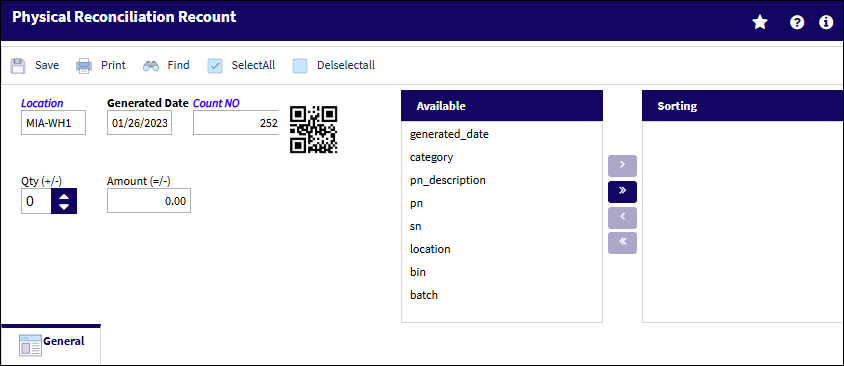
Select the Find  button.
Check the checkboxes for the records in this screen that you wish to correct (e.g. the counted quantities). You can individually select records or use the select all buttons. Then click on the Save  button to save all information.
You can now return to the Physical Inventory Count (Inventory/ Update/ Physical Inventory Count) to re-enter the corrected quantities. Notice that only the records that were previously individually selected (via the Physical Reconciliation Recount window) appear for you to re-enter the corrected quantities.
Once the corrected quantities are entered and saved, the Physical Inventory Adjustment option should be run to finalize the process.
At this point, the reconciliation report can be printed.
Go to Inventory/Print/Physical Inventory Print (Reconciliation format).
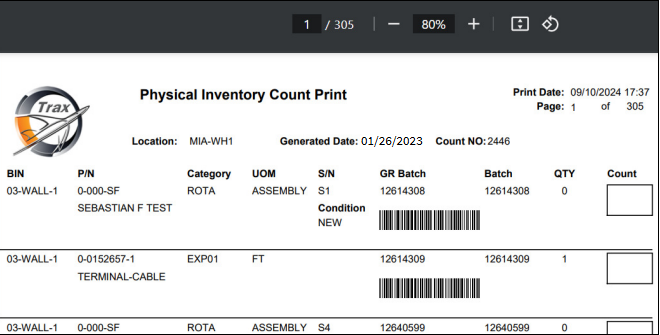
In the print, the records are sorted in ascending order per the fields entered in the Sorting table.
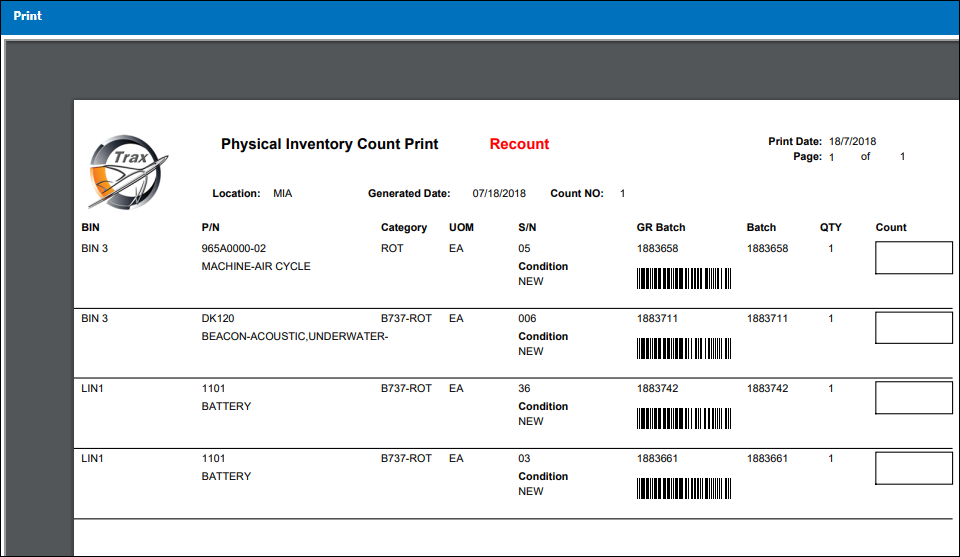
If you require entering a Physical Reconciliation Recount, continue on to the Physical Reconciliation Recount option.
If not, continue on to the Physical Inventory Adjustment option.

The following information/options are available in this window:
_____________________________________________________________________________________
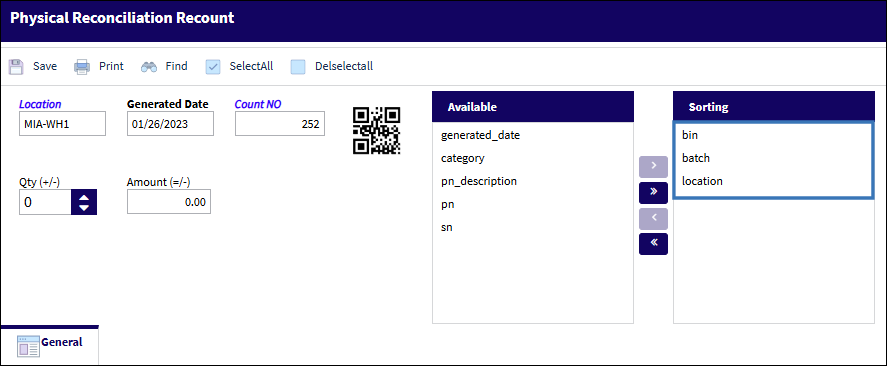
Location
The Location for maintenance events, inventory stores, orders, transactions, or training events.
Generated Date
The date on the Physical Inventory Count print that the count was generated.
Count NO
Count number.
Qty (+/-)
If you want to find only records that contain a specific count quantity, enter the amount here. Positive and negative values are allowed.
Amount (=/-)
If you want to find only records that contain a specific dollar amount, enter the amount here. Enter an amount to make your search result either equal to or less than a specific dollar amount.
Available / Sorting Table 
The Available/Sorting tables in the Physical Reconciliation Recount Window are used to sort the records that will be displayed in the generated print.
_____________________________________________________________________________________
Physical Reconciliation Recount Sorting
The Available/Sorting tables in the Physical Reconciliation Recount Window are used to sort the records that will be displayed in the generated print.
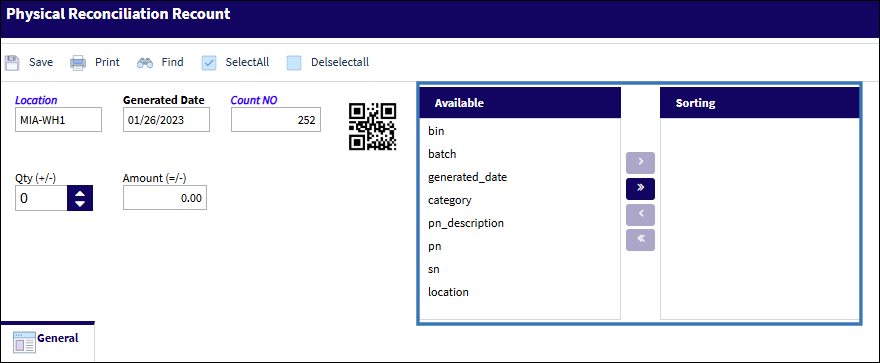
The Available table lists the fields that are included in the Physical Reconciliation Recount Print. To specify which fields should be sorted, the user must select the desired fields and move them to the Sorting table with the arrow buttons. Multiple fields can be selected at once by holding the CTRL key.
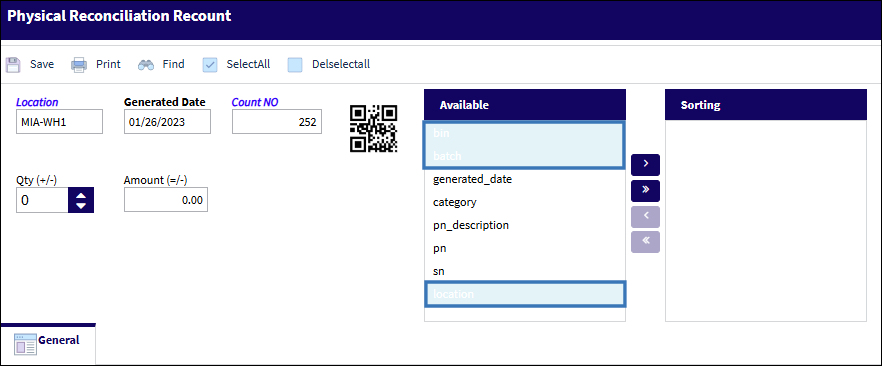
Fields placed in the Sorting table will be sorted in ascending order. Users can continue to add fields to the table or remove them by selecting the fields and using the arrow buttons. Once the desired fields have been placed in the Sorting table, select the Save button to generate the print. In this instance, the Physical Recount print will be generated with records belonging to the MIA-WH1 location.
In the print, the records are sorted in ascending order per the fields entered in the Sorting table.
For Physical Reconciliation Recount Sorting functionality, refer to the Physical Inventory Generation, via the Inventory Module.
Share
Print
|
©1997-2026 Trax USA Corp. All rights reserved. This manual may not be copied, photocopied, reproduced, translated, or converted to any electronic or machine-readable form, in whole or in part, without prior written approval from Trax USA Corp. |
 |