
 Share
 Print
|
|
|
|
|


In the Requisition Management Detail, the requisition may now be attached to an open order of your selection.
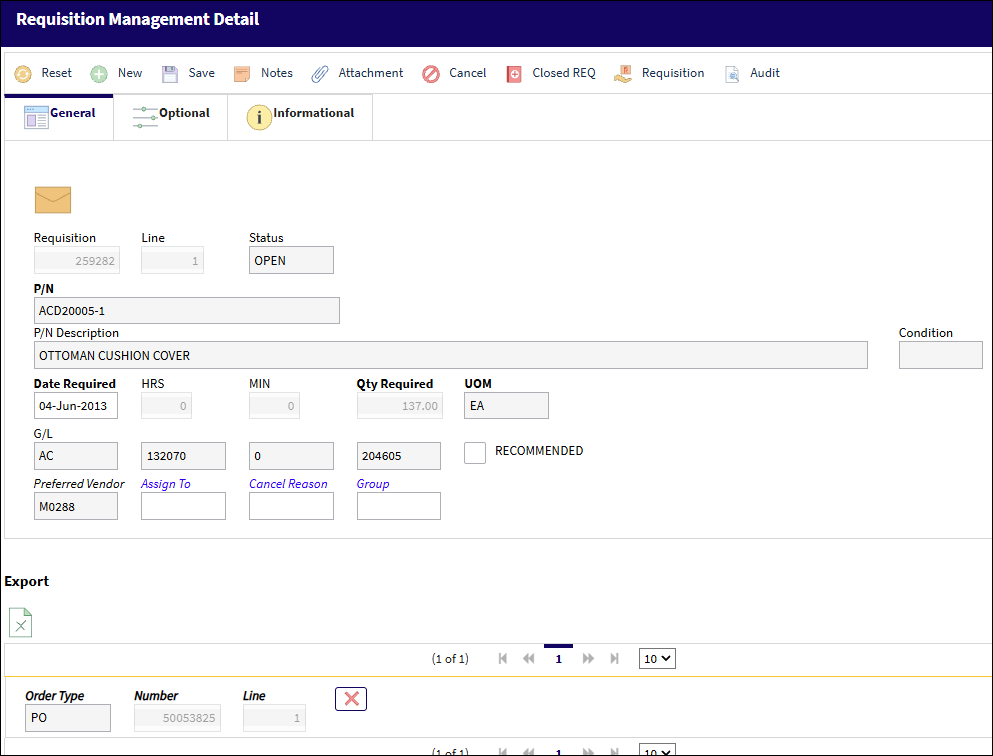
The following information/options are available in this window:
_____________________________________________________________________________________
Requisition
List of required parts for either a maintenance item or for restocking.
Line
The line item number for the specific Requisition.
Status
The status of the Requisition.
Note: The status is automatically updated when a requisition is placed on a PO (i.e. from Open to Order).
P/N
The Part Number reference for the aircraft part.
P/N Description
The description of the part.
Condition
The condition of the part.
Date Required
The date that the item(s) is/are required by.
 Note: When the Requisition Status is Open, the Date Required field is able to be modified.
Qty Required
The required quantity of the P/N being requested.
UOM
The Unit of Measurement for the part(s) required.
G/L
G/L associated to the requisition.
Recommended checkbox
Check if this is a recommended vendor. If requisition authorization is required then selecting this checkbox would produce the following ( ) icon in the requisition authorization queue (via Requisition/ Update/ Requisition Authorization) indicating this recommendation for fulfillment.
Preferred Vendor
The preferred vendor to acquire the parts from (if applicable).
Assign To
The employee (buyer) that this Requisition is assigned to. This can only be edited on ‘Open’ Requisitions. This field is auto populated with the value that appears via Settings/ Update/ P/N/ Inventory Levels button/ General Tab/ Buyer field. The Assign To Buyer is populated if the part has been previously set up with an assigned buyer. An assigned buyer is defined via Settings/ Update/ P/N/ Inventory Levels button/ General Tab/ Buyer field.
Cancel Reason
The Reason code associated with any cancellation of this requisition. This code will be mandatory once the Cancel  button is selected against the requisition for the save of the transaction.
Group
The Group responsible for buying this part. The user can select into the field and select a group from the Drop Down Selection pop-up window or create a new buyer group by selecting the New  button. The Group field can be modified.
Export to Excel button
The Export as Excel  button can be selected to view the queried data (including all pages) in an Excel spreadsheet. This Excel file can be saved for later use. For more information refer to the Export as Excel Button via the eMRO System Standards manual.
Order Type
The Order type that will be associated with this requisition (PO, CO, etc).
Number
The Order number that will be associated with this requisition. Only open orders that have the part number in question will be accepted entries and will be available for selection when the user selects into this field. If the part number on the order and the part number on the requisition are not the same, a warning message will appear and the order cannot be saved against the requisition.
Line
The line number (on the Order) that this requisition is associated with.
Delete  button
Select to remove the connection between the Order and the Requisition.
_____________________________________________________________________________________
Enter the Order number to attach this Requisition to, or click on the Cancel Requisition  button to cancel the Requisition. This can be used, for example, where a part requisition has been made for an item out of stock but is on repair. If you attach the R/O to the requisition, when it arrives back from repair, a message will be sent to the user requesting the part that it has arrived.
Share
Print
|
©1997-2026 Trax USA Corp. All rights reserved. This manual may not be copied, photocopied, reproduced, translated, or converted to any electronic or machine-readable form, in whole or in part, without prior written approval from Trax USA Corp. |
 |