
 Share
 Print
|
|
|
|
|


The Task Card Shop, Keywords tab allows the user to assign keywords to the selected Task Card to help locate it for Defect Reports more easily. For additional information on this functionality, refer to the Task Card Keyword Button, via the Defect Report Detail, General tab.
User can add keywords by selecting the New  button, or remove keywords by selecting the Delete
 button. Once a keyword has been added/created, select the Save
 button.
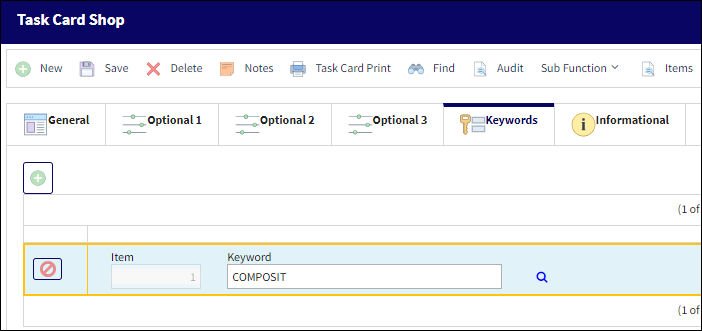
Note: Each keyword must be set up as a transaction code via System Transaction Code Explorer/ Shop/ Shop Keywords. These transaction codes can also be created using the System Tran Code  button within the Keyword field's drop-down selection. The Shop Keywords transaction code allows users to associate a color to each Keyword. Keywords will then be displayed in the selected color in the eShops app when related to a T/C.
Share
Print
|
©1997-2026 Trax USA Corp. All rights reserved. This manual may not be copied, photocopied, reproduced, translated, or converted to any electronic or machine-readable form, in whole or in part, without prior written approval from Trax USA Corp. |
 |