
 Share
 Print
|
|
|
|
|


Shop W/O Closing - Preliminary Steps
Shop W/Os must be in a Completed status before they appear in the Shop W/O Closing window to be Post Completed. A Shop W/O's status automatically changes from Open to Completed once all its associated Task Cards have been actioned (closed, deferred, canceled). There are multiple ways Shop W/O Task Cards can be actioned, below is one example.
Go to Shop/ Update/ Shop W/O and find the Shop W/O.
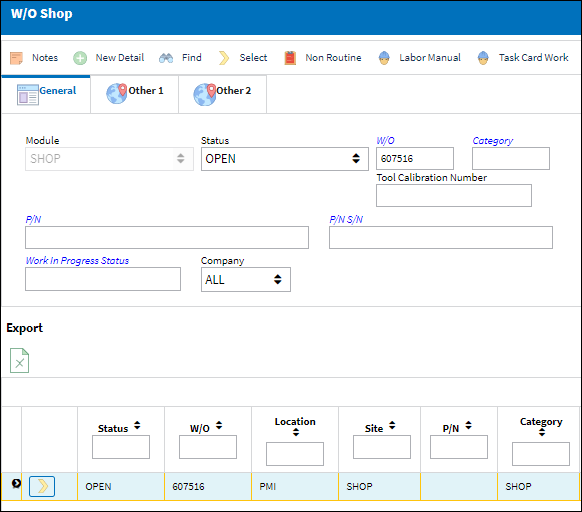
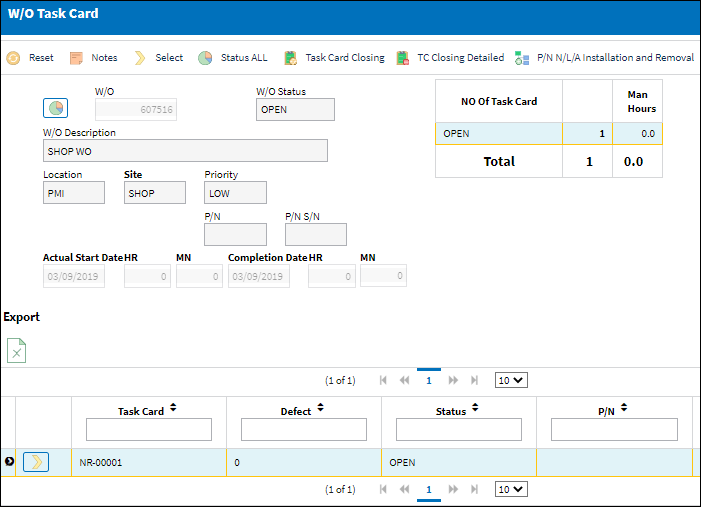
Select the Task Card Work  button and the Shop W/O Task Card window appears and displays the Task Cards attached to the Shop W/O.
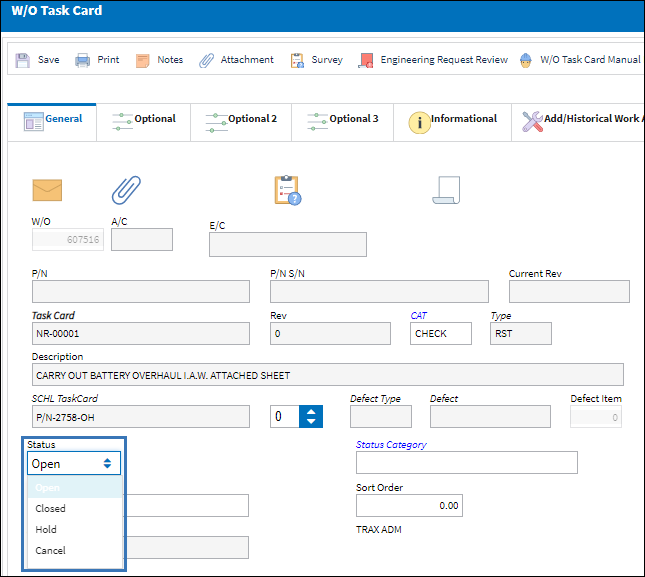
Select into each Task Card that needs to be actioned and the W/O Task Card detail window appears. Select the applicable status from the drop down and enter other required information and select the Save  button.
Note: For more information, refer to Shop W/O Task Card detail.
 This available Status' that appear in the drop down are security controlled via Shop/ Update/ Shop W/O. For additional information, refer to the Security Explorer, via the System Administration Training Manual
Once all Task Cards associated to the Shop W/O have been actioned, the Shop W/O status changes to Completed.
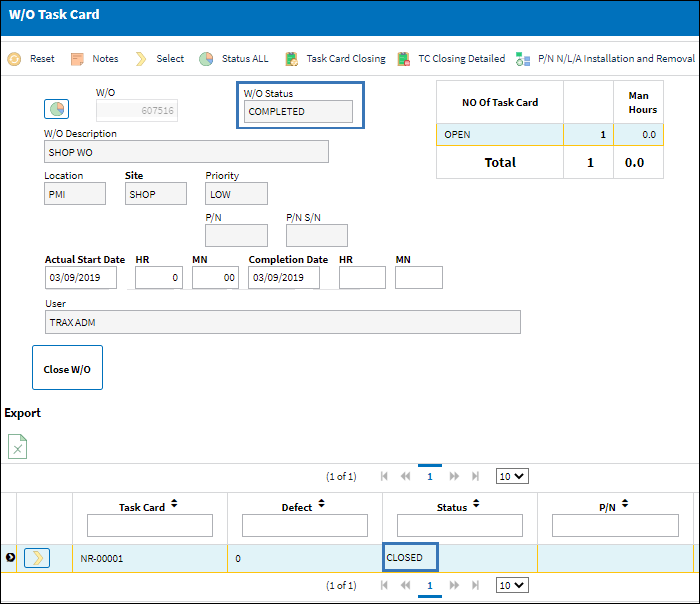
Note: Alternatively, users can select the Status All  button and change the status of all Task Cards attached to the Shop W/O without having to change the status of each Task Card separately.
The Shop W/O can now be Post Completed use either the W/O Task Card, Close W/O button or via the Shop W/O Closing window.
Share
Print
|
©1997-2026 Trax USA Corp. All rights reserved. This manual may not be copied, photocopied, reproduced, translated, or converted to any electronic or machine-readable form, in whole or in part, without prior written approval from Trax USA Corp. |
 |