
 Share
 Print
|
|
|
|
|


Single Sign-On

Single Sign-On (SSO) allows users to log in to an application using the 'Use SSO' button (eMRO and web apps) or 'Login with SSO' button (eMobility apps) found in the system's login window. When the user selects the SSO login button they are redirected to an external identity provider's (IDP) login window where they must enter their company domain username and password. The IDP validates the user's credentials and once approved the user is logged in to the application. After the user's initial SSO login, their credentials are retained and the next time the user selects the SSO login button they are automatically logged in to the application.
Note: Settings in the IDP determine how long the users credentials are retained before they need to re-validate their company domain username and password via the IDP login window.
To use SSO, the basic user configuration must include:
- Email address entered in their Employee Master, Additional Info tab
- Company domain entered in their LDAP Username in the Employee Master, Optional tab
- Employee Master username entered in their Security, LDAP tab (either a individual or group security profile)
Note: Depending on the application and system administration, different user configurations may be required. For more information, refer to the Credential Management document via iCentral.
Note: Customers must have the necessary system requirements in place to take advantage of SSO. System requirements and setup can be found in the Single Sign-On Overview document via iCentral.
eMRO Single Sign-On:
Note: In the below example, Microsoft Azure is being used as a third party identity provider (IDP).
Each user must have the following configurations in the main system:
Employee record in the Employee Master.
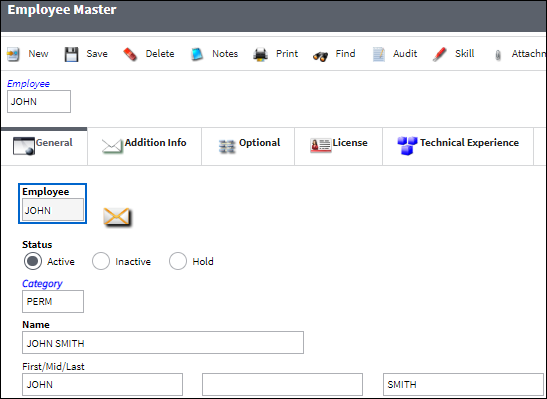
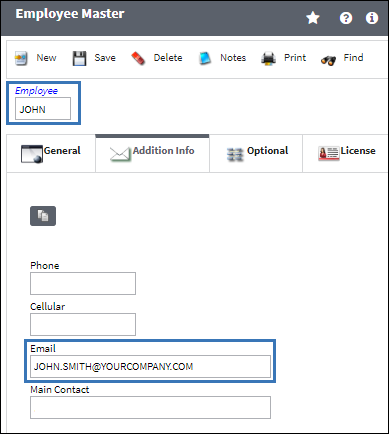
Email address in the Employee Master, Additional Info tab.
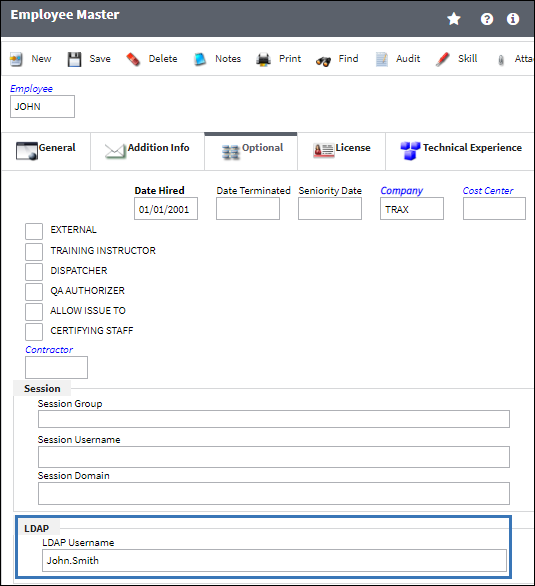
Employee LDAP Username entered in their Employee Master, Optional tab.
The employee's Employee Master username must then be entered under the LDAP tab of a security profile (this can be added in a security profile for an individual or a group).
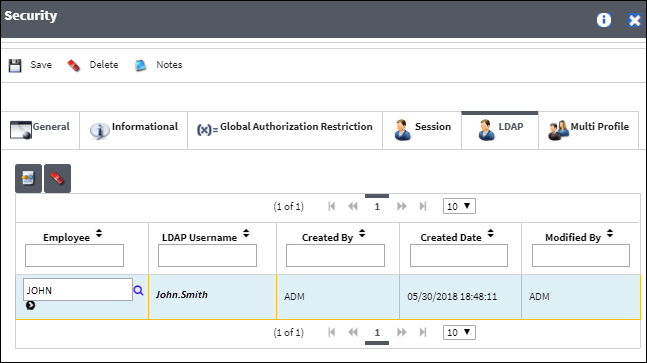
Note: Multiple employees can be linked to one eMRO/eMobility user profile, however a single user cannot be linked to more than one user profile.
Once all system requirements have been met, the users selects the Use SSO button from the eMRO login window.
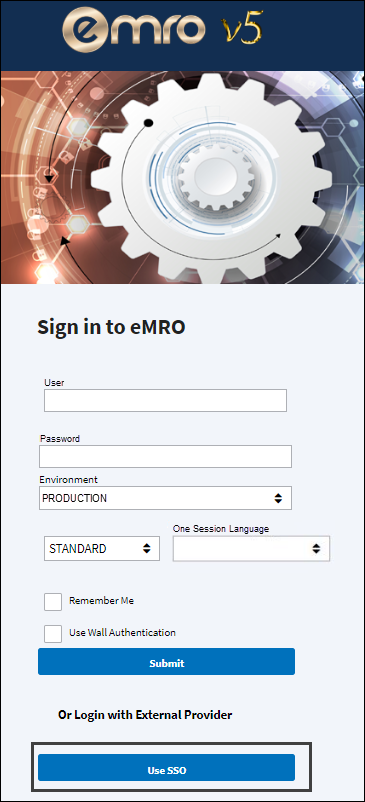
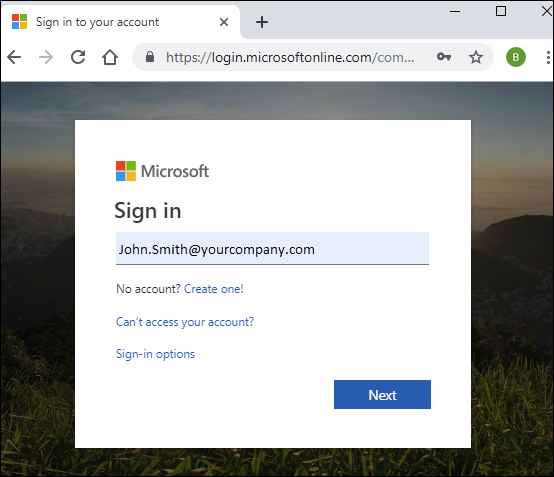
The IDP login window appears, the user enters their company domain username and selects the next button.
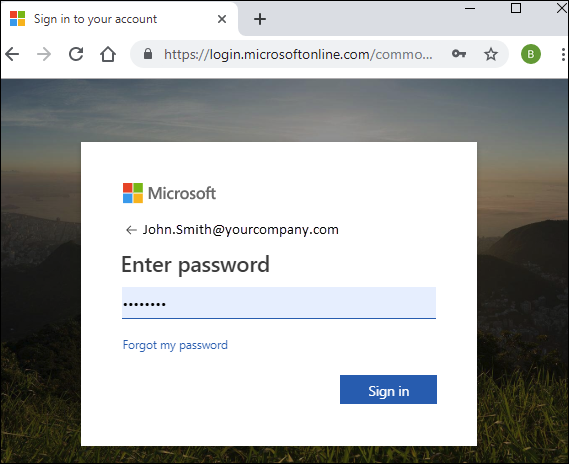
The user enters their company password and selects the next button.
Once validated, the user is logged in to the system.
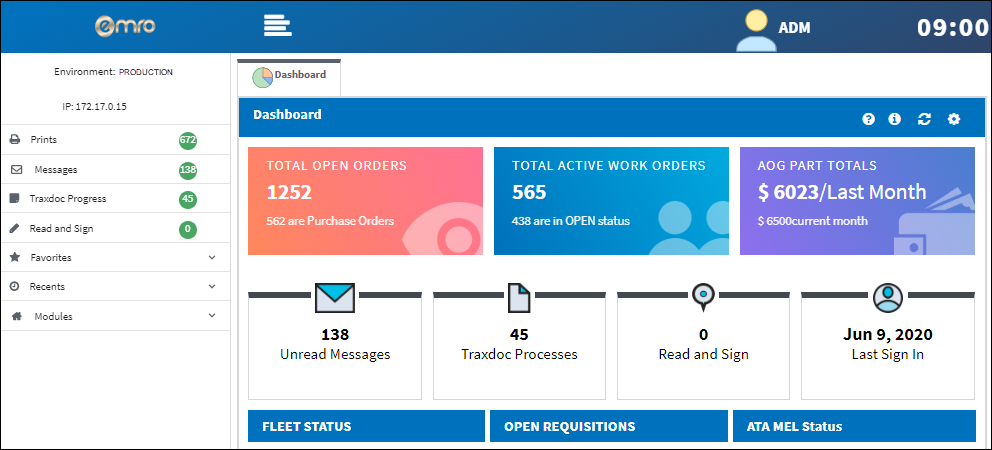
After the user's initial SSO login, their credentials are retained and the next time the use selects the "Use SSO" button they are automatically logged in to the application.
Wall Passwords through SSO
The Wall Password functionality can be used in conjunction with the SSO login method. In addition to adding the Wall users under the main Username through the Security Explorer, the list of Wall users would also need to be added under the LDAP tab of the main user's User configuration window. Then when the Wall user logs into eMRO using their SSO login, their Wall Password user details will be recognized automatically and their Wall securities will be in effect.
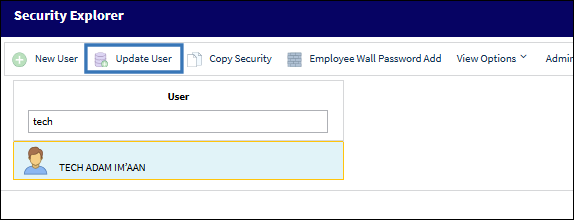
For example, in the Security Explorer select the Update User  button for the main user that will organize the Wall users.
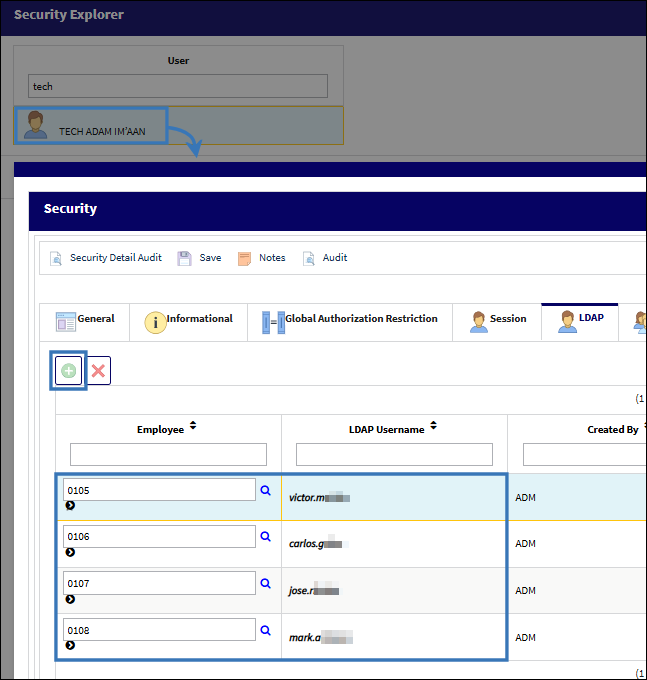
From the LDAP tab, enter all Employees for the Wall group by selecting the New  button. Then save the window.
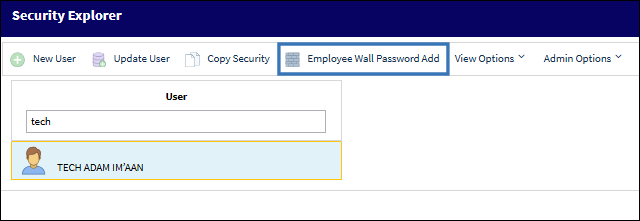
All of these employees will then need to be added to the main user through the Employee Wall Password Add  button.
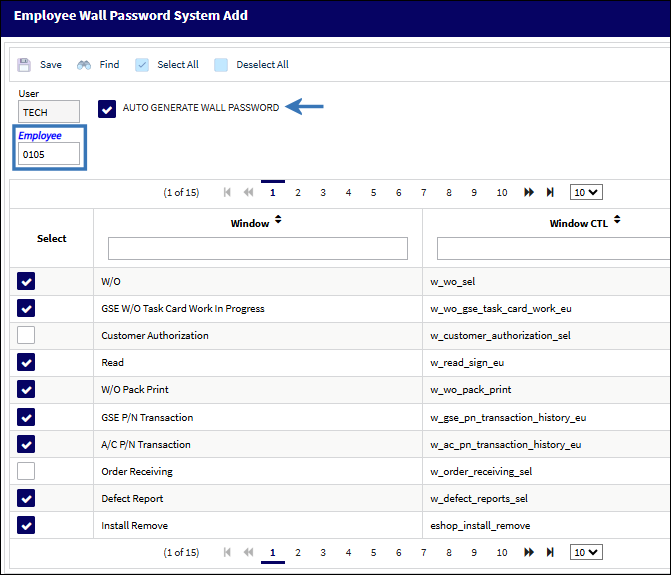
Enter each Wall employee in the Employee field and select their Wall securities. Select the Auto Generate Wall Password checkbox and save. Repeat for each each Wall employee.
The next time that employee logs in, they enter the main Wall User then select the Use SSO button. (For Wall users logging in with SSO, the Use Wall Authentication checkbox does not need to be selected. Their Wall configuration will be recognized automatically.)
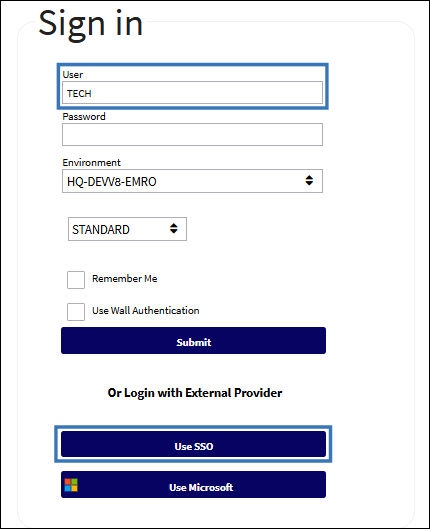
Note: If the employee attempts to enter a Password and login using the standard Submit button, they will receive an error because they do not have a password. They can only use the SSO login method.
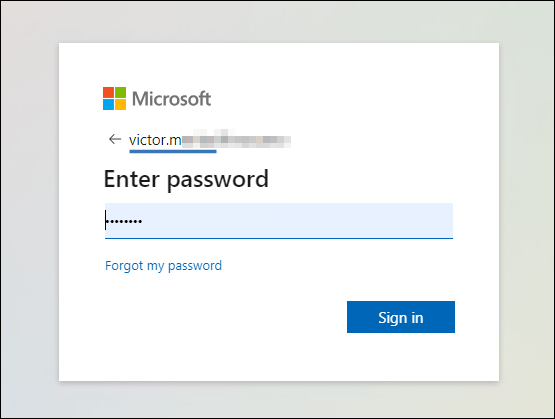
When redirected to enter their SSO credentials, notice the employee's email information from the LDAP tab is recognized.
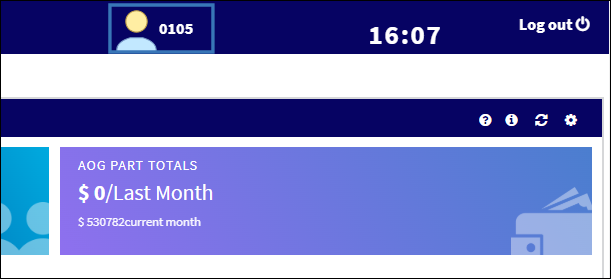
Once logged in, the Wall user's employee ID is displayed. All of their Wall Password securities will be in effect.
For more information on the Wall Password functionality, refer to Applying Wall Passwords via System Administration.
SSO vs LDAP Cancellation 
The system does not support the usage of the SSO and LDAP log in methods at the same time. If the standard "FirstName.LastName" LDAP username is entered in the "LDAP Username" field, the SSO functionality will not be available to the user.
Note: This functionality is applicable to the eMobility iOS and web applications.
The following user has a SSO username set up in "LDAP Username" field via the Employee Master. For more information on this field, refer to Employee Master, Optional Tab.
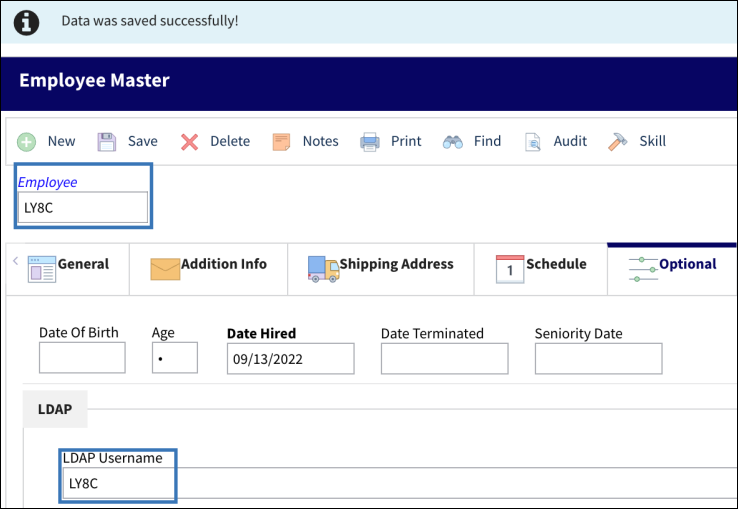
Selecting the "Use SSO" button will redirect the user to a company specific SSO page. Enter the credentials detailed in the Employee Record and select the sign-in button; the user successfully signs into eMRO.
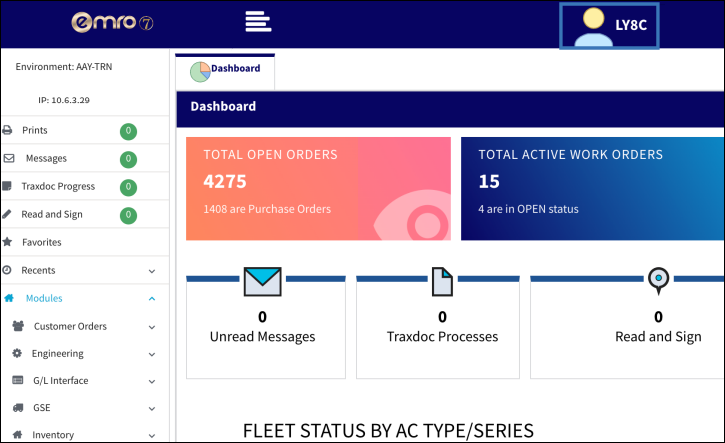
The user attempts to try the process with the standard "FirstName.LastName" LDAP credential.
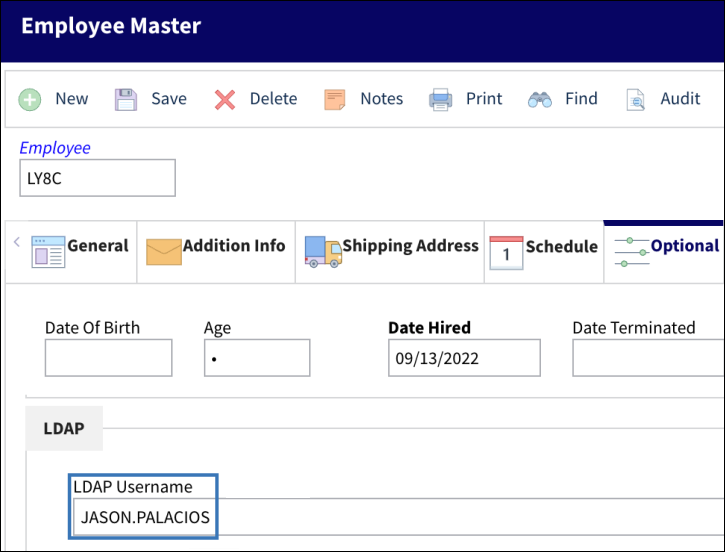
Upon selecting the "Use SSO" button and entering the appropriate information in the company SSO window, the system does not allow the user to sign in.
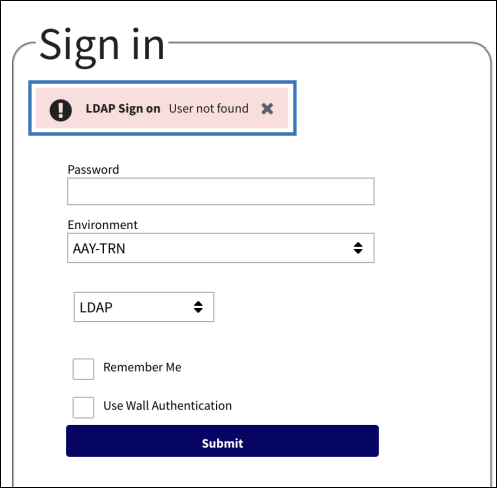
Note: Inactive users and employees will not be able to sign in with either method.
Share
Print
|
©1997-2026 Trax USA Corp. All rights reserved. This manual may not be copied, photocopied, reproduced, translated, or converted to any electronic or machine-readable form, in whole or in part, without prior written approval from Trax USA Corp. |
 |