
 Share
 Print
|
|
|
|
|



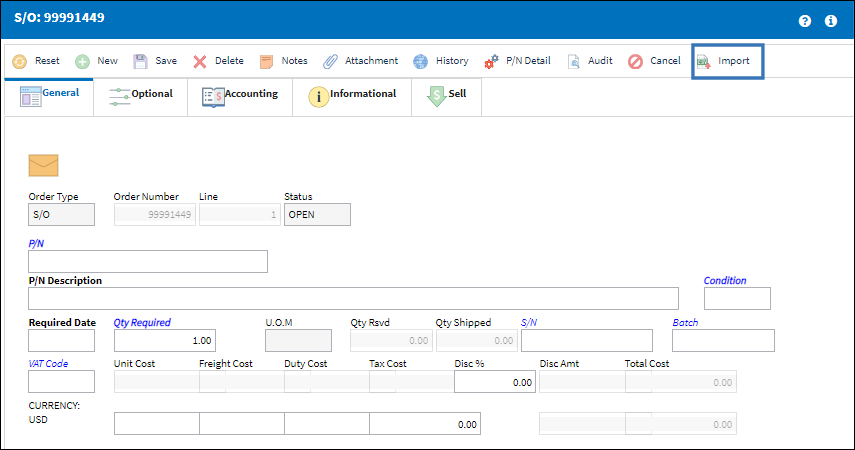
The Import  button via the Customer Orders Detail window is used to add multiple parts against the Sales Orders. Each different P/N imported into the S/O will create a new line item in the detail window.
The Import button appears throughout the system and is used to import files that do not exist in the system. The same process can be applied to any import found within the system. First, the user must prepare the file. For information regarding how to prepare the import file, refer to Preparing File For Import, via the Import Button of the System Standards Training Manual.
Note: Import files for eMRO should be saved as .csv (comma delimited) or .xlsx and cannot have spaces in the title of the file. Spaces in the file path will cause errors when importing.
First, the user must prepare the file. For information regarding how to prepare the import file, refer to Preparing File For Import, via the Import Button of the System Standards Training Manual.
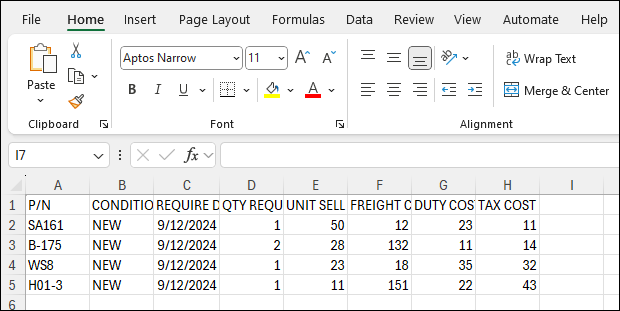
Criteria for Customer Orders Import file:
Column Name |
Data Type |
Limitation |
Path |
|---|---|---|---|
P/N |
Alphanumeric |
35 |
Customer Orders/ Update/ S/O/ Sales Order Detail. |
Condition |
Alphanumeric |
8 |
Customer Orders/ Update/ S/O/ Sales Order Detail. |
Required Date |
Date |
8 |
Customer Orders/ Update/ S/O/ Sales Order Detail. |
QTY Required |
Numeric |
8 |
Customer Orders/ Update/ S/O/ Sales Order Detail. |
Unit Sell |
Numeric |
11 |
Customer Orders/ Update/ S/O/ Sales Order Detail. |
Freight Cost |
Numeric |
N/A |
Customer Orders/ Update/ S/O/ Sales Order Detail. |
Duty Cost |
Numeric |
N/A |
Customer Orders/ Update/ S/O/ Sales Order Detail. |
Tax Cost |
Numeric |
N/A |
Customer Orders/ Update/ S/O/ Sales Order Detail. |
Batch |
Numeric |
8 |
Customer Orders/ Update/ S/O/ Sales Order Detail. |

The following information/options are available in this window:
_____________________________________________________________________________________
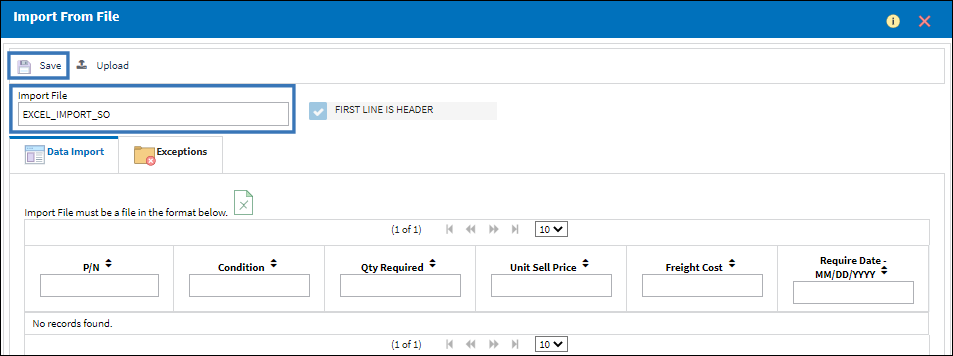
Import File
File being imported to the Sales Order containing the record.
First Line is Header checkbox
Check this box if the first line of the file is a header and should not be imported.
Note: This checkbox is selected by default.
Save  button
Select to save the import.
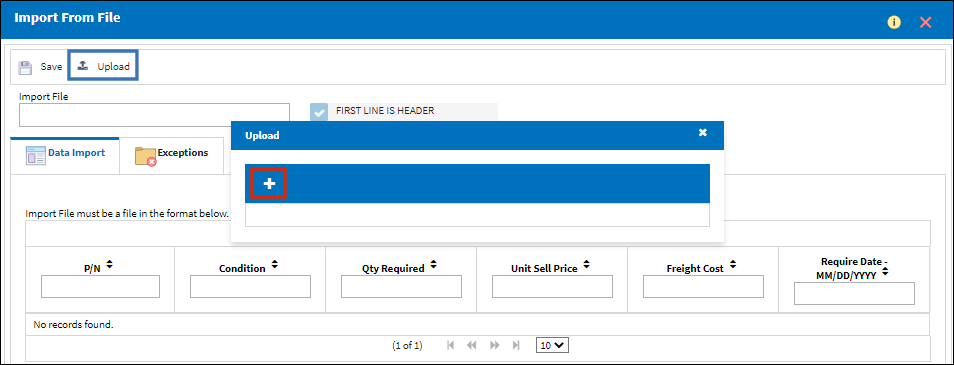
Upload  button
Select to upload the file.
Add  button
Select the Add button to select a file.
_____________________________________________________________________________________
From the Sales Order Detail select the Import button.
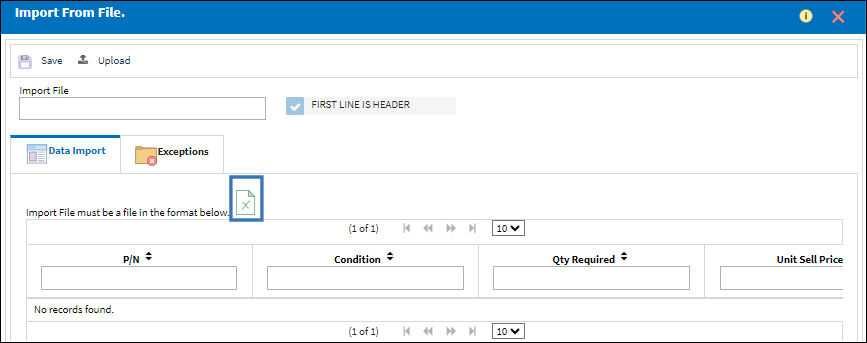
The Import From File window will appear. Users can select the Excel logo to access the file template used to upload multiple line items.
Using the Excel template, users can enter multiple line items to import.
Select the Upload button to import a file.
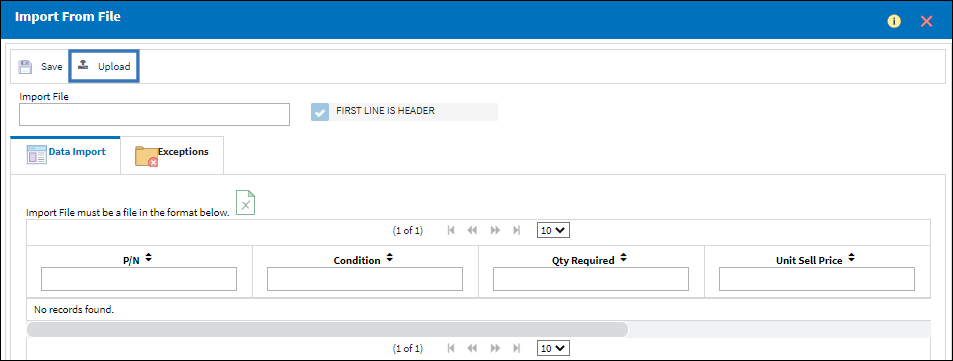
The Upload pop-up window will appear. Select the Add button and chose a file to upload.
Select the Save button to complete the file import.
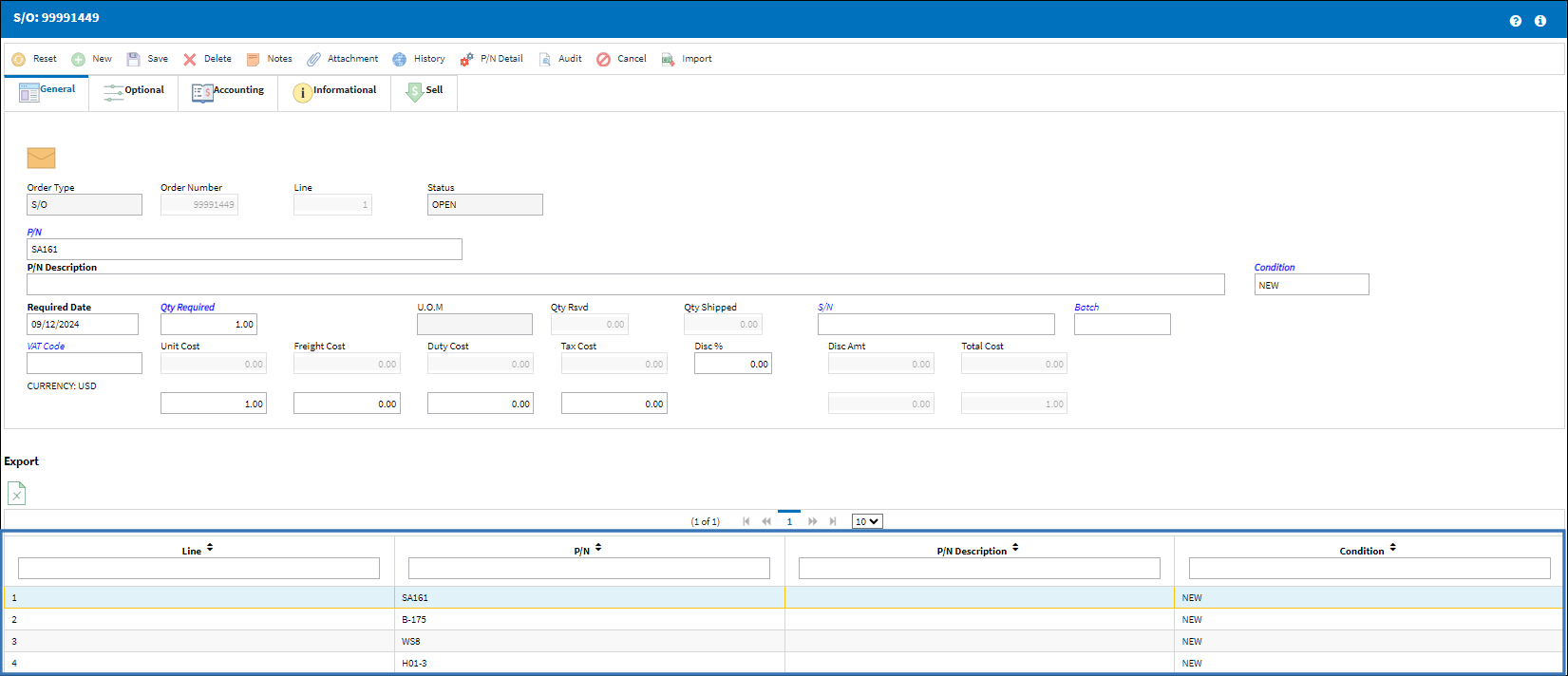
The imported records appear in the Sales Order Detail window.
Share
Print
|
©1997-2026 Trax USA Corp. All rights reserved. This manual may not be copied, photocopied, reproduced, translated, or converted to any electronic or machine-readable form, in whole or in part, without prior written approval from Trax USA Corp. |
 |