
 Share
 Print
|
|
|
|
|


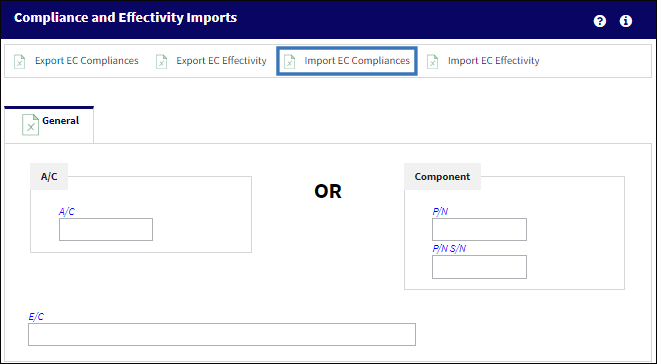
The Import EC Compliances  button allows users to import E/C compliance records.
From the Compliance and Effectivity Imports window, select the Import EC Compliances button.
From the Import From File window, upload an Excel file, then click the Save  button.
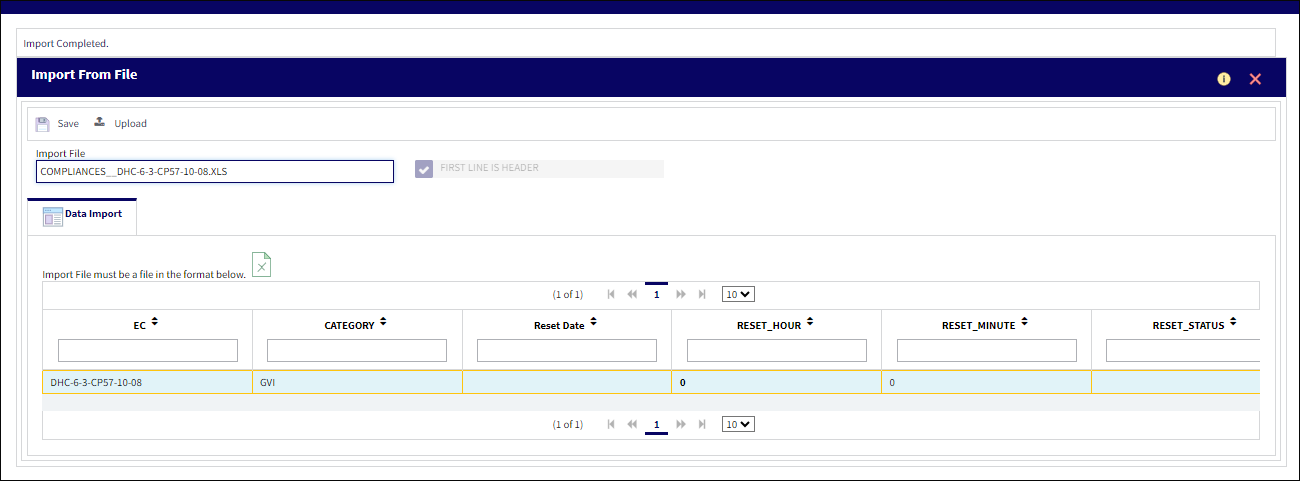
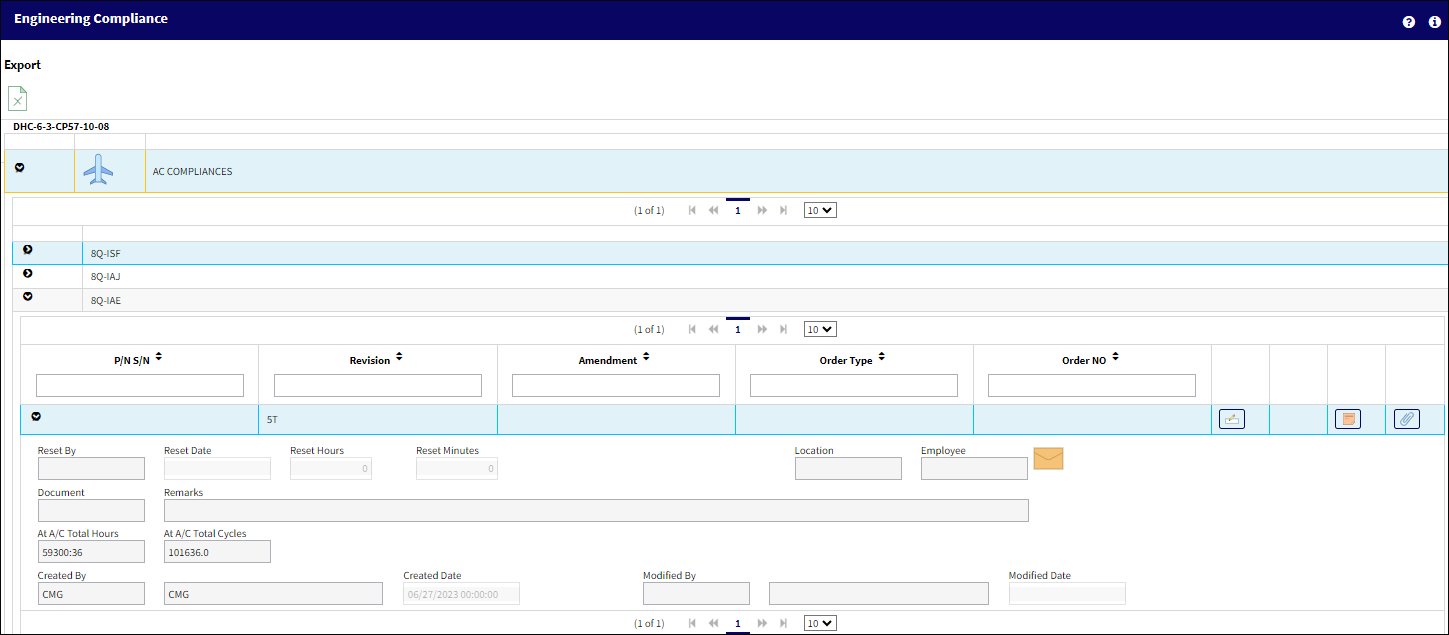
Notice the E/C compliance record was imported.
Column Name |
Data Type |
Limitation |
Path |
E/C |
Alphanumeric |
25 |
Engineering - E/C/ Update/ Engineering Compliance |
Category |
Alphanumeric |
8 |
Engineering - E/C/ Update/ Engineering Compliance |
Reset Date |
Numeric |
8 |
Engineering - E/C/ Update/ Engineering Compliance |
Reset Hour |
Numeric |
2 |
Engineering - E/C/ Update/ Engineering Compliance |
Reset Minute |
Numeric |
2 |
Engineering - E/C/ Update/ Engineering Compliance |
Reset Status |
Alphanumeric |
N/A |
Engineering - E/C/ Update/ Engineering Compliance |
Compliance Remarks |
Alphanumeric |
Unlimited |
Engineering - E/C/ Update/ Engineering Compliance |
Order Category |
Alphanumeric |
N/A |
Engineering - E/C/ Update/ Engineering Compliance |
Order No |
Numeric |
6 |
Engineering - E/C/ Update/ Engineering Compliance |
Compliance Document |
Alphanumeric |
N/A |
Engineering - E/C/ Update/ Engineering Compliance |
Employee |
Alphanumeric |
10 |
Engineering - E/C/ Update/ Engineering Compliance |
Location |
Alphanumeric |
10 |
Engineering - E/C/ Update/ Engineering Compliance |
Share
Print
|
©1997-2026 Trax USA Corp. All rights reserved. This manual may not be copied, photocopied, reproduced, translated, or converted to any electronic or machine-readable form, in whole or in part, without prior written approval from Trax USA Corp. |
 |