
 Share
 Print
|
|
|
|
|



The Import T/C Items  button allows users to mass import items to a desired Task Card using the appropriate .xslx file format.
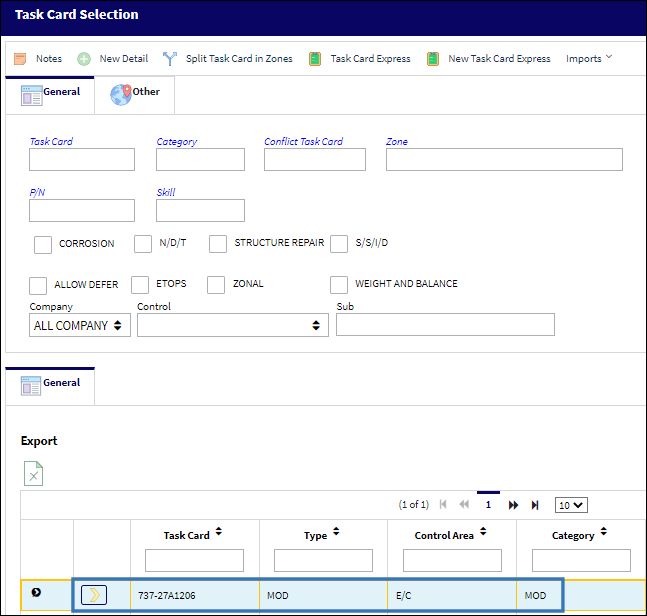
In the Task Card Selection Window, find the desired Task Card that the Items will be imported to.
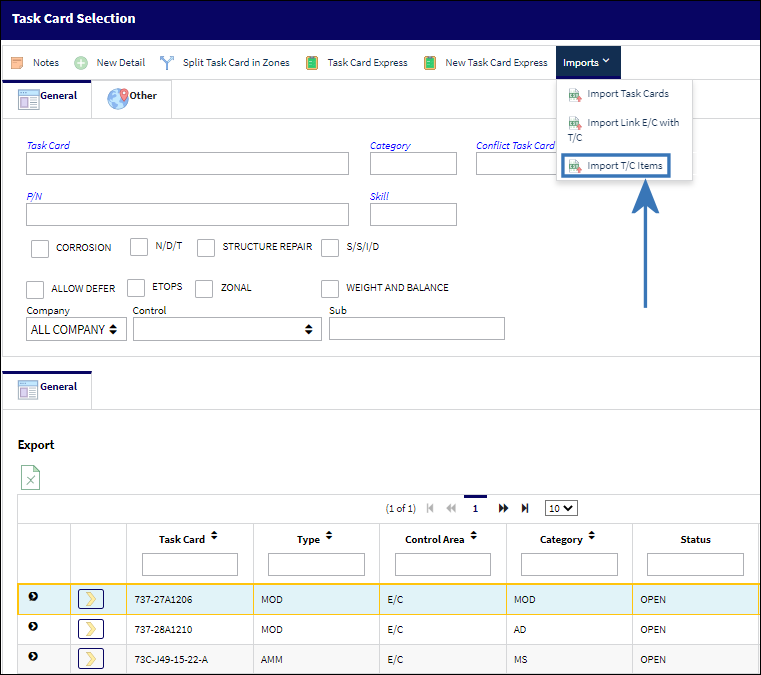
Under the Imports drop down, select the Import T/C Items button.
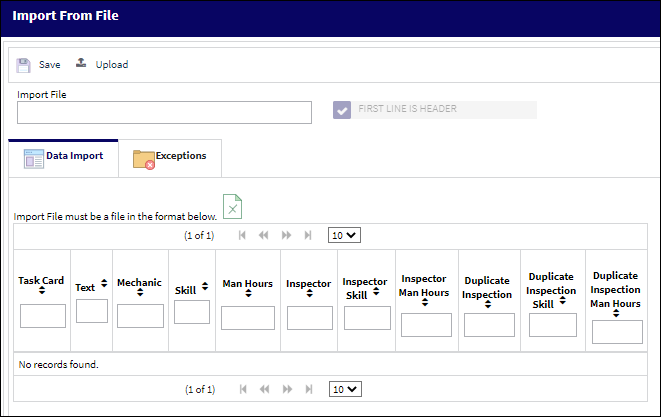
The Import from File window appears. Select the Template  button to access the appropriate .xslx file format.
Populate your file with the appropriate information and prepare it to be uploaded.
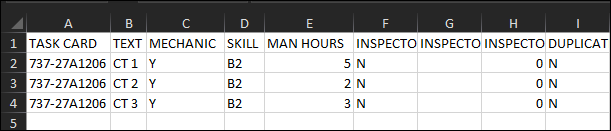
Note: Imported Items will default to 'Informational Only' when the Mechanic, Inspector, and Duplicated Inspection columns are marked as 'N' in the import file.
From the Import from File window, select the Upload  button to upload your file. Then select the Save
 button.
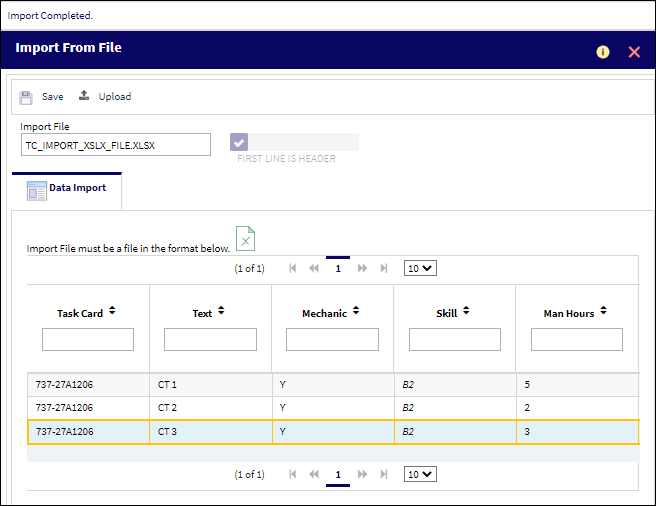
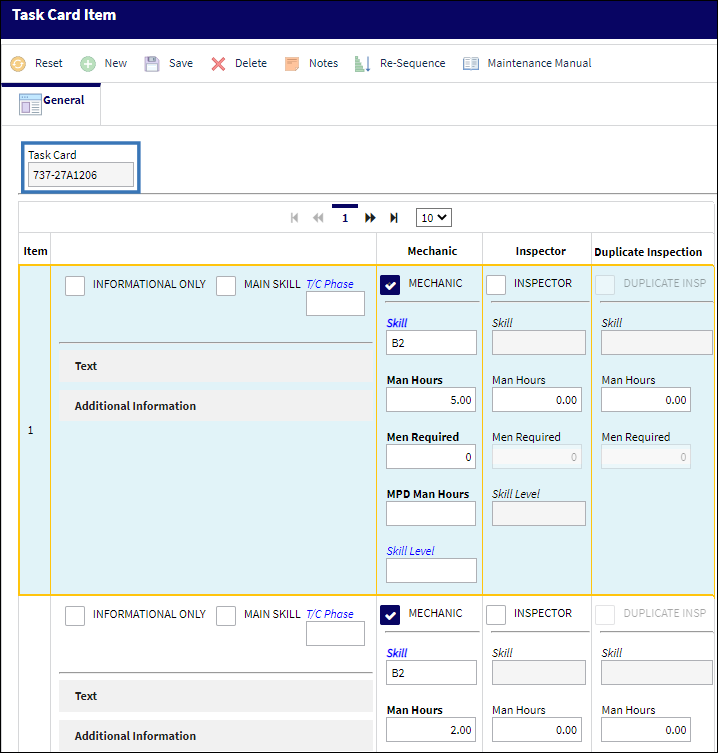
In the T/C's Item window, we can see that the items have been successfully imported.
Share
Print
|
©1997-2026 Trax USA Corp. All rights reserved. This manual may not be copied, photocopied, reproduced, translated, or converted to any electronic or machine-readable form, in whole or in part, without prior written approval from Trax USA Corp. |
 |