 Download Online Help
 Print
|
|
|
|
|


S/O
The Customer Orders option (i.e., Sales Order, S/O) allows users to create orders for parts that are being sold to their customers. This window is composed of a header level (where the Customer, Expenditure, Terms, etc. can be specified) and a detail level (where the specific part details, like the Quantity, Cost, Delivery Date, etc. can be specified for one or more parts through multiple line items).
The following tabs and buttons are available at the header level.
Customer Orders Header Tabs |
Customer Orders Header Buttons |
|
 Reset button
 New button
 Save button
 Delete button


For information on the options in the detail level, refer to Customer Orders Detail.
Additional functionality can be utilized through the Auto Sales Order.
Open Customer Orders Table
In the lower half of the window, all open Customer Orders assigned to the signed-in user are displayed in a table. Click on a Customer Order from the table to display header information at the top of the window.
The table is broken down into multiple pages - users can switch through the pages listed at the top and bottom of the table. The amount of items displayed in each page can be changed through the dropdown at the top and bottom of the table (the options are 5, 10, 15, or 50 items per page). The table can be filtered to display specific information by entering the specific data in the blank fields under each column name. Alternatively, line items can be sorted by using the up/down arrows next to the column name. Some tables contain a dropdown arrow in the first column that can be selected to display additional information for the selected record. When the required record is selected, click on the Select  button to access the Detail window.
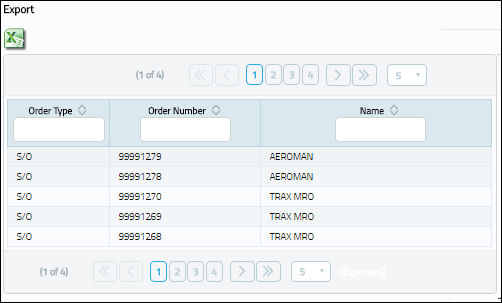
The Export  button located above the table can be selected to view the contents of the table (including all pages) in an Excel spreadsheet.
The following columns are available in this table:
_________________________________________________________________________
Order Type
Type of Order. By order type, certain receiving and financial behaviors will be assigned to the order at receiving of the various Order Types. These order types exist under the Orders or Customer Orders Modules exclusively. All Order Types are Hard Coded into the programming syntax.
Order Number
The type of order and the order number for the transaction.
Name
The name of the customer who was selected in the Customer field will appear here as defined in the Customer Master.
_________________________________________________________________________

This update window is also available in query mode where users can view the records provided in this window but cannot create new records or edit existing data. Refer to this module's Query menu.
Download Online Help
Print
|
©1997-2018 Trax USA Corp. All rights reserved. This manual may not be copied, photocopied, reproduced, translated, or converted to any electronic or machine-readable form, in whole or in part, without prior written approval from Trax USA Corp. |
 |