 Download Online Help
 Print
|
|
|
|
|


Mass Authorize Pending E/Cs Button, via Engineering Authorization Management
Select the Mass Authorize Pending E/Cs  button to mass authorize all E/Cs that are pending authorization at one time as defined by selection criteria.
The Mass Authorize Pending E/Cs and Linked Task Cards window displays. Users are able to use the search criteria to filter for all appropriate E/Cs.
Select the Save  button to begin the mass authorization process.
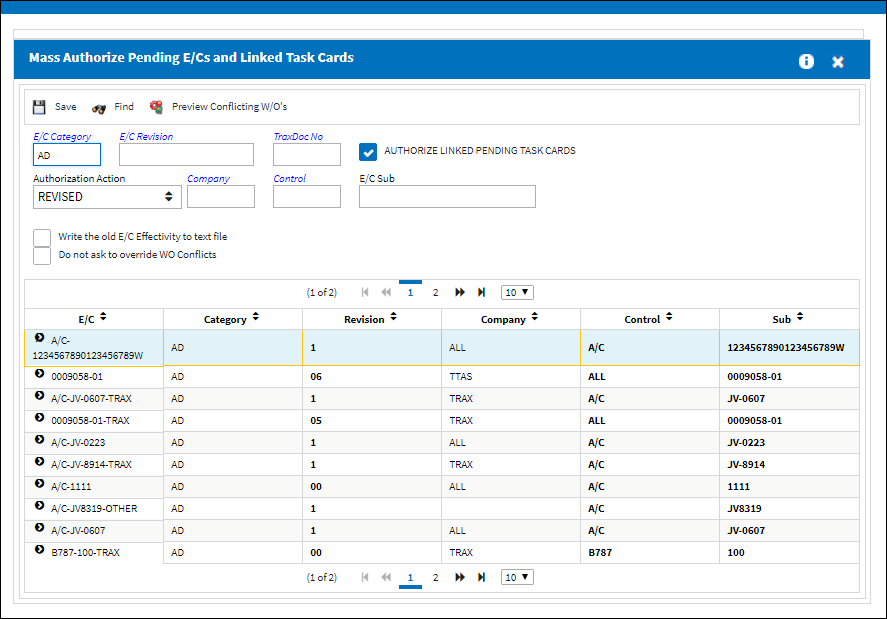
The following options/information is available in this window:
_________________________________________________________________________
E/C Category
The category of the E/C (i.e. AD, SB, CHECK). Users can search for all E/Cs pending authorization by E/C Category or by E/C Revision.
Note: All E/Cs in this category currently pending authorization will be selected for authorization.
E/C Revision
The revision can be alpha numeric. When the revision is changed and saved, the system will prompt the user with a revision control record, where the changes made for the specific revision can be saved for auditing purposes. The 'Revised By' field will be automatically updated with the user's user code, and the revision date can be set as required. Users can search for all E/Cs pending authorization by E/C Category or by E/C Revision.
Note: All E/Cs iof this revision currently pending authorization will be selected for authorization.
TraxDoc No.
Enter the TraxDoc reference number associated to the E/C.
Authorize Linked Pending Task Cards checkbox
Select this checkbox to also authorize all Task Cards that are linked to the E/Cs that are being authorized.
Authorization Action
Select any of the below authorization actions. These actions will be recorded in the Revision History tab of Engineering Control.
Revised - This is informational only.
Deleted - This is informational only.
Added - This is informational only.
Moved - This is informational only.
Once saved, this information will be recorded in the Engineering Control, Revision History Tab.
Write The Old E/C Effectivity To Text File checkbox
Select this checkbox to have the system save the E/C Effectivity information to a text file upon completion of this task. The user will be informed of the location of the text file upon selecting the Save button.
Company
The name of the airline company for which the E/C will be utilized.
Note: For more information, refer to the Multi Company Functionality.
Control
Select into the Control field to access the following drop down menu. Here the user may select an aircraft to query for.
Sub E/C
The Sub E/C used to auto generate the E/C reference. This is a free text field used for naming purposes only.
Do not ask to override Work Order Conflicts checkbox
Select this checkbox to override Work Order Conflicts messages.
_________________________________________________________________________
The following Save pop-up will display:
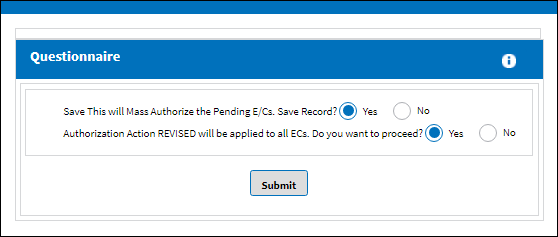
Once criteria has been entered, select the Find  button and the search result will appear on the lower half of the window.
Select the Save button to make the changes (authorize the E/Cs).
In the event that the E/C being revised and authorized is on an Open Work Order, the user will be prompted with the E/C Conflict with Open W/O message window.
By selecting the Override W/O checkbox and selecting the Save button, the user is updating the E/C on the Open Work Order with the newly revised E/C. By not selecting the Override W/O checkbox, the user is not updating the E/C with the newly revised E/C revision.
If there are multiple Open Work Orders with the E/C attached, the user also has the option to select the Select All  button and this will place a check mark in every Override W/O checkbox.
Note: Switch  PENDAUTH has a direct affect on this window and its functionality.
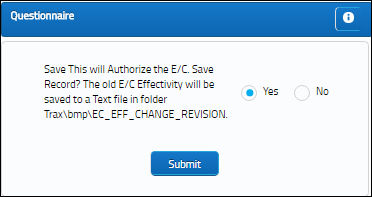
Note: If Switch SAVEASEC is set to Yes, the user will be able to select the save location of the Old E/C Effectivity text file (Mass Authorization Pending E/C and Engineering Authorization Windows).
Potential Pop-ups:
A warning message appears if the part number/serial number associated to the E/C no longer exists in Inventory.
- Select Yes to delete the P/N S/N from the revision table.
- Select No, to continue with the mass authorization.
A warning message appears if the aircraft the E/C is associated to no longer exists in the system.
- Select Yes to delete the Aircraft from the revision table.
- Select No to continue with the mass authorization.
Note: This message only comes up because the aircraft was archived while the E/C had an open Revision. When the aircraft is archived, a message is sent asking if the aircraft's effectivity to P/Ns, T/Cs, and E/Cs should be maintained. If 'No' is selected, the system will delete the effectivity for the authorized Revisions only.
Select OK to save the changes.
Download Online Help
Print
|
©1997-2018 Trax USA Corp. All rights reserved. This manual may not be copied, photocopied, reproduced, translated, or converted to any electronic or machine-readable form, in whole or in part, without prior written approval from Trax USA Corp. |
 |