|
MANUALS > Inventory > Inventory Module > Inventory, Update Menu > Inventory Transaction > Inventory Transaction Buttons > P/N-S/N Position Change Button, via Inventory Transaction
P/N-S/N Position Change Button, via Inventory Transaction
Select the P/N-S/N Position Change  button to change the aircraft position that the part is installed on. Enter the new position in the New position field and select the Save  button.
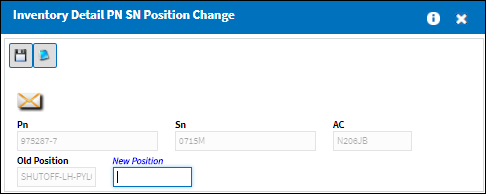
Note: When the P/N S/N Position is changed, any associated P/N Controls are updated to reflect the changes via the P/N Inventory Control window. For more information refer to the Control Button (Via the Inventory Transaction Detail) in the Inventory Training Manual.
Note: This button can only be selected for parts that are currently installed on an Aircraft. If selected for an uninstalled part, the following error message appears:

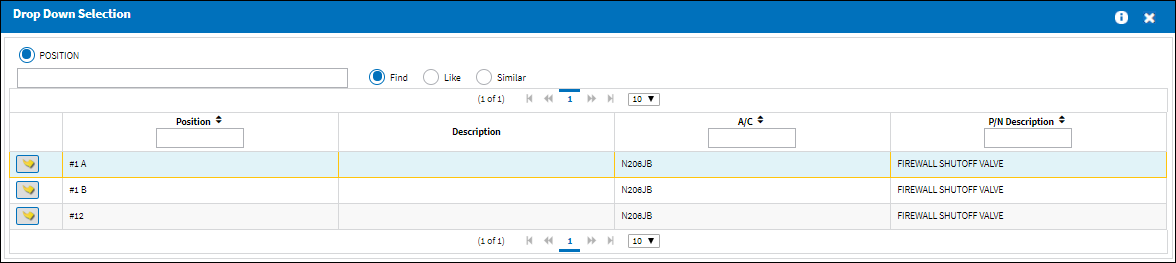
Only the positions linked to the part via the P/N Master will appear in the drop down window.
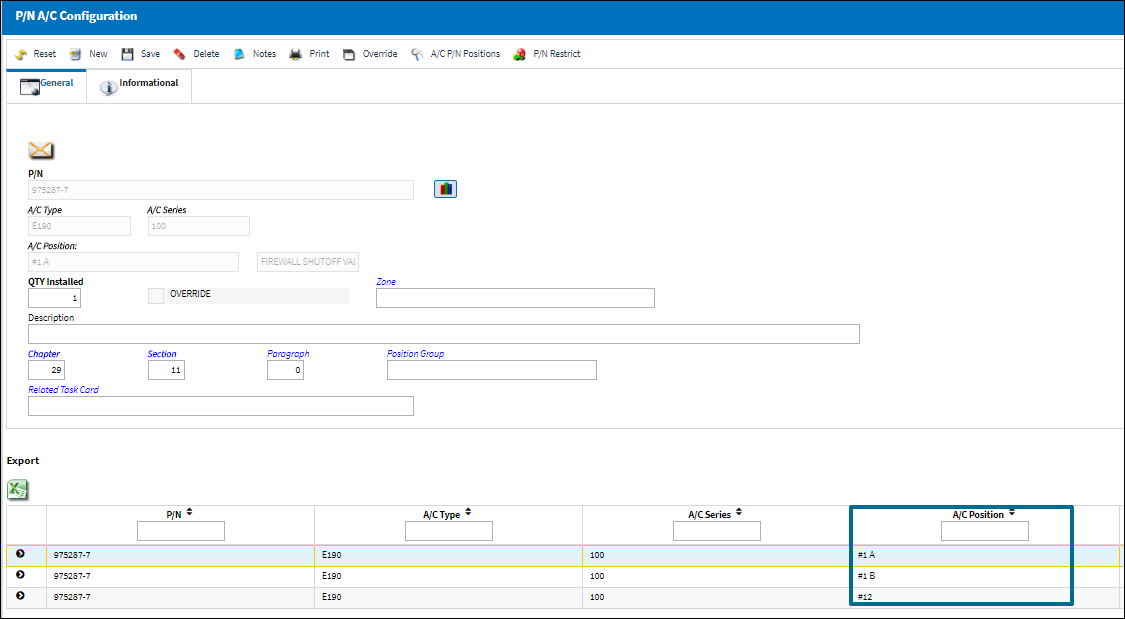
Notice that the part has the following Positions linked via the Positions  button of the P/N Master. Notice these are the same Positions listed above.
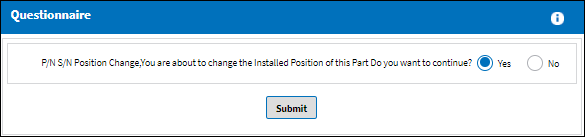
Once the Position is changed, the following prompt appears to confirm the change.
Once the Position is changed, a new Inventory Transaction is written for the batch called 'PN-SN-POS-CHG'.

Additional information can be included through the Notes  button.
|
In This Section Notes Button, via Inventory Detail PN SN Position Change |
See Also Inventory Transaction Buttons Bin Transfer Button, via Inventory Transaction Adjustment Button, via Inventory Transaction Scrap Button, via Inventory Transaction Manual Issue Button, via Inventory Transaction Picklist Issue Button, via Inventory Transaction Return To Stock Button, via Inventory Transaction Exchange Button, via Inventory Transaction Rental Button, via Inventory Transaction Lost Button, via Inventory Transaction P/N Missing Button, via Inventory Transaction Return Of Loan, via Inventory Transaction Return To Owner, via Inventory Transaction Owner Change Button, via Inventory Transaction Return From Customer Button, via Inventory Transaction Company Change Button, via Inventory Transaction RTN From Quarantine Button, via Inventory Transaction Single Line Button, via Inventory Transaction Multi Line Button, via Inventory Transaction Break Out Complete Kit Button, via Inventory Transaction Break Out By P/N Button, via Inventory Transaction Re-Build Kit Button, via Inventory Transaction Build Multi Kit Button, via Inventory Transaction Requisition Button, via Inventory Transaction Custom Duty Change Button, via Inventory Transaction P/N Master QRY Button, via Inventory Transaction Interchangeable Button, via Inventory Transaction Effectivity Button, via Inventory Transaction Order QRY Button, via Inventory Transaction Bin Control Button, via Inventory Transaction P/N S/N Change Button, via Inventory Transaction Attachment Button, via Inventory Transaction Manual Button, via Inventory Transaction Document Change Button, via Inventory Transaction P/N Detail Print Button, via Inventory Transaction P/N Initial Times Accrual Button, via Inventory Transaction Release From RO, via Inventory Transaction Import Software Button, via Inventory Transaction Bin Replace Import Button, via Inventory Transaction Notes Button, via Inventory Transaction Update Reserved Quantity Button, via Inventory Transaction Cycle Count Button, via Inventory Transaction Tools Picklist Button, via Inventory Transaction (Tools Locator) Tools Concession Button, via Inventory Transaction (Tools Locator) Tool Calibration Change Button, via Inventory Transaction (Tools Locator) |
|
 Download Online Help


