 Download Online Help
 Print
|
|
|
|
|


Missing Parts Queue
The Missing Parts Queue window provides the user the option to Query for Missing parts by Location, P/N, S/N, Batch, and/or Bin. From this window, the missing part can be scrapped or deemed Lost or Found, removing the Missing flag on the P/N in Inventory Transaction.
The P/N Missing  button is utilized to flag a part as missing, or not physically in the appropriate location/bin, in Inventory Transaction and as a part of its Transaction History. Upon being flagged as Missing, the P/N can be found in the Missing Parts Queue window. From there, the part can be Scrapped or deemed Lost or Found.
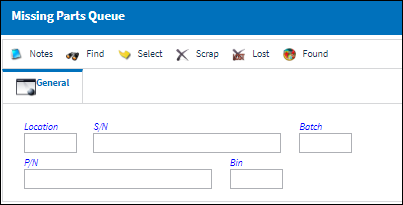
 This window is security controlled via Inventory/Update/Missing Parts Queue. For more information refer to the Security Explorer via the System Administration Training Manual.
Query:
Enter/update the following information and select the Find  button:
_________________________________________________________________________
Location
The Location for maintenance events, inventory stores, orders, transactions, or training events.
S/N
The Serial Number for the specific serialized part.
Batch
The batch number that is associated with a part when introduced/received into the system.
P/N
The Part Number reference for the aircraft part.
Bin
The specific storage bin within the inventory Location.
_________________________________________________________________________
The records will be displayed at the bottom of the window.
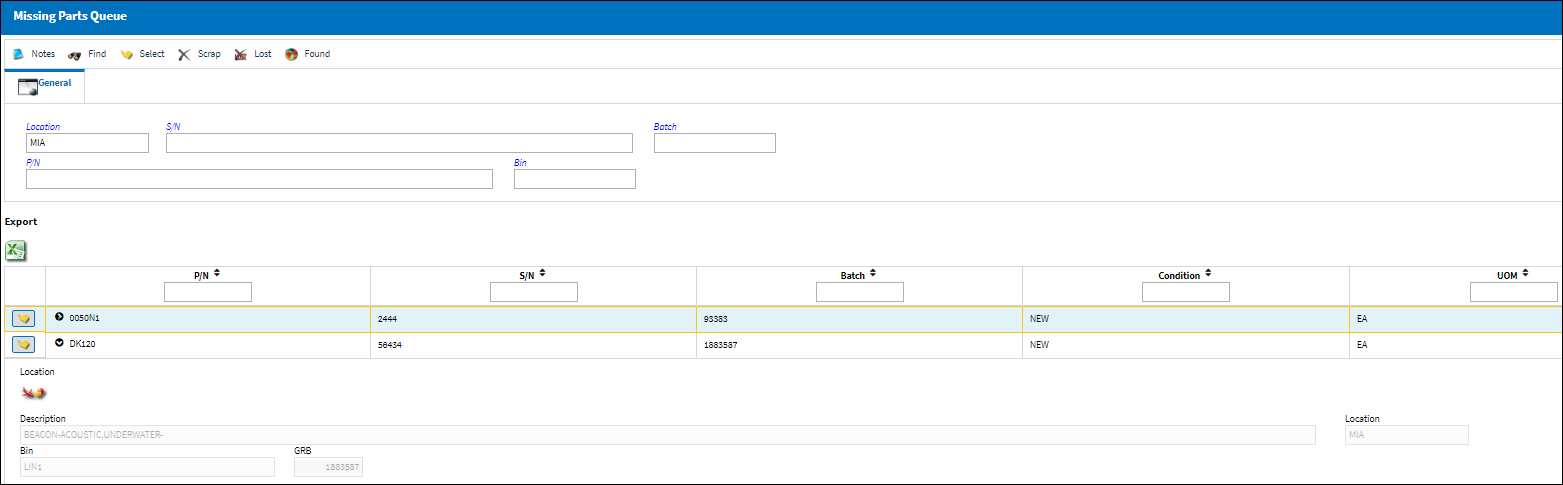
Additional information can be included through the Notes  button.
To Scrap the P/N, removing it from Inventory Transaction, select the Scrap  button. For more information, refer to
 Scrap Subprocess.
To deem the P/N as Lost, removing it from Inventory Transaction and adding the action to the part's Transaction History, select the Lost  button.
To deem the P/N as Found, removing the Missing flag from Inventory Transaction and restoring the part's quantities, select the Found  button.
Download Online Help
Print
|
©1997-2018 Trax USA Corp. All rights reserved. This manual may not be copied, photocopied, reproduced, translated, or converted to any electronic or machine-readable form, in whole or in part, without prior written approval from Trax USA Corp. |
 |