 Download Online Help
 Print
|
|
|
|
|


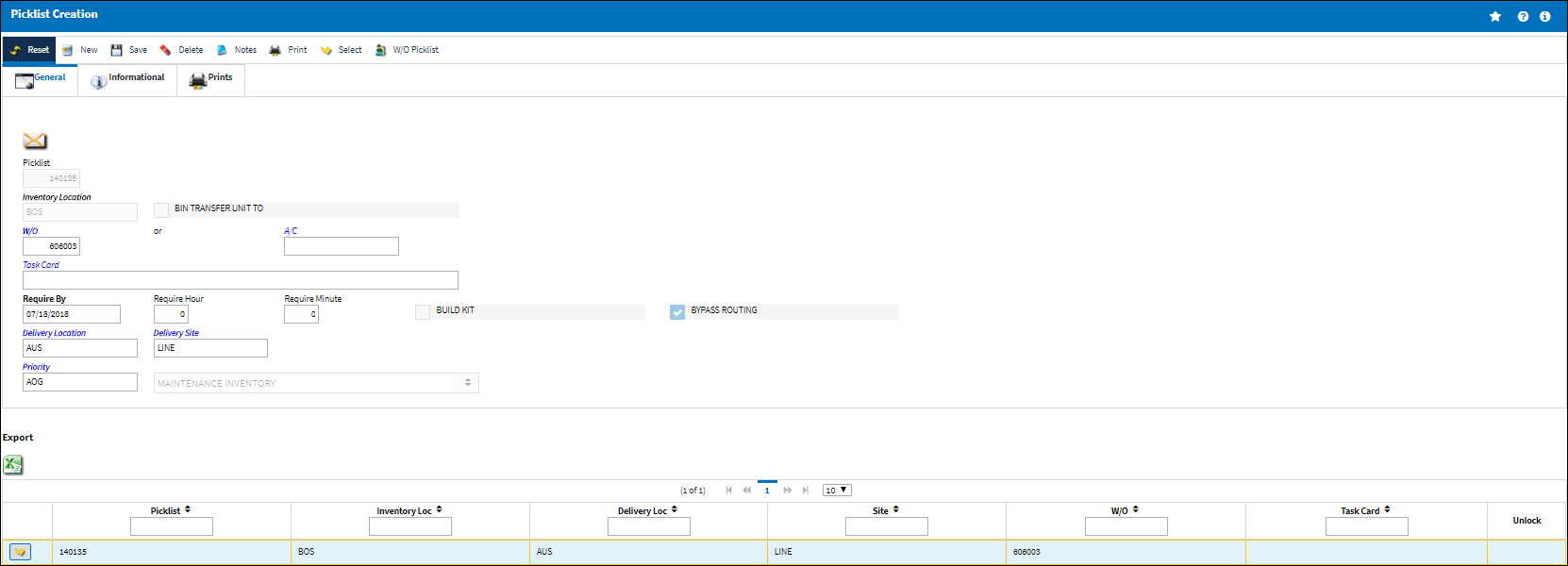
The Picklist Detail Creation window is used to add items to an already created Picklist.
When creating a Picklist, the system validates the Company of the part being Picklisted in inventory against the Company of the Picklist. For example, if a Picklist is created for a 'Company A' record, only available inventory linked to 'Company A' will be considered for the Picklist. For more information, refer to the Multi Company Functionality.
If a part is unavailable, upon saving the selection, the system will display a message in red stating that the P/N ordered was unavailable and the system requested an alternate part.
The following options/information is available in this window:
_________________________________________________________________________
Picklist
List of reserved components for a maintenance event or for transfer.
P/N
The Part Number reference for the aircraft part. The part number to add to the Picklist.
Note: Users are allowed to reserve unserviceable parts.
Part Number Availability  button (Picklist Location)
Select the Part Number Availability button (green, yellow or red). The system displays the P/N Inventory Summary window to show all available inventory for the locations for a specific picklist.
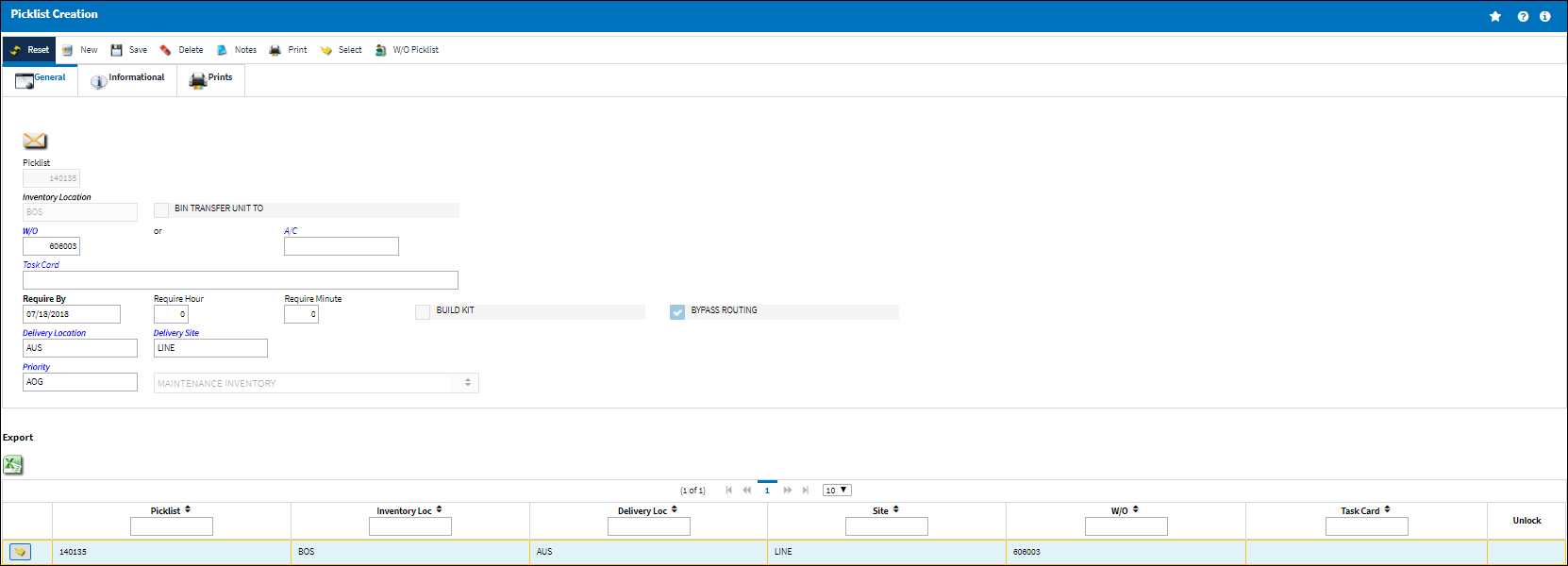
P/N Availability button (Picklist Locations) - The green button displays that all spares required are available in inventory at the Locations listed in the General tab. When selected, the P/N Inventory Summary window pops up.
P/N Availability  button (Picklist Locations) - The yellow button displays that some, but not all spares are available in inventory at the Locations listed in the General tab. When selected, the P/N Inventory Summary window pops up.
P/N Availability  button (Picklist Locations) - The red button displays that no spares are available in inventory at the Locations listed in the General tab. When selected, the P/N Inventory Summary window pops up.
Part Number Availability button (Inventory Locations)
Select the Part Number Availability button (green, yellow or red). The system displays the P/N Inventory Summary window to show all available inventory for all locations.
P/N Availability button (all Inventory Locations) - The green button displays that all spares required are available in inventory at the Locations listed in the General tab. When selected, the P/N Inventory Summary window pops up.
P/N Availability button (all inventory Locations) - The yellow button displays that some, but not all spares are available in inventory at the Locations listed in the General tab. When selected, the P/N Inventory Summary window pops up.
P/N Availability button (all Inventory Locations) - The red button displays that no spares are available in inventory at the Locations listed in the General tab. When selected, the P/N Inventory Summary window pops up.
QTY
The quantity of the part to add to the Picklist.
_________________________________________________________________________
Select the Save  button to save all information.
Add multiple items to the Picklist by clicking on the New  button.
If the quantity that you request is more than the quantity available, the system will display the following warning message:
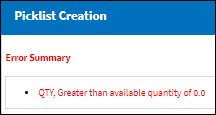
Note: A requisition can be created if the quantity is not available by clicking on the Requisition  button. Refer to the Requisition Training Manual for more information about the Requisition functionalities.
Download Online Help
Print
|
©1997-2018 Trax USA Corp. All rights reserved. This manual may not be copied, photocopied, reproduced, translated, or converted to any electronic or machine-readable form, in whole or in part, without prior written approval from Trax USA Corp. |
 |