 Download Online Help
 Print
|
|
|
|
|


Employee Master, General Tab
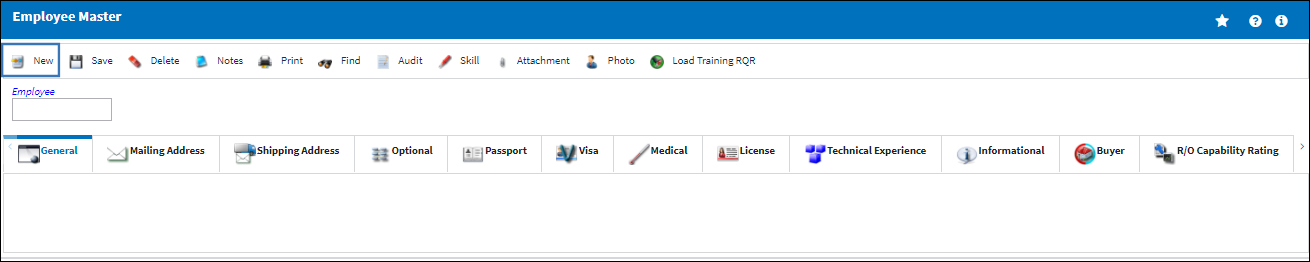
Enter a new employee by clicking on the New  button or change an existing employee by using the Find
 button or the pop-up selection.
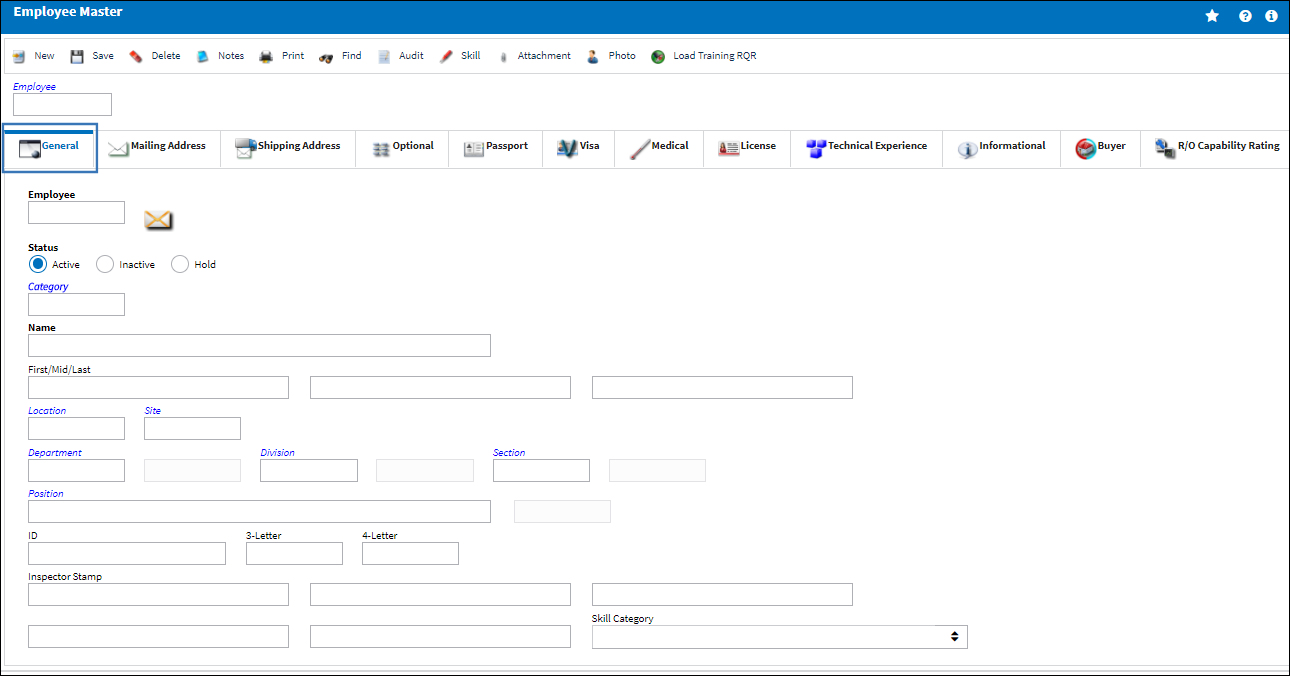
The following options/information is available in this window:
_________________________________________________________________________
Employee
The Employee number or code representing the employee.
Status
The current status of the employee. Select one of the following radio buttons (that best describes the status):
Active - Indicates that the Employee is currently an active employee in a company and throughout the system.
Inactive - Indicates that the employee no longer works for the company. Employees should not be deleted but places on Inactive Status because their employee information may be important for keeping system records.
Hold - Indicates that a person is temporarily not active but will be returning to the company. (Like people on maternity leave, for example.)
Category
The category of employee as defined in the Employee category Table.
Name
The name of the employee. This is the name that will accompany the Employee field, which occasionally consists of an Employee number. This name field can be searched for throughout the system instead of the Employee name/number since that name/number may not be as recognizable by other company employees. First/Last names can be entered in any order.
First/Last/Middle
The first, last, and middle name of the employee. These fields are primarily useful for filtering employee data in prints/reports.
Location
The Location for maintenance events, inventory stores, orders, transactions, or training events. The Location where the Employee is stationed (e.g., MIA, JFK, etc.).
Site
The site where the work should be carried out (if applicable).
Department
The employee's normal department.
Division
The division of the employee.
Section
The employee's section.
Position
The employee's position.
ID
Employee Identification number. This number may be different from the Employee field.
3-Letter
The three letter code to identify the employee record.
4-Letter
The four letter code to identify the employee record.
Inspector Stamp
The employee's inspector stamp (as many as five).
Skill Category drop down
This field is part of the Production Control, Line Control, and Shop Control functionality. Each employee must have a hard-coded Skill Category in order for a W/O Task Card to be assigned to them. W/O Task Cards can only be assigned to Employees with the same Skill Category registered to the W/O T/C. Select from one of the following main skills to add to the employee profile:
- Mechanical
- Avionics
- Structures
- Propulsion
- Interiors
- Composites
- NDT
- Material Treatment/Coatings
_________________________________________________________________________
Note: The Vendor Master, Owner Master, Customer Master and Employee Master are all part of the same relationship master table, therefore cannot have the same code entered. If the same code is entered the user will receive the following message in the Employee Master:
Error Summary: Already Exists
Select OK to acknowledge the message and exit the prompt.
Download Online Help
Print
|
©1997-2018 Trax USA Corp. All rights reserved. This manual may not be copied, photocopied, reproduced, translated, or converted to any electronic or machine-readable form, in whole or in part, without prior written approval from Trax USA Corp. |
 |