 Download Online Help
 Print
|
|
|
|
|


Employee Master, Buyer Tab
The Employee Master, Buyer tab allows users to define specific parameters regarding the Requisitions they will be able to view in their Buyer Queue. For example, if a User has specified that they only wish to view and therefore assign themselves Requisitions for Location ATL and P/N Category ROT, they will only be able to view Requisitions from that location associated with that P/N Category. The User has the option to filter for specific criteria regarding the Requisitions they wish to appear in their queue.
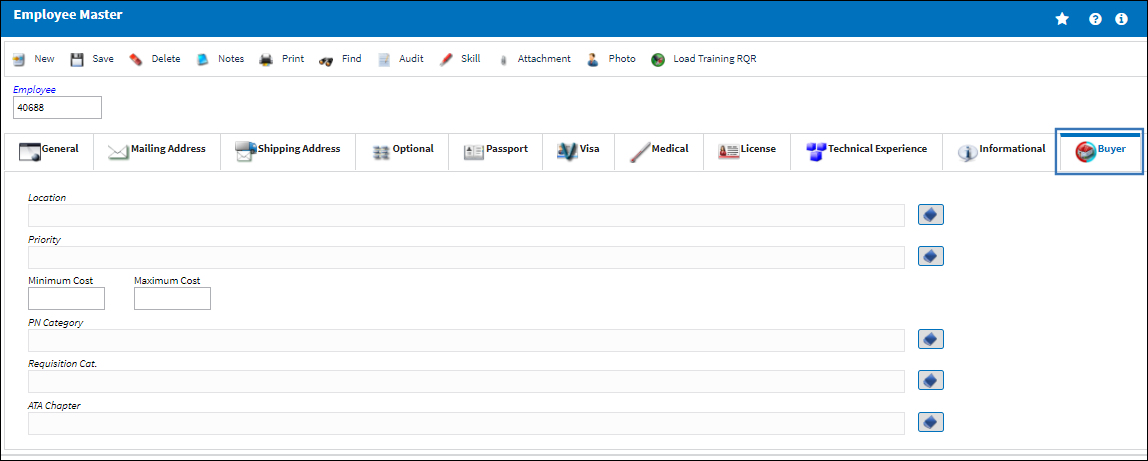
The following options/information is available in this window:
_________________________________________________________________________
Location drop down
Select the Location  button. The Location drop down menu appears. Requisitions will only appear in a Buyers queue if a Requisition is created for a location that has been previously set up.
Note: Multiple locations can be set up for Buyer.
Priority drop down
Select the Priority button. The Priority drop down menu appears. Requisitions will only appear in a Buyers queue if a Requisition is created with a priority that has been previously set up.
Note: Multiple priorities can be set up for a Buyer.
Minimum Cost
Requisitions will only appear in a Buyers queue if a Requisition is created with a Minimum Cost that has been previously set up for that Buyer in the Employee Master, Buyer tab.
 If zero cost is entered, Requisitions for P/Ns with no Average Cost or Purchase History will not appear in that Buyers Queue.
Maximum Cost
Requisitions will only appear in a Buyers queue if a Requisition is created with a purchase level that has been previously set up for that Buyer in the Employee Master, Buyer tab.
P/N Category drop down
Select the P/N Category drop down button. The P/N Category drop down menu appears. Requisitions will only appear in a Buyers queue if a Requisition is created for a P/N Category that has been previously set up for that Buyer in the Employee Master, Buyer tab.
Note: Multiple P/N Categories can be set up for a Buyer.
Requisition Cat.
Select the Requisition Category drop down button. The Requisition Category drop down menu appears. Requisitions will only appear in a Buyers queue if a Requisition is created for a P/N Category that has been previously set up for that Buyer in the Employee Master, Buyer tab.
Note: Multiple Requisition Categories can be set up for a Buyer.
ATA Chapter
Select the ATA Chapter drop down button. The ATA drop down menu appears to select ATA Chapter(s) applicable to the Requisitions that can be made by the Buyer.
Note: Multiple ATA Chapters can be set up for a Buyer.
_________________________________________________________________________
Note: All of the above can be overridden by a Buyer and or Group.
Download Online Help
Print
|
©1997-2018 Trax USA Corp. All rights reserved. This manual may not be copied, photocopied, reproduced, translated, or converted to any electronic or machine-readable form, in whole or in part, without prior written approval from Trax USA Corp. |
 |