 Download Online Help
 Print
|
|
|
|
|


Customs Fees: Financial Tracking
Once the third party brokers clear the international order through customs, they will require payment for their services. The finances associated to the customs clearance are tracked through Journal Entries and the Link invoicing process. The invoice can be absorbed by the MRO provider if the order was placed for a long term customer of theirs or the invoice can be passed on to the customer for payment if the MRO vendor is performing a one-time service (see Customs Fees: Charging the MRO Customer for information on the latter scenario).
Before the Customs record can be invoiced, the Journal Entries must be set up. The Category is 'Expense' because the invoice will be posted as an expense, and the Category Code must be CUSTOMS. When CUSTOMS is selected, the OTHER and WHAWB accounts become available as part of the J/E.
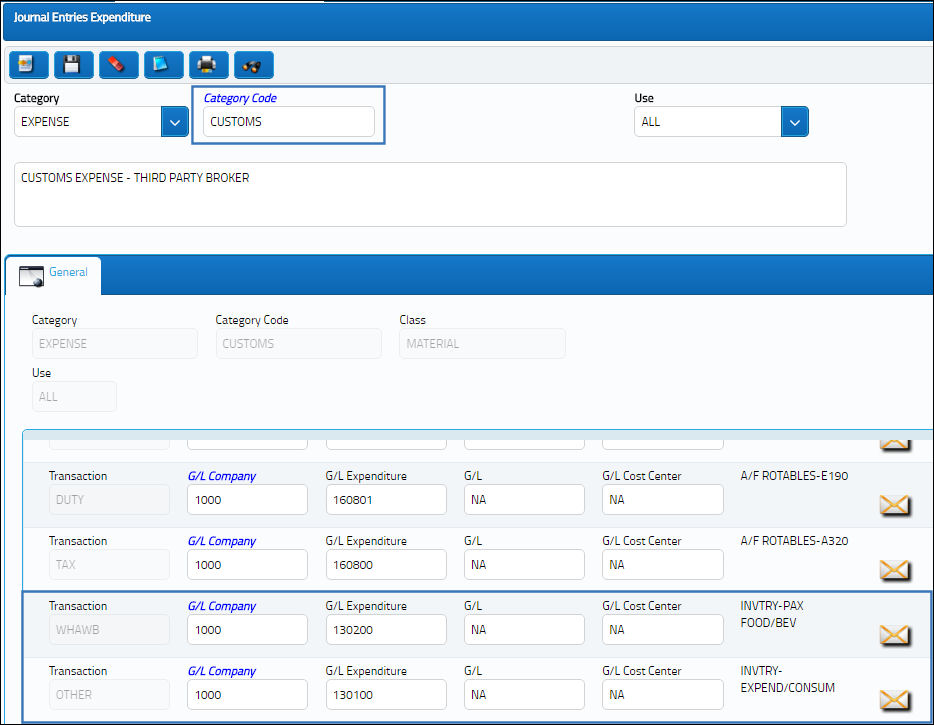
Once the Customs record is closed, the record can be invoiced. The invoice is will be posted as an expense via Link/Update/Invoice Entry; select the New  button to create a new invoice.
To invoice a Customs record, select 'Customs' in the Invoice Category field. The Select Customs No field becomes available. Enter the Customs Number to link the Invoice to the Customs record. The Invoice Amount should reflect the Total Customs Cost from the Customs record. The Vendor is the third party broker that cleared the order through customs.
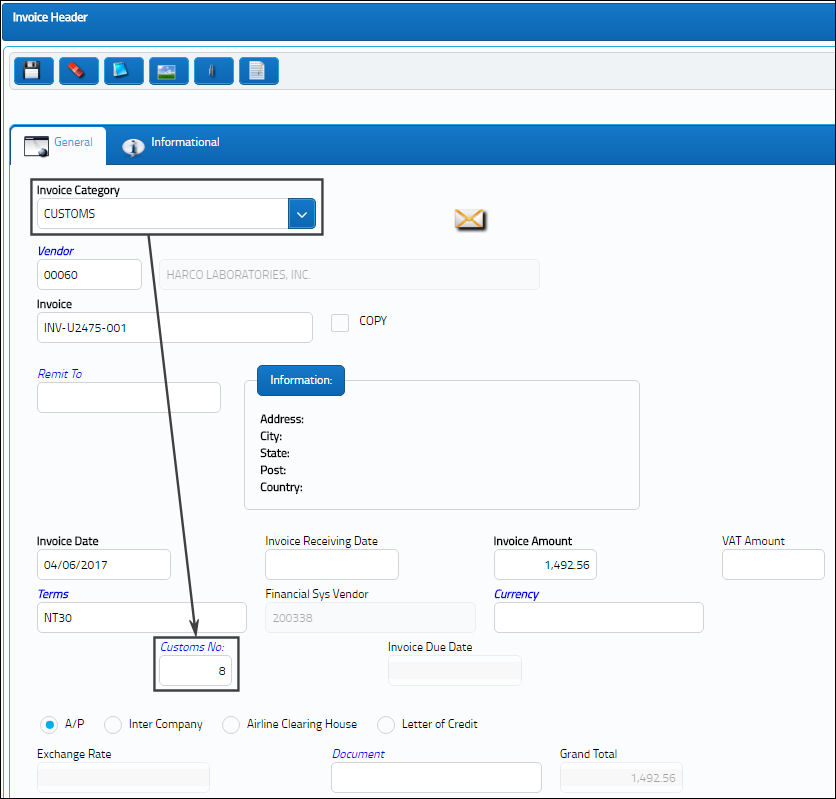
 The Customs Invoice Category is security-controlled via Link/Update/Invoice Entry/Invoice Category Customs. For more information refer to the Security Explorer via the System Administration Training Manual.
Note: If the Customs record is not Closed, then the invoice cannot be created. When an Open Customs record is entered into the invoice's Select Customs No field, the following warning will prevent the user from proceeding:

Once the invoice is created, the associated order(s) must be selected. All orders linked through the AWB will be available.
From the Invoice detail window, all of the G/L Accounts from the Customs Journal Entry will be listed. The Invoice Total must be spread throughout the G/L Accounts.
Note: If multiple orders are linked to the Customs record, then the Total Customs Cost must be distributed through through all of the orders' G/L Accounts.
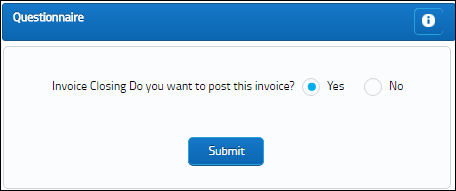
Once the Invoice Cost has been distributed among the G/L Accounts, save the invoice. Select Yes at the below prompt to post the invoice.
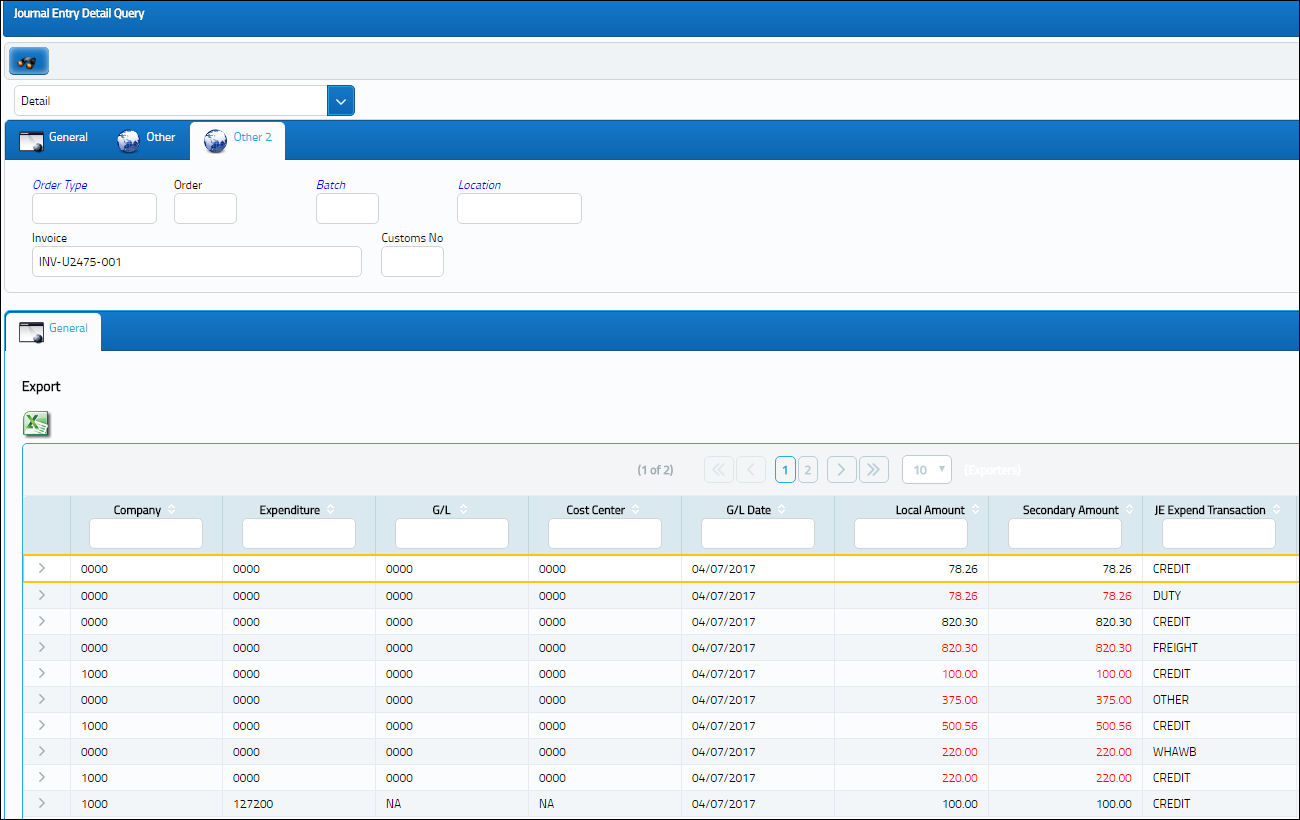
Once posted, the Customs Number and/or Invoice can be searched for in the G/L Interface/Query/Journal Entries Query. Notice that all of the Customs record's cost fields (Customs Tax, Freight, WH/AWB, and Other) have been evenly distributed through the G/L Accounts.
Download Online Help
Print
|
©1997-2018 Trax USA Corp. All rights reserved. This manual may not be copied, photocopied, reproduced, translated, or converted to any electronic or machine-readable form, in whole or in part, without prior written approval from Trax USA Corp. |
 |