 Download Online Help
 Print
|
|
|
|
|


Customs Fees: Invoicing the Customer
The Customs fees incurred when the order was cleared through customs can be charged to the customer by the MRO vendor. There are two options to do so:
- The previously created Link invoice can be forwarded to the customer through a Third Party Work Order. This method includes the itemized Customs fees (Freight, Customs Tax, Other, and WH/AWB) in the Customer Invoice. These itemized fees will be listed as W/O Actuals.
- Alternatively, the Addbill functionality can be used to charge the customer one total Customs fee through a Third Party Work Order, without itemizing the Customs Fees. This single fee will be called 'Miscellaneous' in the Customer Invoice. To complete this process, create a Third Party Work Order and Non-Routine Task Card, create an Addbill record, close the W/O and T/C, then authorize the Customer Invoice with this Miscellaneous Customs fee.
The following is an example of how the Link invoice with the itemized Customs fees is charged to the Customer Invoice.
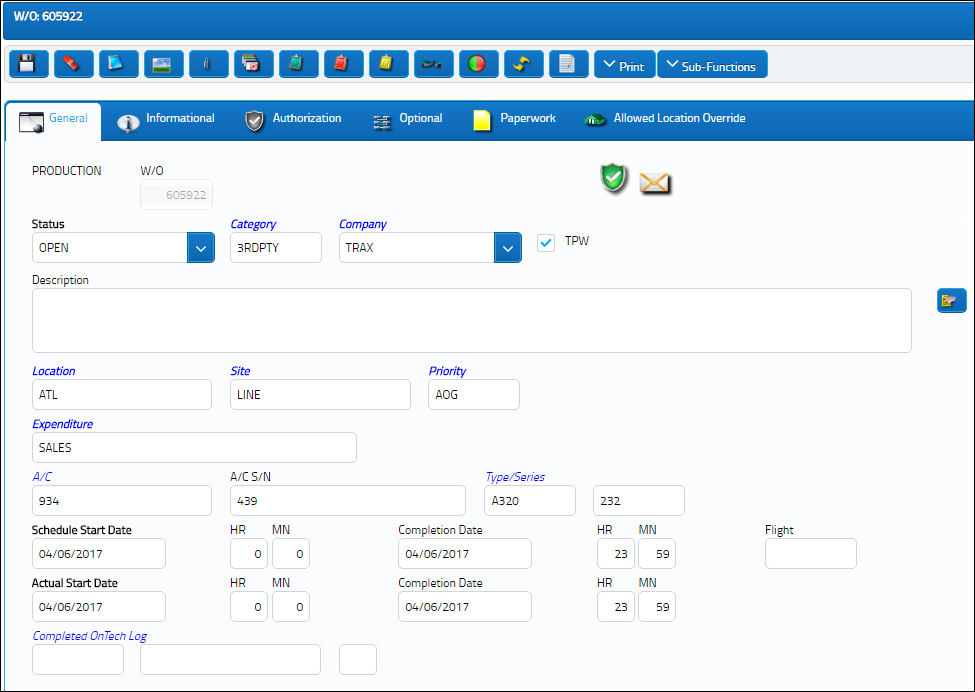
First, a Third Party Work Order must be created in order to include the Customs fees within the customer's invoice. Once created, a Customer Contract will have to be added. The Customer Contract window comes up automatically once the TPW W/O is created.
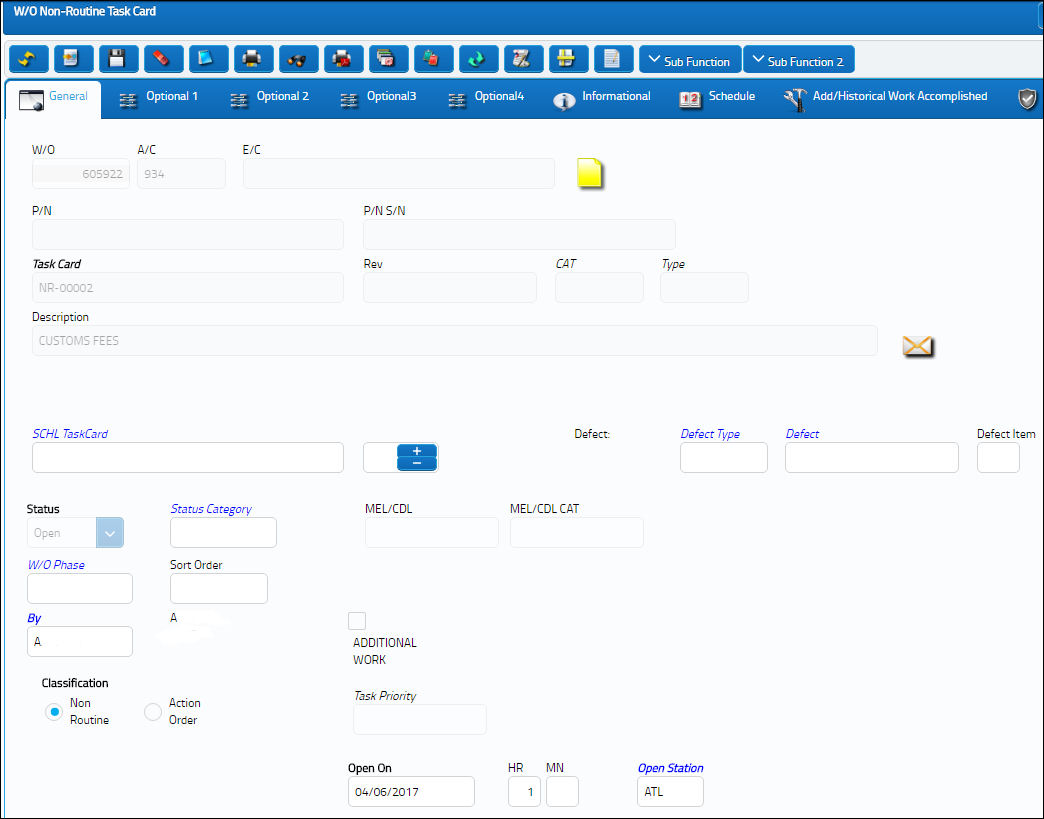
Then create a Non-Routine Task Card for the W/O.
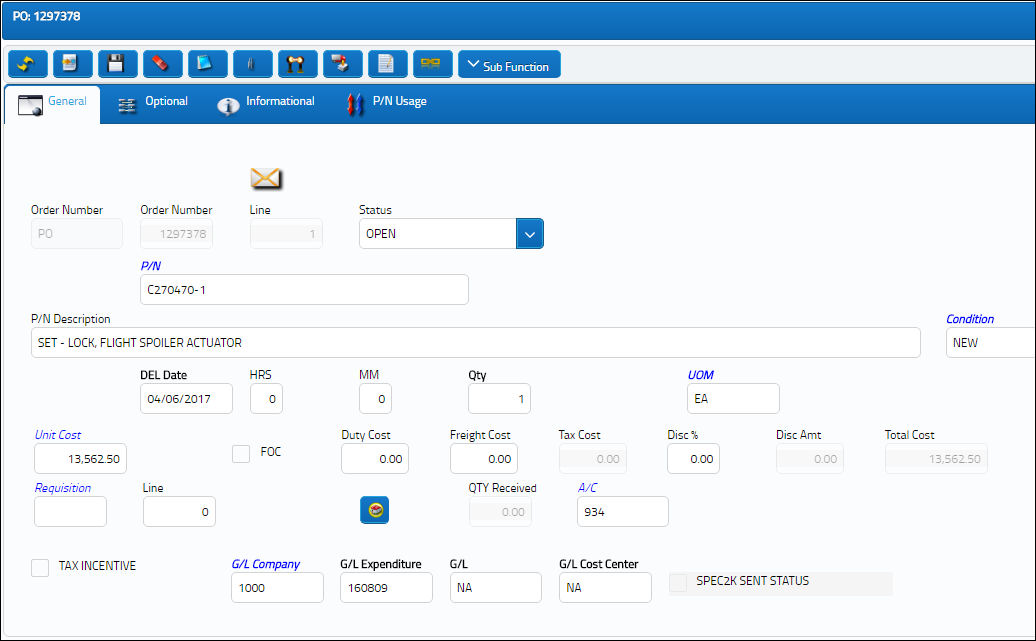
The following Purchase Order was created by the MRO vendor to provide the required part to their customer. This part was ordered from an foreign vendor and therefore requires the ordered parts to clear customs upon entry into the country.
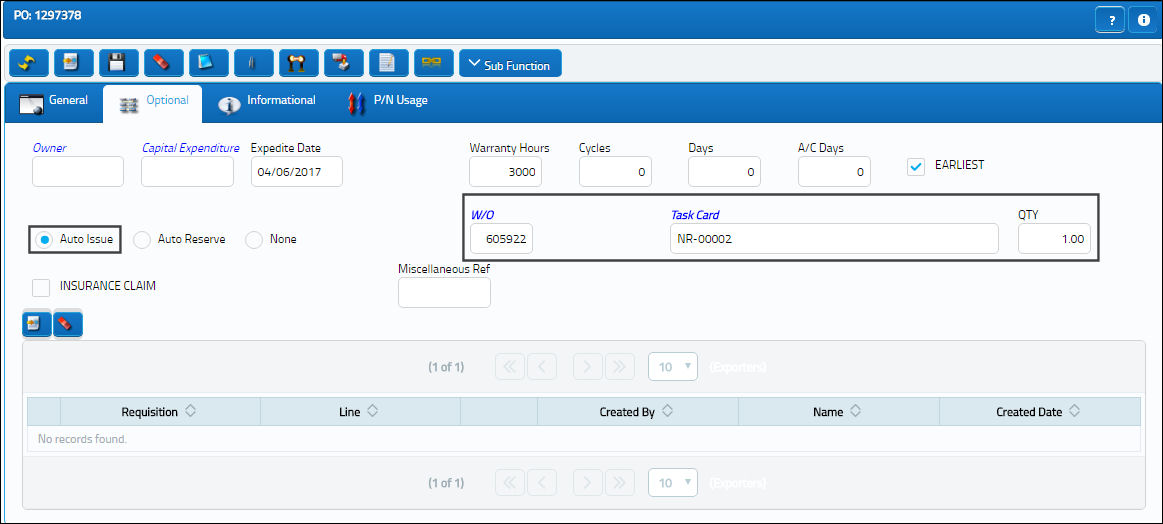
From the Purchase Order, Optional tab, the Auto Issue radio button is selected and a W/O and Task Card are entered. Once the order is received, the part will issued automatically to the W/O Task Card.
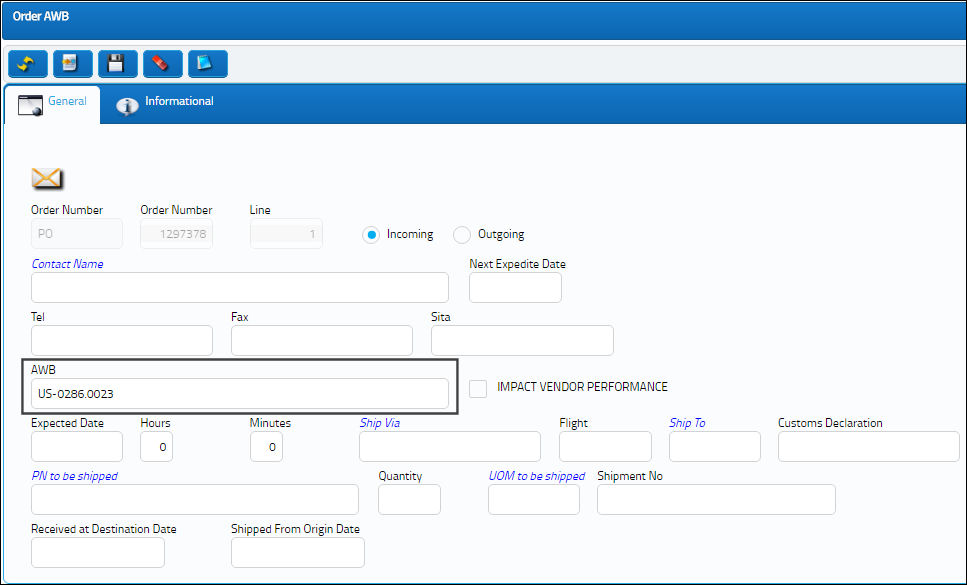
The P/O is then linked to an Airway Bill by selecting the AWB/Expedite  button. Doing so will link the P/O to the Customs record.
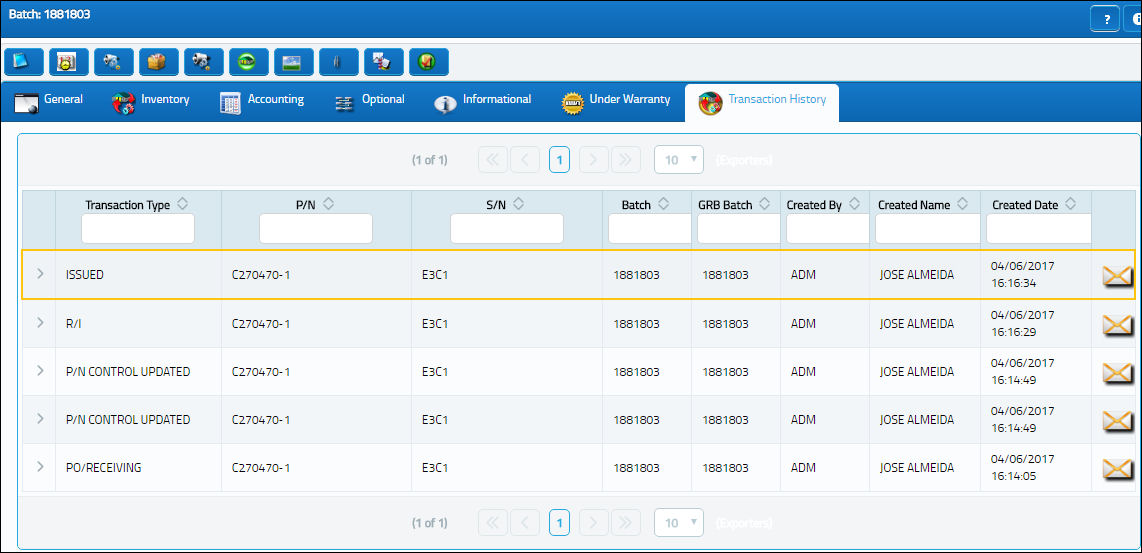
The P/O is then received. From the Inventory Transaction Detail, Transaction History, notice that as soon as the part is received it is immediately issued to the W/O Non-Routine Task Card.
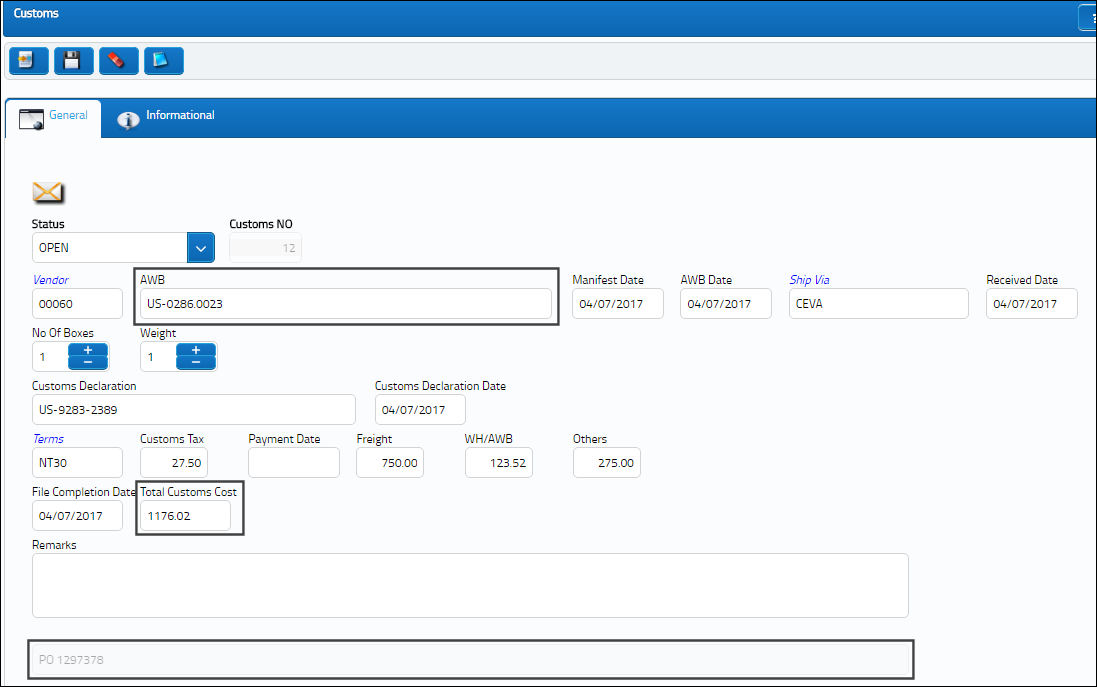
Once the Customs record is created, notice that it contains the same AWB as the Purchase Order. The Total Cost of the Customs record must now be invoiced.
Once the Customs record is set to Closed, the Customs Invoice can be created.
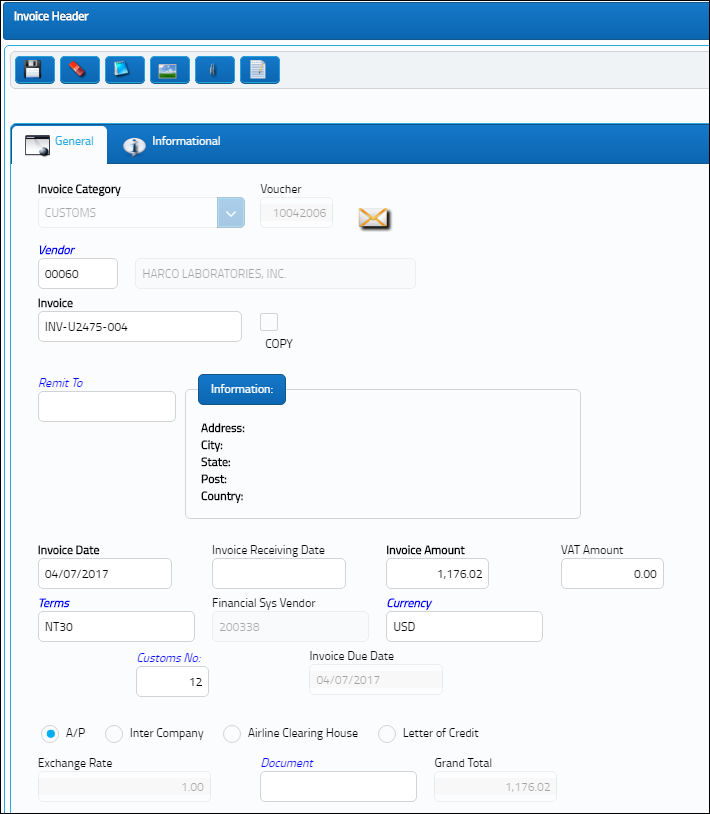
Note: This invoice must be created in the Link module even though these fees will be paid by the MRO's customer, not the MRO. Creating this invoice through the Link module will trigger the previously created Customs Journal Entries. If the Customs record is not invoiced through the Link module, then the Customs fees can be charged directly to the customer through the Addbill functionality. If the Addbill options is used, the Customs Journal Entries will not be created; instead, only one 'Miscellaneous' fee will be charged in the Customer Invoice.
Once the Invoice header is created, select the Invoice Order. Notice that this order has the same AWB as the Customs record.
From the Invoice detail, the Total Customs Charges are distributed through the G/L Accounts.
Once the Invoice is posted, the following Journal Entries are created.
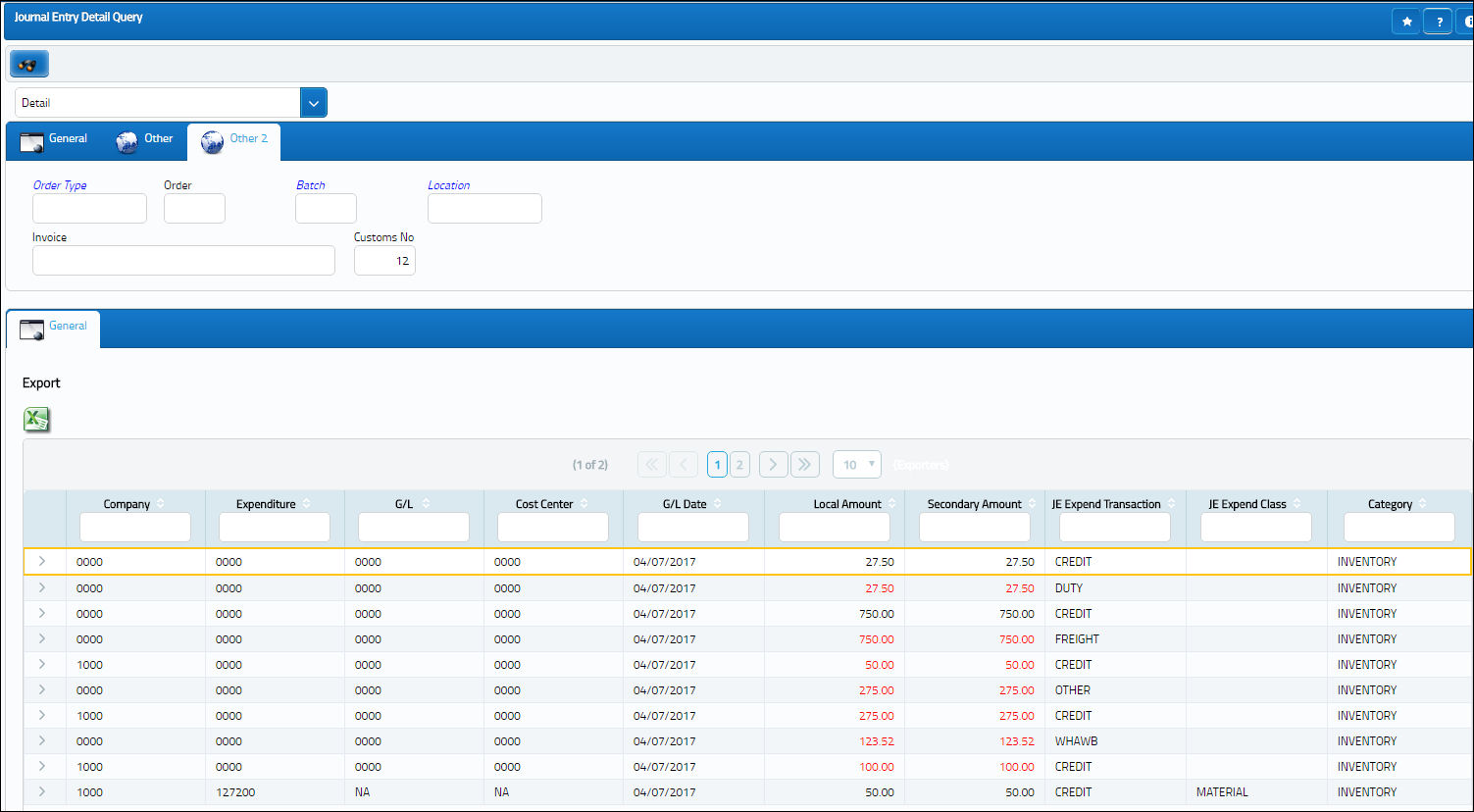
At this point, the Third Party Work Order can be closed.
From the W/O window, select the Task Card Work  button. First Close the N/R T/C then close the W/O.
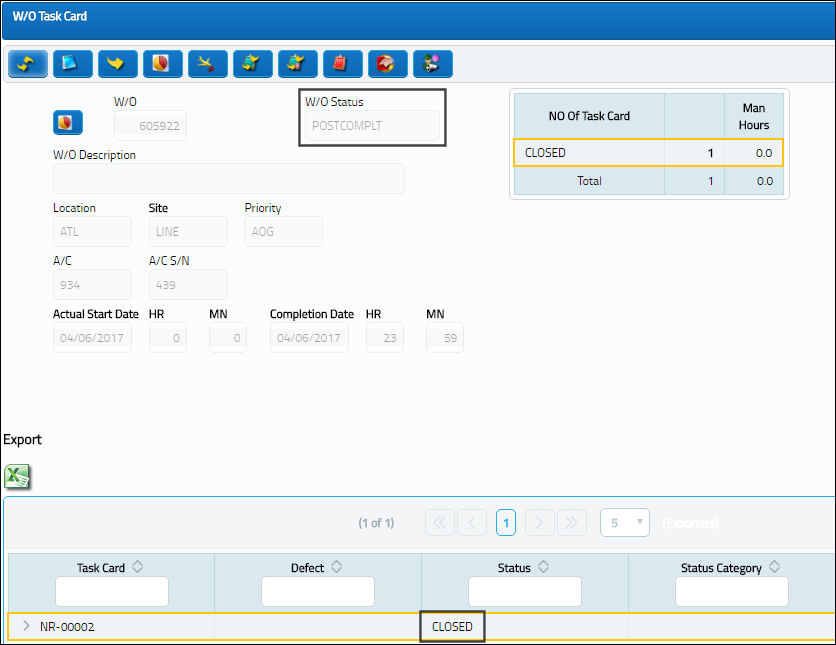
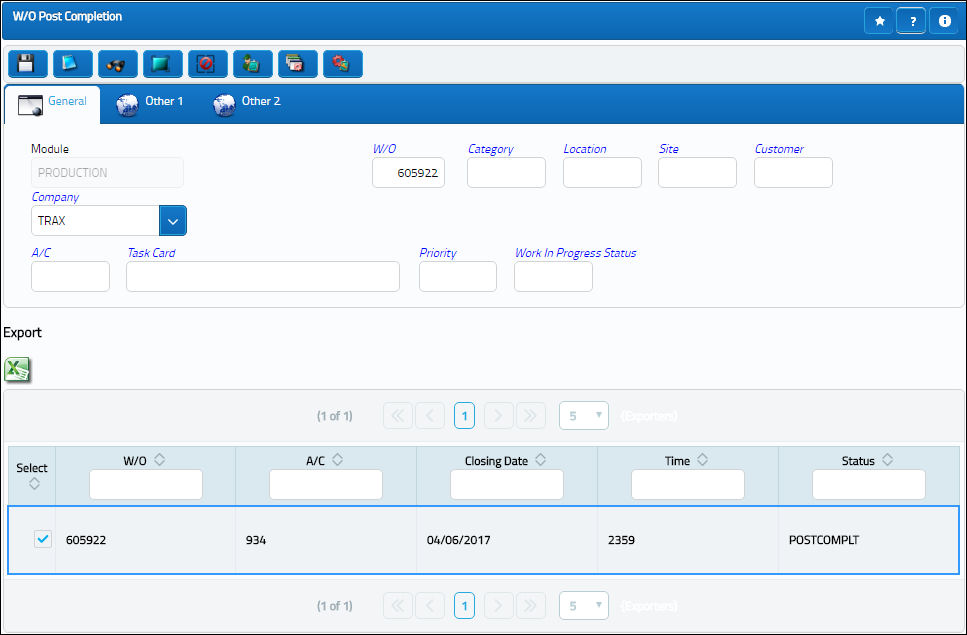
Post Complete the Work Order (if required).
From the W/O window, select the Actuals  button to view a listing of costs and sell prices associated to the W/O. The Actuals for this W/O include the Material cost of the part brought in through the P/O and the invoiced Customs Fees.
Note: The Customs fees are linked to this W/O because both the W/O and the Customs record are linked to the same Purchase Order. The Customs record is linked to the P/O through the AWB; the W/O is linked to the P/O through the Auto Issue functionality.
After Closing this W/O, the Customer Invoice is created. This Customer Invoice captures all of the W/O Actuals listed above: the Customs fees and the Material cost.
Select into the Invoice to view all of the charges. At the top of the pop-up window all of the Customs fees are listed.
Note: these are the same fees specified through the Link invoice.
Scroll down to view the Material cost. At the very bottom of the window is the Grand Total (14738.52), which is made up of the Customs fees (1,176.02) and the Material price (13,562.50).
Once the Customer Invoice is authorized, a print of the invoice is generated.
Download Online Help
Print
|
©1997-2018 Trax USA Corp. All rights reserved. This manual may not be copied, photocopied, reproduced, translated, or converted to any electronic or machine-readable form, in whole or in part, without prior written approval from Trax USA Corp. |
 |