 Download Online Help
 Print
|
|
|
|
|


The Task Card Keyword  button allows the user to search for Task Cards containing Key Words. The Key Words must first be set up via the Task Card, Key Words tab for this option to function correctly. For additional information on how to set this up, refer to the Task Card, Keywords Tab, via the Engineering - T/C Training Manual.
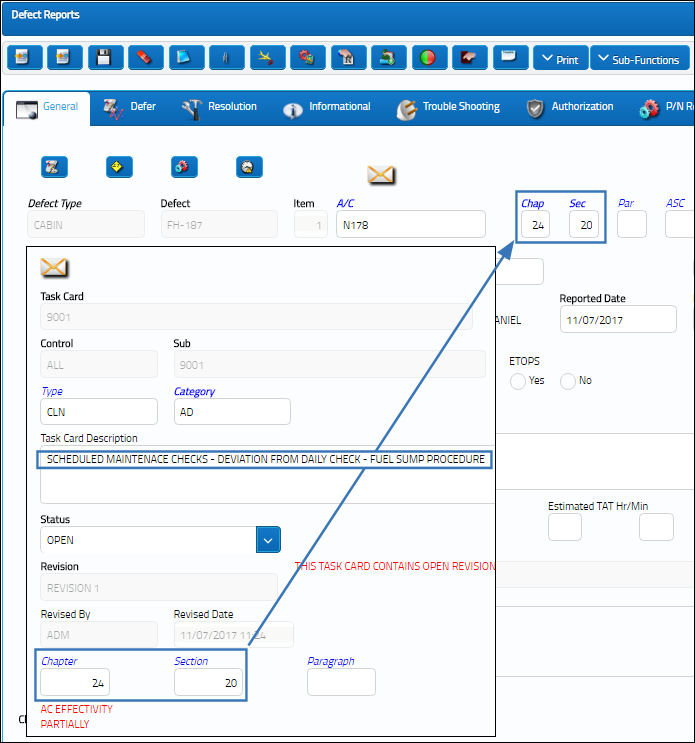
From the Defect Report Detail, General tab, select the Task Card Keyword button.
Note: Be sure the Chapter/Section/Paragraph used to create the defect match the Chapter/Section/Paragraph of the Task Card(s) from which the key words will be queried.
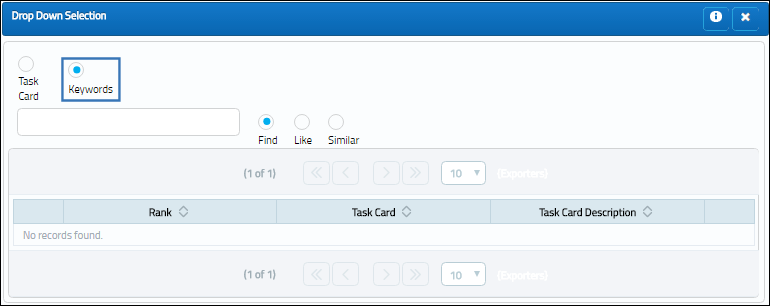
The following drop down selection appears. In the below highlighted field, enter a keyword.
Be sure the Keywords radio button is selected.
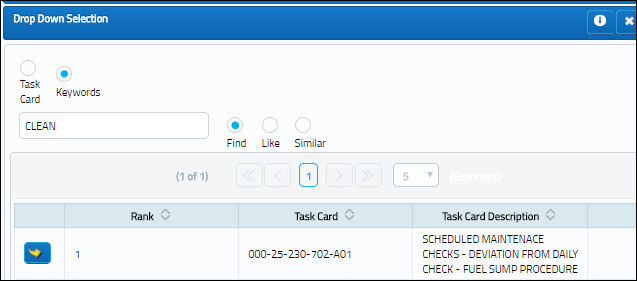
The following Task Card appears as a result of the keyword that was entered.
Select the Task Card:
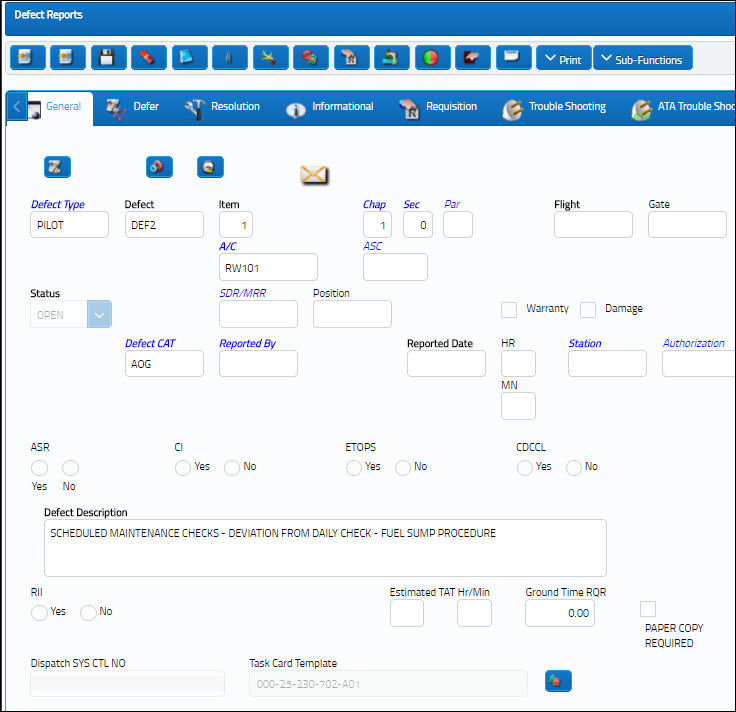
Once selected, the Task Card items are populated in the Description of the Defect Report and the Task Card reference is populated in the Task Card Template field:
Download Online Help
Print
|
©1997-2018 Trax USA Corp. All rights reserved. This manual may not be copied, photocopied, reproduced, translated, or converted to any electronic or machine-readable form, in whole or in part, without prior written approval from Trax USA Corp. |
 |