 Download Online Help
 Print
|
|
|
|
|


The Labor Manual  button allows the user to add time (labor) to individual and/or multiple Task Cards for any employee. This window is not user specific. This function can also be used to edit the time that it took to carry out a Task Card. This window keeps a record of every user that has put time against a Shop Work Order Task Card, and allows the user to specify the Category of time and whether the time entry is manual.
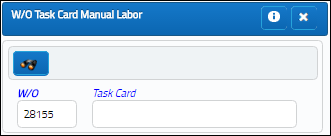
From a Shop Work Order, click on the Labor Manual button. The following window will appear. Enter the required Shop Work Order and Task Card and select the Find  button.
The W/O Task Card Manual Labor window appears. The user may select the New  button to add time and/or labor to a work.
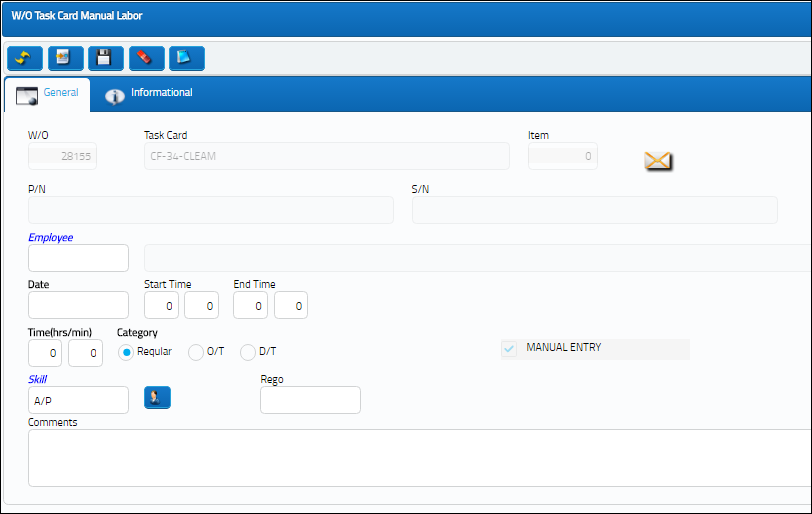
The following options/information is available in this window:
_________________________________________________________________________
W/O
The Shop Work Order reference number.
Task Card
The Task Card / Job Card that details the scheduled maintenance work.
Item
The individual Task Card Item number that manual labor has been added to. Users can assign manual labor to specific Task Card Items. Notice the Item field above and the Task Card Item field below are linked. When the Item number is '0', the manual labor will apply to all of the Items.
P/N
The Part Number reference for the aircraft part.
S/N
The Serial Number for the specific serialized part.
Employee
The employee performing the task.
Date
The date of the task.
Start Time
The time the labor started on the Task Card.
End Time
The time the labor ended on the Task Card.
Time (hrs/min)
The amount of time to be manually added. The maximum number of hours that can be input here is defined via System Administration/ Explorer/ System Transaction Configuration/ Production/ LABORTIM (Maximum Hours Allowed In Work Order Task Card Manual Labor).
Category radio buttons
The type of hourly work schedule being applied: Regular, Overtime, or D/T (Double time).
Skill
The appropriate skill used to perform the task.
Rego
Select this checkbox to indicate that the work is being re-done. If the required work was completed once, and must be re-done, this checkbox may be selected. This checkbox is informational only.
Comments - This is a free text field where the user may enter any additional Rego comments. This field is informational only.
_________________________________________________________________________
Additional information can be viewed and included through the Shop W/O Task Card Manual Labor, Informational Tab and the Notes  button.
Download Online Help
Print
|
©1997-2018 Trax USA Corp. All rights reserved. This manual may not be copied, photocopied, reproduced, translated, or converted to any electronic or machine-readable form, in whole or in part, without prior written approval from Trax USA Corp. |
 |