
 Share
Share
 Print
Print
|
|
|
|
|


The user can create the picklist reservation by selecting the Picklist  button.
TRAX displays the following dialog box prompting to proceed to create a P/N Reservation (Picklist):
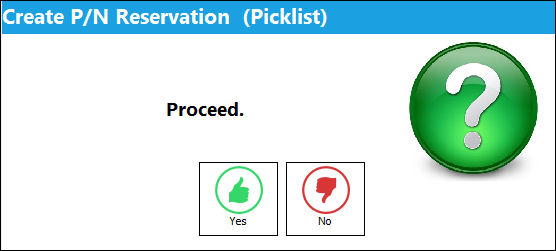
Select Yes to proceed with the Picklist creation, or No to return to the Exchange Order Out.
Users are allowed to create picklists for unserviceable parts.
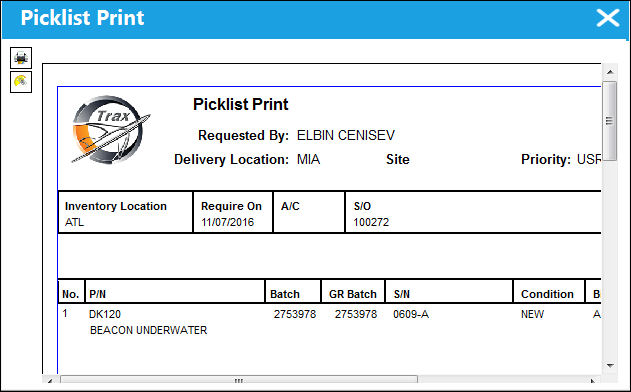
When the user selects Yes, the picklist is created as shown below:
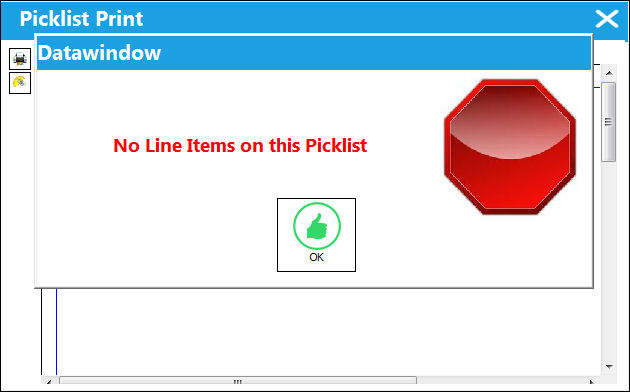
If there are no parts associated to the order, the following error will appear:
If no records are found, the following pop-up will appear:
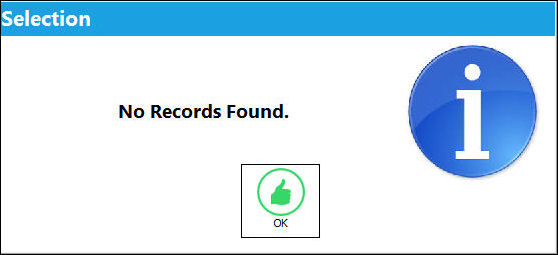
If no records are found, this may be because of the following:
- There is No part attached to the order
- There is No part available at the specified location
- There are No parts for the requested condition available at that location.
If a picklist was created previously for the part, the user will be alerted of the error. Once the picklist reservation is made, the picklist must be issued via Inventory/Update/Inventory Transaction to issue the part from the system.
Share
Print
|
©1997-2026 Trax USA Corp. All rights reserved. This manual may not be copied, photocopied, reproduced, translated, or converted to any electronic or machine-readable form, in whole or in part, without prior written approval from Trax USA Corp. |
 |