
 Share
Share
 Print
Print
|
|
|
|
|


Select the Effectivity  button to apply GSE Items Effectivity to the selected part from the GSE P/N Master. Assigning GSE Items effectivity to parts is needed, for example, in order to be allowed to install parts only on the GSE Items they are effective to. A part's Item Effectivity is a vital configuration that affects multiple types of transactions throughout TRAX.
When the button is selected, the P/N Effectivity appears as follows.
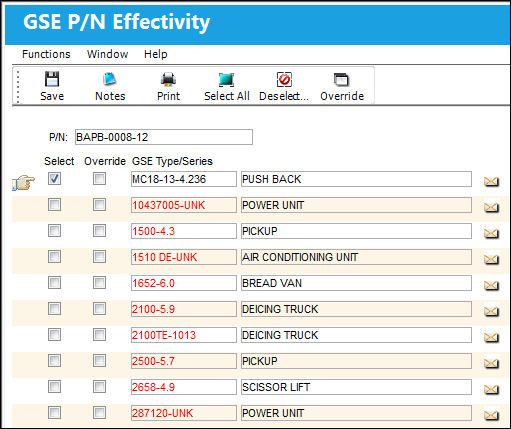
The layout and functionality of this window has been modified in TRAX Version 11 and all later releases. Notice that effectivity can be applied to entire fleets and/or individual aircraft all from the same window. The Override button is no longer required to apply individual item effectivity in V11. For information on the previous layout, refer to the Effectivity Button, via P/N Master Buttons.
The following information/options are available in this window:
_____________________________________________________________________________________
Fleet Select All  / Deselect All
  buttons
Use these buttons to select all fleets (including every aircraft) or to deselect all fleets.
Override button
The Override button allows users to specify effectivity for individual aircraft in the selected Type/Series. Once the override has been applied, the Override checkbox will appear selected.
Select checkbox 
Select this checkbox if the P/N is to be effective to this GSE item. Only those with this checkbox selected will have effectivity.
Override checkbox
The Override checkbox indicates whether or not individual aircraft have been selected for effectivity. This is done using the Override Button. Once individual aircraft are selected, the checkbox will appear selected.
GSE Type/Series
Enter the Type/Series for this GSE. Since this is not a free text field, you may click into the field to select those GSE Type/Series already created in the System. These fields are identified when the name is in italics.
Description
The description of the GSE Type/Series.
_____________________________________________________________________________________
The Notes  and Print
  buttons are also available for additional functionality.
To select only specific GSE P/Ns within a GSE Type/Series, select the Override button.
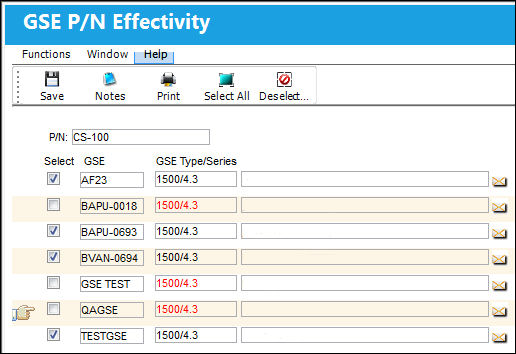
Once all applicable GSE P/Ns have been selected, select the Save button.
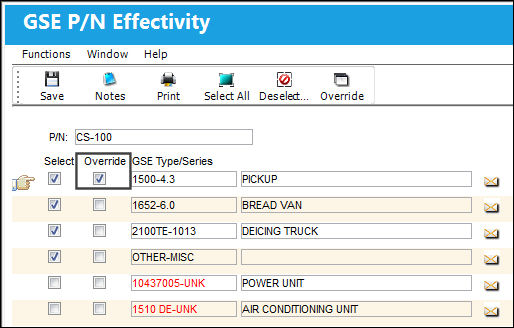
The Override checkbox now appears selected due to the partial effectivity that has been applied to the Type/Series.
About Applying P/N Effectivity:
P/N Effectivity should be applied at either one of the following levels:
- The P/N level (via GSE/ Update/ GSE P/N Master/ Effectivity button)
- The P/N CTL
 button for the GSE P/N Effectivity to be applied to an Engineering Control (via GSE/ GSE Engineering Control/ P/N CTL button)
 - The P/N Interchangeable level (via GSE/ Update/ GSE P/N Master/ Interchangeable
 button/ Effectivity button)
Share
Print
|
©1997-2026 Trax USA Corp. All rights reserved. This manual may not be copied, photocopied, reproduced, translated, or converted to any electronic or machine-readable form, in whole or in part, without prior written approval from Trax USA Corp. |
 |