 Download Online Help
 Print
|
|
|
|
|


Create a new Task Card, or select an existing Task Card to set up a survey for. Select the Survey  button from the Multi-button menu.
In the following window enter the question(s) to be asked in the Task Card Survey:
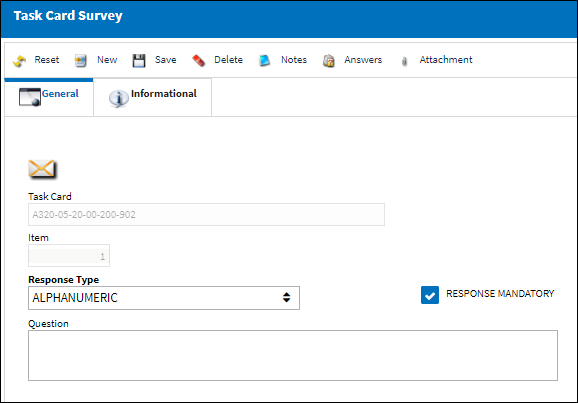
The following options/information is available in this window:
_________________________________________________________________________
Task Card
The Task Card / Job Card that details the scheduled maintenance work.
Item
The Item (question) number of the Task Card Survey.
Response Type drop down
This determines the functionality and the type of response that is acceptable for the question(s).
Alpha Numeric - Both letters and numbers are allowed.
Numeric - Only numbers are allowed.
Alpha Numeric Range - Enter a range of letters and numbers.
Numeric Range - Enter a numeric range.
Yes/No - Answer either Yes or No. It is possible to attach E/Cs depending on the answer of the question.
Multiple Choice - Multiple answers are given to select from. The different answers can activate/terminate an E/C.
Response Mandatory Checkbox
Select this checkbox if the response is mandatory.
Question
State the question(s) (that will appear in the survey) in this field.
_________________________________________________________________________
Download Online Help
Print
|
©1997-2018 Trax USA Corp. All rights reserved. This manual may not be copied, photocopied, reproduced, translated, or converted to any electronic or machine-readable form, in whole or in part, without prior written approval from Trax USA Corp. |
 |