
 Share
Share
 Print
Print
|
|
|
|
|


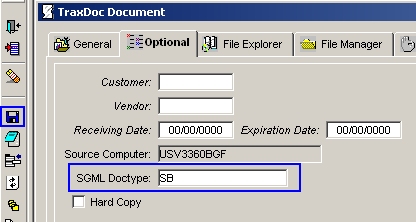
- Define the SGML Doctype in the Optional Tab of the TraxDoc Document.
To enter SGML files in TraxDoc a user must first define the SGML Doctype in the optional tab and save the document.
- Import a SGML document into TraxDoc.
a. Go to the File Manager Tab.
b. Click the New
 button.
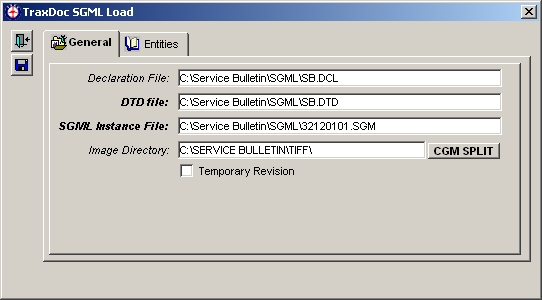
c. Enter the following SGML components of the file.
- Click the Right Mouse button in the fields and select the appropriate .DCL, .DTD, and .SGM files.
- Click the Right Mouse button in the Image Directory field and select the directory that contains the image files for the SGML documents.
 The CGM SPLIT button is used if the image files are compressed into one large TIFF file. Clicking the CGM SPLIT button will break up the compressed TIFF file into individual image files.
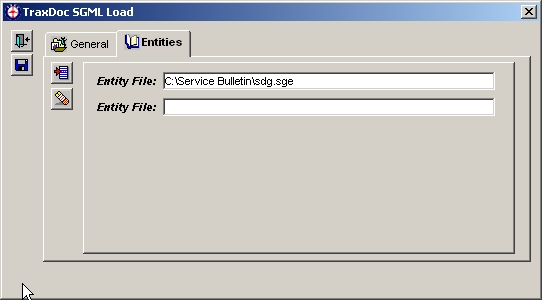
d. Select the Entity File as follows:
- Go to the Entity Tab.
- Click the New button.
- Right-click in the Entity File field and select the entity file.
- Click the Save
 button.
Loading an SGML document into TraxDoc can be a long process depending on the size of the SGML document. The progress of the loading process is displayed at the bottom left corner of the window.


Share
Print
|
©1997-2026 Trax USA Corp. All rights reserved. This manual may not be copied, photocopied, reproduced, translated, or converted to any electronic or machine-readable form, in whole or in part, without prior written approval from Trax USA Corp. |
 |