
 Share
Share
 Print
Print
|
|
|
|
|


TraxDoc has the ability to embed and link files that are in a TraxDoc Document. If the embedded and linked file is modified, that change will automatically be reflected in the TraxDoc File that has it as an embedded link. The embedding is done with files in a TraxDoc Document in the file’s native application and is recorded by TraxDoc.
Example: A Word Document can have a graphic file embedded and linked into it. When that graphic file is modified the changes will automatically be reflected in the Word Document because it is an embedded link in that document.
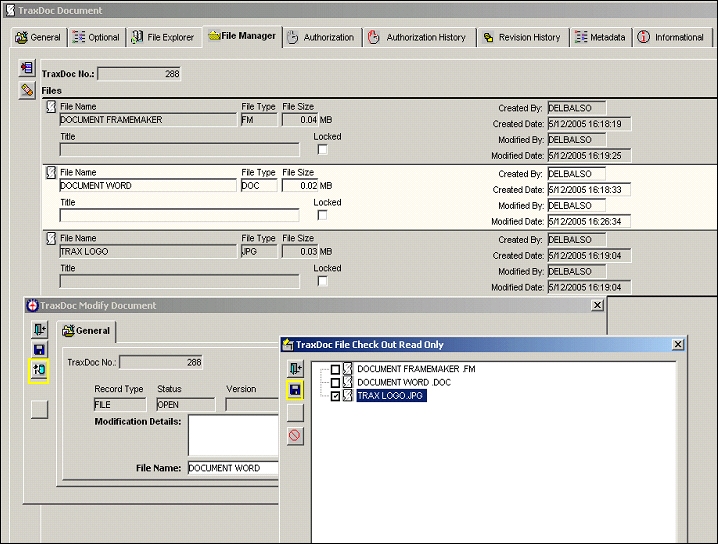
Embed and Link a file as follows:
- Select the file in which you want to embed a link (the highlighted record is the selected file).
- Right-click and select ‘Modify File’. The file will open in its native application.
The computer must have the application installed in order to open the file.
- In the TraxDoc Modify Document Window select the Link
 button. The TraxDoc File Check Out Read Only Window opens.
 - In the TraxDoc File Check Out Read Only Window select the file(s) to be embedded and linked into the file that was opened and click the Save button.

The selected files will be exported to a temporary directory for linking and the folder will open automatically in Windows Explorer. The Trax System creates the temporary directory with the following specifications “LOGIN‑NAME_TraxDoc No.” The location of the temporary directory is defined by the TMPDIR System Transaction Configuration Switch.
- Go to the application and file that was opened via ‘Modify File’ and embed the file to be linked into it. Use one of the methods (a thru d) that follow.
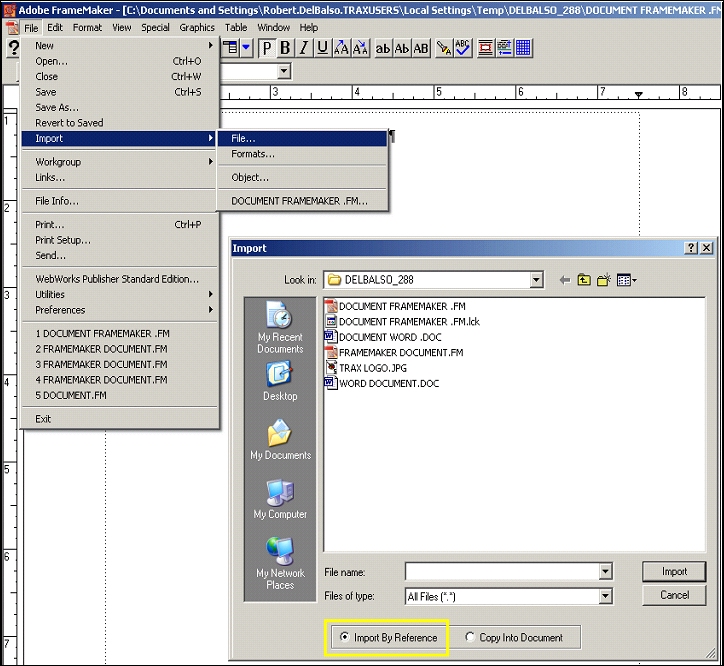
a. Embed and link a file in a FrameMaker file as a follows:
- Go to Import / File to open the Import Window.
- Select the file to embed and link from the temporary export directory.
- Make sure to select the Import By Reference radio button.
This will ensure that the link is active and will update when the file is modified.
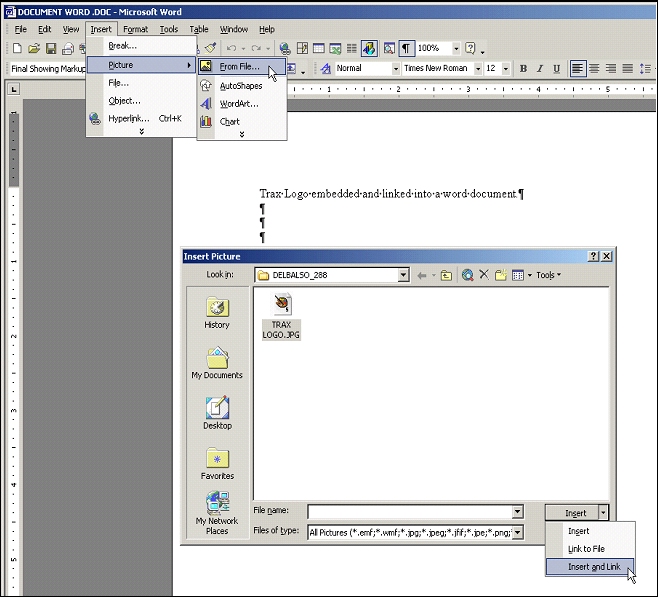
b. Embed and Link a graphic file in Microsoft Word document as follows:
- Go to Insert / Picture / From File to open the Insert Picture Window.
- Select the file to embed and link from the temporary export directory.
- Click Insert and Link.
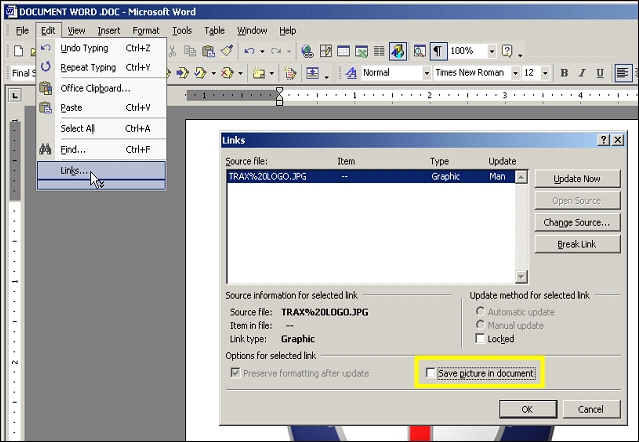
- Go to Edit / Links to open the Links Window.
Select the link and make sure that the Save picture in document checkbox is unchecked. This will ensure that the link is active and will update when the file is modified.
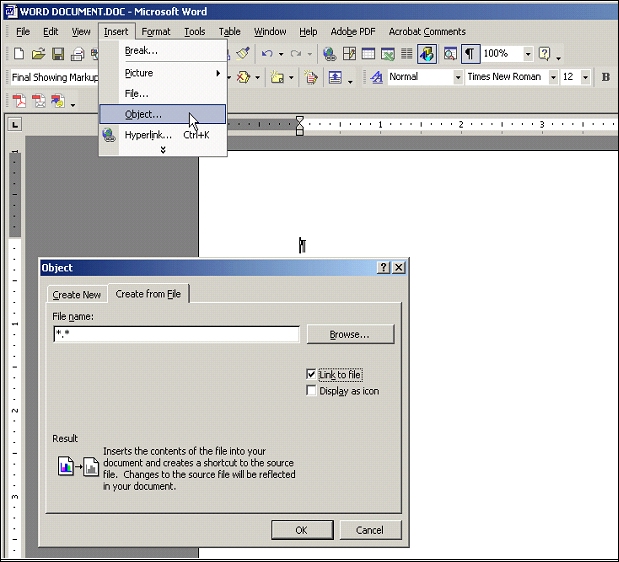
c. Embed and Link a file in a Microsoft Word document as follows:
- Go to Insert / Object / Create from File.
- Go to the Create from File Tab.
- Click the Browse button and select the file to embed and link from the temporary export directory.
- Check the Link to File Checkbox. This will ensure that the link is active and will update when the file is modified.
- Click OK.
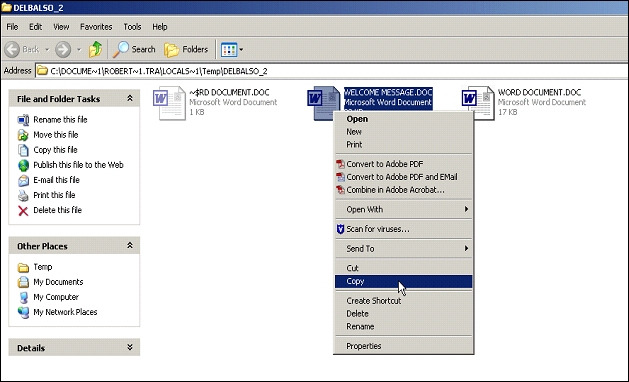
d. Embed and Link a file in a Microsoft Word document using the copy and paste method as follows:
- From the Temporary Export Directory (i.e. Username_TraxDoc No.) select the file to embed and link and select File / Copy (or right click on it and select copy).
- Go to the Word Document and place the cursor at the location to embed and link the file.
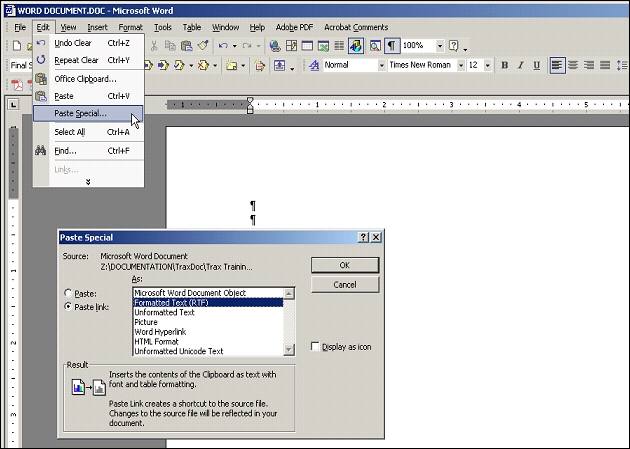
- Go to Edit / Paste Special.
- Select the Paste Link radio button. This will ensure that the link is active and will update when the file is modified.
- Select a format for the link such as Microsoft Word Document Object.
- Click OK.
Save and close the file in it’s the native application.
Click the Save button in the TraxDoc Modify Window.
A file is now embedded and linked in a TraxDoc file. Any modifications to the linked filed will automatically appear in the file that has it embedded and linked.
Share
Print
|
©1997-2026 Trax USA Corp. All rights reserved. This manual may not be copied, photocopied, reproduced, translated, or converted to any electronic or machine-readable form, in whole or in part, without prior written approval from Trax USA Corp. |
 |