
 Share
Share
 Print
Print
|
|
|
|
|


The Closed Order Vendor Change  button allows the user to change the vendor on an order that is already closed.
 This button is security controlled via the Security Explorer wherever it appears throughout the Orders module. For additional information, refer to the Security Explorer via the System Administration Training Manual.
From the Exchange Order Header, select the Closed Order Vendor Change button.
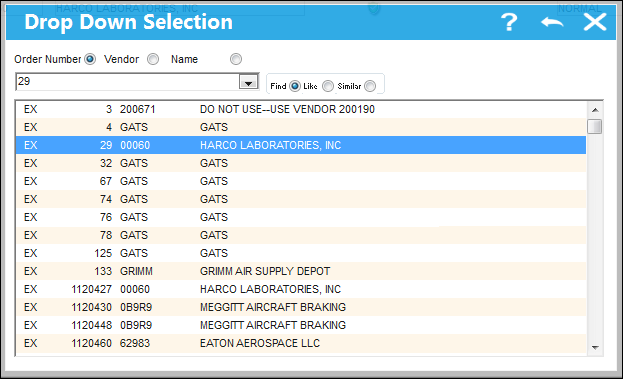
The following drop down menu will appear where the user may select from Exchange Orders in 'Closed' status. Select from one of below Exchange Orders.
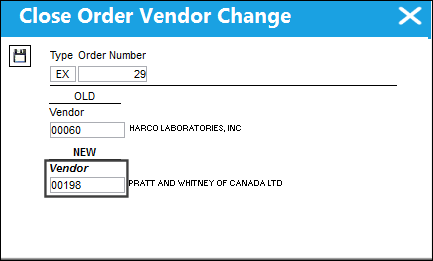
The Close Order Vendor Change pop up window appears. Populate the New vendor field with the new vendor and save the transaction.
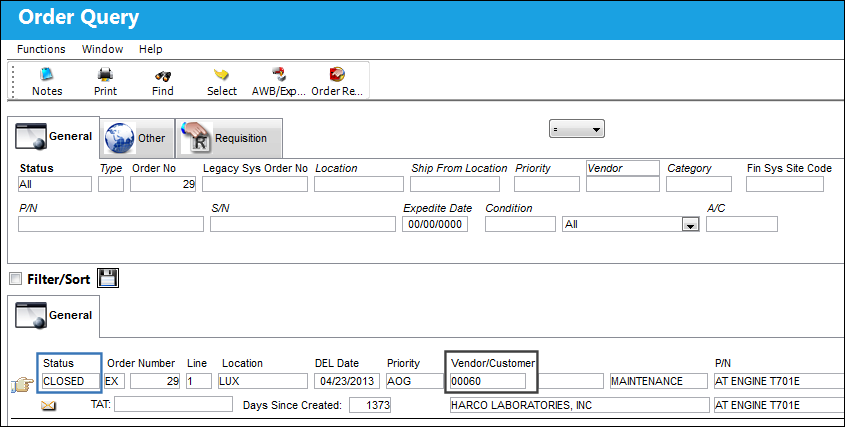
Note the previous vendor for the selected Exchange Order:
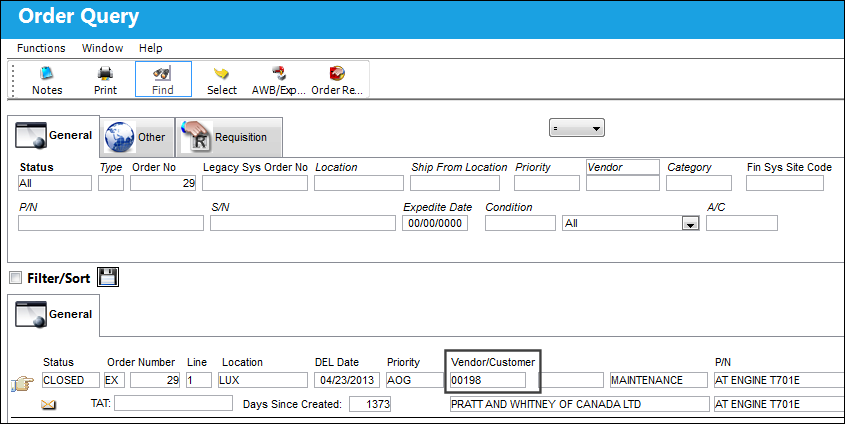
Once the vendor change transaction has been saved, the new vendor appears as shown below:
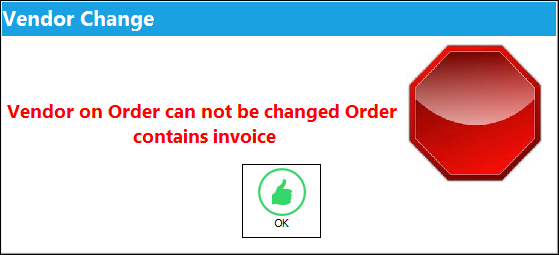
If the order already has an invoice associated to it, the system will prevent the vendor change transaction from saving and the following hard warning will appear.
Share
Print
|
©1997-2026 Trax USA Corp. All rights reserved. This manual may not be copied, photocopied, reproduced, translated, or converted to any electronic or machine-readable form, in whole or in part, without prior written approval from Trax USA Corp. |
 |