 Download Online Help
 Print
|
|
|
|
|


Inventory Planner, via A/C Planning Query
The Inventory Planner allows planners to query for parts in inventory that are linked to P/N E/Cs and/or P/N Controls.
Enter the desired search criteria then click the Find  button. Inventory that corresponds with the search criteria will be displayed in the Results window.
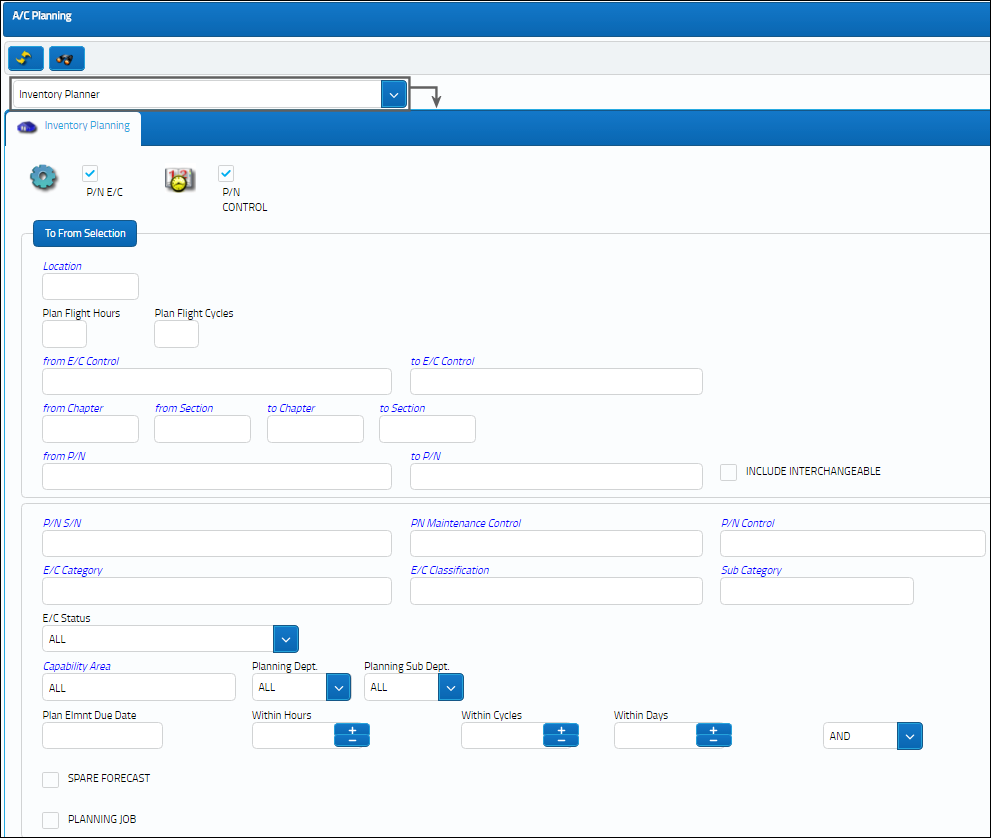
Planning Elements
The following options/information is available in this window:
_________________________________________________________________________
P/N E/C checkbox
Select this checkbox to filter by P/N E/C.
P/N Control checkbox
Select this checkbox to filter by P/N Control (i.e. TSO, REP, HYDRO).
Note: If this checkbox is selected, the system displays the PN Maintenance Control and P/N Control fields in the Planning Filters section.
_________________________________________________________________________
To From Selection
The following options/information is available in this window:
_________________________________________________________________________
Location
The Location for maintenance events, inventory stores, orders, transactions, or training events. From-To range of Location codes. Select the inventory location you want to run the query for. This field must be populated in order to receive an output. This information is being pulled from the Location Master. For additional information regarding the Location, refer to the Site Button via the Settings Training Manual.
Plan Flight Hours
From-To range of Planning flight hours (number of). Enter the estimated average flight hours for the part to have a basis for the estimation of the part's due date. Please note that the due date will exclusively be based on this estimate. While the part is in inventory it does not accumulate flight hours and does not become due. Nevertheless, this is a helpful tool to determine whether to install a part or perform the E/C or P/N Control before it is installed.
Plan Flight cycles
From-To range of Planning flight cycles (number of). Enter the estimated average flight cycles for the part as a basis for the estimation of the due date. Please note that the due date will exclusively be based on this estimate. While the part is in inventory it does not accumulate flight cycles and does not become due. Nevertheless, this is a helpful tool to determine whether to install a part or perform the E/C or P/N Control before it is installed.
From-To E/C Control
Enter the From-To E/C range for the forecast request. For additional information regarding the E/C Control, please refer to the Engineering Control, General Tab via the Engineering - E/C Training Manual.
From-To Chapter / Section
Enter the ATA Chapter/Section range for the forecast request. For additional information, refer to ATA Specifications via the Settings Training manual.
From-To P/N
The Part Number reference for the aircraft part. Enter the From-To part number range for the forecast request.
Include Interchangeable checkbox
Select this checkbox to include interchangeable parts in the query. If checkbox is selected, both Main and Interchangeable P/N E/Cs will appear in the query. From the Drop Down Selection window, select the P/N Interchangeable  button. The Interchangeable P/Ns are displayed. Select an Interchangeable P/N. The Interchangeable P/N will be populated in the P/N field in the A/C Planning Query window. If the checkbox is deselected, only the Main P/N E/C will appear in the query.
_________________________________________________________________________
Planning Filters:
The following options/information is available in this window:
_________________________________________________________________________
P/N S/N
The Serial Number for the specific serialized part. Enter the Part Number/Serial Number for the forecast request.
PN Maintenance Control
Enter the Part Number Maintenance Control for the forecast request. This specifies how the part will be controlled with regard to maintenance. The Part Maintenance Control code (i.e. Hard Time, On Condition). This is used in reporting and analysis. This information is being pulled from the P/N Master. For additional information refer to the P/N Master, Technical Engineering Tab via the Settings Training manual.
P/N Control
Enter the Part Number Control for the forecast request. For additional information regarding P/N Controls, refer to the P/N Control Button via the Settings Training manual.
E/C Category
Enter the Engineering Control Category for the forecast request. For additional information regarding the E/C Category, refer to the Engineering Control, General Tab section of the Engineering - E/C Training manual.
E/C Classification
Enter the Engineering Control Classification for the forecast request. For additional information regarding the E/C Control Classification, refer to the Engineering Control, General Tab section of the Engineering - E/C Training manual.
Sub Category
Enter the Engineering Control Classification Sub Category for the forecast request. For additional information regarding the E/C Classification and Sub Category fields, refer to the eMRO Engineering Control, General Tab via the Engineering - E/C Training manual.
E/C Status
Enter the Engineering Control Status for the forecast request. For additional information regarding these statuses refer to the eMRO Engineering Control, General Tab via the Engineering - E/C Training manual.
Capability Area
The capability area identifies where a maintenance task can be accomplished in association with the customers internal capabilities (i.e. an E/C can only be accomplished during a heavy maintenance visits). The capability area can be assigned for E/Cs, P/N Controls, and Defect Reports. For more information regarding the Capability Area, refer to the Capability Area section of the Planning Transaction Code Manual.
Planning Department drop down
The Planning Department Code to assist the Planning department in filtering and planning tasks.
Note: When a code is entered into this field, the results for that specific code will be included in the planning query as well as results registered to department: 'ALL.' For example, if department 'HANGAR' is entered in this field, all E/Cs with department 'HANGAR' will be included in the query results along with all E/Cs with department 'ALL,' since an E/C that is related to 'ALL' departments is also related to department 'HANGAR.'
Note: When Switch  PLANDEPT is set to Yes, the Planning Dept and Planning Sub Dept fields become mandatory in the following windows: P/N Control, Engineering Control/ Other tab, Defect Report/ Defer tab. When set to No, the Planning Dept and Planning Sub Dept fields are not mandatory. For more information, refer to Switch PLANDEPT via the Planning Switches Training Manual.
Planning Sub Department drop down
The Planning Sub Department code to assist the Planning department in filtering and planning tasks.
Note: When a code is entered into this field, the results for that specific code will be included in the planning query as well as results registered to department: 'ALL.' For example, if department 'HANGAR' is entered in this field, all E/Cs with department 'HANGAR' will be included in the query results along with all E/Cs with department 'ALL,' since an E/C that is related to 'ALL' departments is also related to department 'HANGAR.'
Note: When Switch PLANDEPT is set to Yes, the Planning Dept and Planning Sub Dept fields become mandatory in the following windows: P/N Control, Engineering Control/ Other tab, Defect Report/ Defer tab. When set to No, the Planning Dept and Planning Sub Dept fields are not mandatory. For more information, refer to Switch PLANDEPT via the Planning Switches Training Manual.
Plan Element Due Date
The Planning query will only return planning element items that are due before the date entered in this field.
Within Hours / Cycles / Days
The Planning Query will only return maintenance events that have a Remaining Schedule that is less than or equal to the specified number of Hours, Cycles, and Days.
And/Or drop down
Select 'And' to search for any Planning Elements which meet all search criteria. Select 'Or' to search for any Planning Elements which meet any search criteria. (i.e. Within Hours, Cycles and/or Days). Utilizing the 'Or' selection with the 'Within Days' functionality looks at the due date/current date, not just the remaining days of an E/C.
Spare Forecast checkbox
If checked, a P/N icon will appear next to all items in the A/C Planning Query results if they require parts from inventory in order to be accomplished. The P/N icon will appear in any of three colors to indicate the current availability of the part. Green will display if all parts required are available in inventory. Yellow will display if some, but not all parts are available in inventory. Red will display if no parts are available in inventory. If unchecked, the P/N icon will not appear.
Planning Job checkbox
Select the Planning Jobs checkbox to call on the following configuration switch:
- eMRO PLNJOBACNO - (Activate Planning Job and set the number of task that will be done concurrently). If set to Yes, the A/C Tasks are processed simultaneously up to the number set in the Config Number field. In the case below, the Config Number is set to 8, therefore up to 8 of the A/C selected Tasks are processed in parallel. If set to No, A/C Tasks are processed separately one at a time.
Selecting this checkbox also places the planning job in the Planning History tab.
- eMRO PLNHISTML - (Determine Planning History Time Limit). If set to Yes, the user can use the Config Number field to determine the limit for the Planning History records. The Config Number field is set to 1 hour. If set the No, the Planning History records will default to 8 hours and the Planning Jobs in the Planning History Tab will remain in the Planning From History tab for 8 hours.
Whether this checkbox is selected or deselected, Planning will no longer run parallel with TRAX Database Jobs, but will still run independently from eMRO
_________________________________________________________________________
Enter the desired search criteria then click the Find button. Inventory that corresponds with the search criteria will be displayed in the Results window.
Download Online Help
Print
|
©1997-2018 Trax USA Corp. All rights reserved. This manual may not be copied, photocopied, reproduced, translated, or converted to any electronic or machine-readable form, in whole or in part, without prior written approval from Trax USA Corp. |
 |