
 Share
Share
 Print
Print
|
|
|
|
|


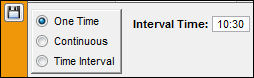
Select the One Time radio button if the planning job is to occur only once. Select the Interval time that this job is to occur at and save.
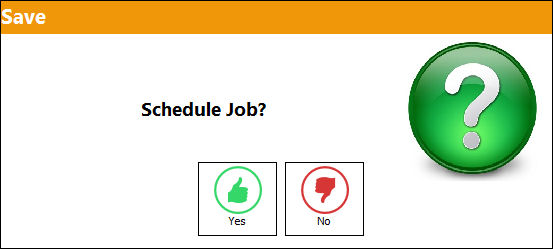
The Schedule Job prompt will appear. Select Yes to schedule the planning job.
TRAX displays the schedule for the one time planning job as shown below:
Note the date and time in the Created Date field.
Select the New  button to create a new planning job.
Select the Delete  button to delete the current planning job.
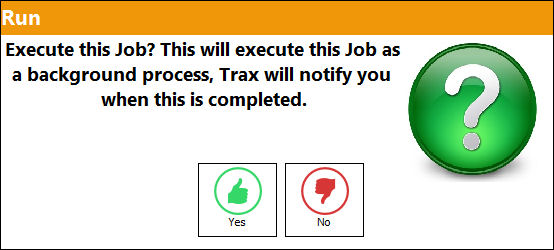
Select the Run  button to override the scheduled time for the current planning job. The Run window appears. Select Yes to run the planning job immediately.
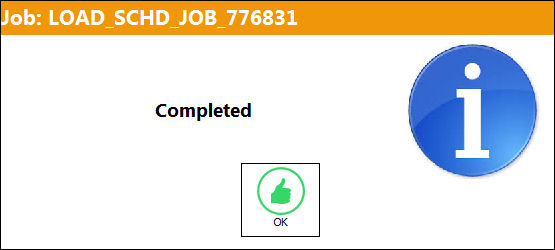
TRAX displays the following information window informing the user that the job has been completed. Select OK.
Select No to run the planning job according to the scheduled time and date.
Share
Print
|
©1997-2026 Trax USA Corp. All rights reserved. This manual may not be copied, photocopied, reproduced, translated, or converted to any electronic or machine-readable form, in whole or in part, without prior written approval from Trax USA Corp. |
 |