
 Share
Share
 Print
Print
|
|
|
|
|


The P/N UOM Change  button is used to change the unit of measure for a part.
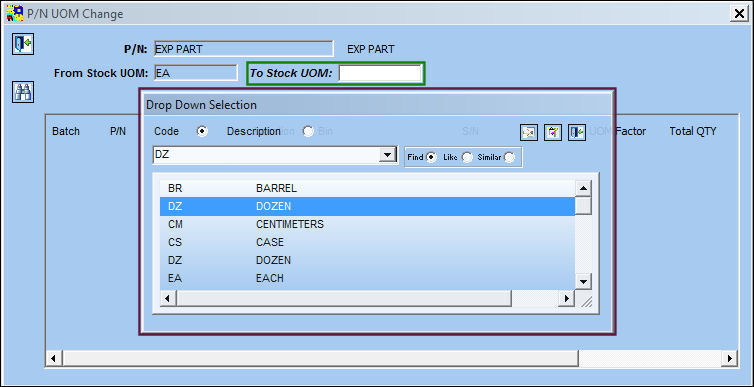
From the P/N Master (General Inventory), select the P/N UOM Change button. Right click in the To Stock UOM field. The Drop Down Selection appears. Select the desired UOM and right click to convert the unit of measure.
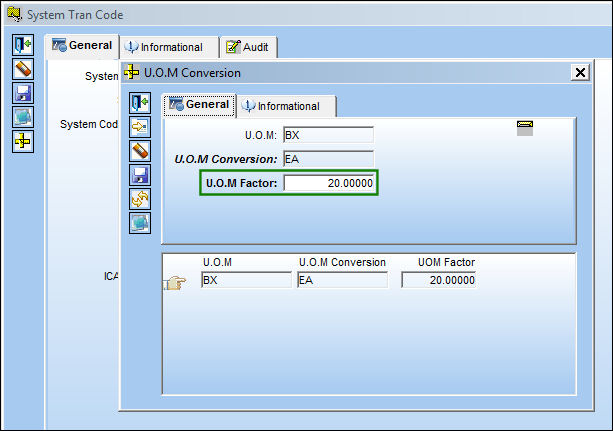
The System Trans Code Window will appear. Select P/N UOM Change button. The U.O.M Conversion Window appears. Convert the UOM factor and select the Save  button. The Save prompt will appear. Select OK. Select the Exit
  button to exit the U.O.M Conversion Window. Save and exit the System Trans Code Window.
For additional information regarding the Unit of Measure System Transaction code, via the Settings Transaction code manual.
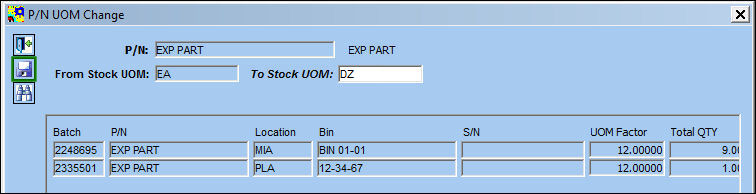
Upon exiting the System Trans Code window, the user will return to the P/N UOM Change Window. Right click in the To Stock UOM field. The available batch, P/N, location will appear. Select the Save button. The save prompt will appear. Select OK.
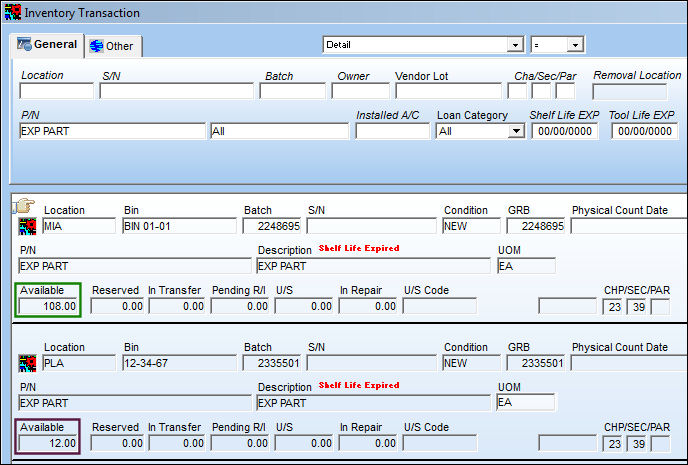
Go to Inventory/Update/Inventory Transaction to view the available quantity of the P/N.
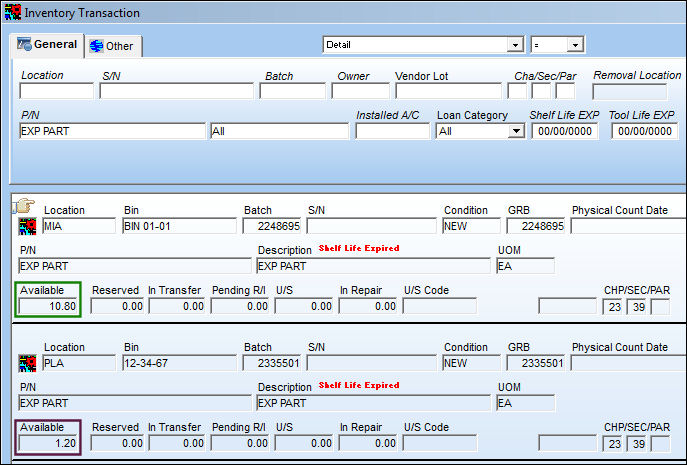
After UOM conversion is complete, return to the Inventory Transaction Window and select the Find  button. The available quantities have been changed accordingly.
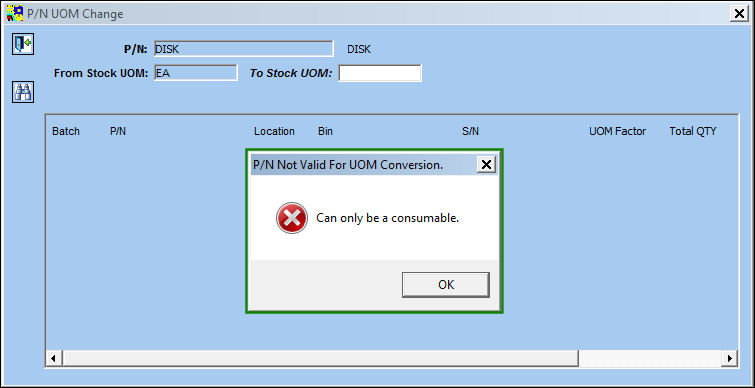
If a part number is selected that has no available quantities to convert, the following warning will appear:
Share
Print
|
©1997-2026 Trax USA Corp. All rights reserved. This manual may not be copied, photocopied, reproduced, translated, or converted to any electronic or machine-readable form, in whole or in part, without prior written approval from Trax USA Corp. |
 |