
 Share
Share
 Print
Print
|
|
|
|
|


Select the P/N  button to modify/create the material requirements to carry out this Task Card. The user may specify if the material is a spare or a tool. The material will be designated for reservation if required. This information will later be used to produce a material pre-load report for a Shop Work Order (check/visit) and can automatically create Picklists and back orders as required.
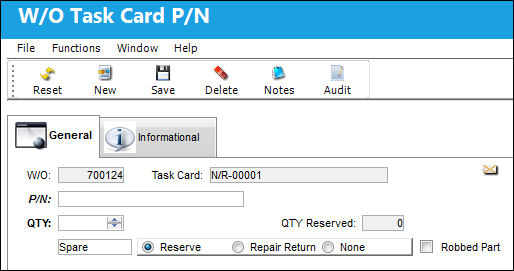
The following information/options are available in this window:
_____________________________________________________________________________________
Task Card
The Task Card / Job Card that details the scheduled maintenance work.
Item (0 = ALL)
The specific item number on the Task Card that this record is to be associated with. Leave default '0' to have this record associated with all item numbers on the Task Card.
If the P/N button is selected from the main Task Card header window then the Item will default to "0."
P/N
The Part Number reference for the aircraft part. This is the Part Number required for the T/C. A part number may be specified only one time per Item Number. However, the same part number may be specified on each unique item number if needed. Users can select into this field or select the Add/Delete Record button to add a P/N.
QTY
The quantity of items/parts required.
Only those parts effective to the A/C Tail number will be reserved or requisitioned as part of the Pick List Generation in the Production module.
Spare drop down
If the item required is a spare, this can be either an Expendable or a Rotable part.
Tool drop down
If the item required is a tool, the P/N must be configured as a Tool in P/N Master via Settings/Update/P/N Master.
Reserve radio button
Select this option to reserve the spare or tool when W/O P/N reservation is applied. When a Picklist Reservation is made via a Work Order, only parts that have the Reserve radio button checked will be reserved. For more information regarding picklist creation, please go to Production/ Update/ Work Order/ Picklist button.
Repair Return radio button
Select this option to repair/return the spare when W/O P/N reservation is applied. This option is used if the currently installed part will be removed and repaired (via Shop or Repair Order) then reinstalled on the same aircraft to satisfy the Task Card's requirement. This is informational. When a Picklist Repair/Return is made via a Work Order, only parts that have the Repair/Return radio button checked will be repaired or returned.
None radio button
Select this option if no spare or tool will be reserved (picklisted) or repaired.
_____________________________________________________________________________________
Additional information can be viewed or included through the following:
Share
Print
|
©1997-2026 Trax USA Corp. All rights reserved. This manual may not be copied, photocopied, reproduced, translated, or converted to any electronic or machine-readable form, in whole or in part, without prior written approval from Trax USA Corp. |
 |